• Categories
    Category
    {{ postCtrl.tags }}
    • {{ category.tag_type }}

      • {{tag.tag_name}}
      • View more
  • Categories
    Category
    {{ postCtrl.tags }}
    • {{ category.tag_type }}

      • {{tag.tag_name}}
      • View more
  • News
  • Tutorials
  • Forums
  • Tags
  • Users
Tutorial News Comments FAQ Related Articles

How to install Transmission BitTorrent client 2.92 on Ubuntu 16.04

{{postValue.id}}

How to install Transmission BitTorrent client 2.92 on Ubuntu 16.04

A Bittorrent client enables you to exchange data as a peer in one or more swarms. There are whole lot of BitTorrent clients, today we are going to see the installation procedure of Transmission BitTorrent client on Ubuntu. Transmission 2.92 BitTorrent Client recently released, is an open-source, cross-platform BitTorrent client application with low memory footprint. It comes in both GUI, CLI and daemon form. All its features are very simple, intuitive interface on top of an efficient, cross-platform back-end.

Features

  • Uses fewer resources than other clients
  • Native Mac, GTK+ and Qt GUI clients
  • Daemon ideal for servers, embedded systems, and headless use
  • All these can be remote controlled by Web and Terminal clients
  • Local Peer Discovery
  • Full encryption, DHT, µ TP, PEX and Magnet Link support

Installation procedure

Before beginning the instalallation procedure, add the bitTorrent client package into repository via ppa.

root@linuxhelp:~# add-apt-repository ppa:transmissionbt/ppa
 Stable builds of transmissionbt
 More info: https://launchpad.net/~transmissionbt/+archive/ubuntu/ppa
Press [ENTER] to continue or ctrl-c to cancel adding it
.
.
.
gpg: key 365C5CA1: public key " Launchpad PPA for transmissionbt"  imported
gpg: no ultimately trusted keys found
gpg: Total number processed: 1
gpg:               imported: 1  (RSA: 1)
OK

After adding the required packages, update the machine by executing the apt-get update command.

root@linuxhelp:~# apt-get update
Hit:1 http://ppa.launchpad.net/transmissionbt/ppa/ubuntu xenial InRelease
Hit:2 http://in.archive.ubuntu.com/ubuntu xenial InRelease              
.
.
.
Get:5 http://in.archive.ubuntu.com/ubuntu xenial-backports InRelease [102 kB]
Fetched 306 kB in 1s (172 kB/s)
Reading package lists... Done

The target system is updated with the required repositories. Install the transmission package by running the following command.

root@linuxhelp:~# apt-get install transmission
Reading package lists... Done
Building dependency tree      
Reading state information... Done
.
.
.
Setting up transmission-common (2.92-1ubuntu1~16.104.2) ...
Setting up transmission-gtk (2.92-1ubuntu1~16.104.2) ...
Setting up transmission (2.92-1ubuntu1~16.104.2) ..

The Transmission BitTorrent client is installed successfully. Launch the Bit-torrent client package from Ubuntu dashboard by typing the package name and click on the icon to run the application.
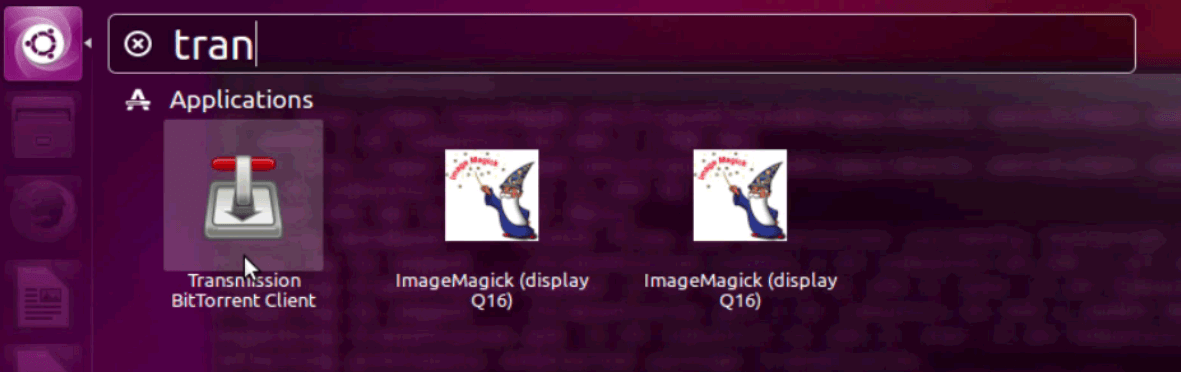
ubuntu dashboard

The Transmission BitTorrent client is installed successfully in your system. Enjoy downloading files by using Transmission client.
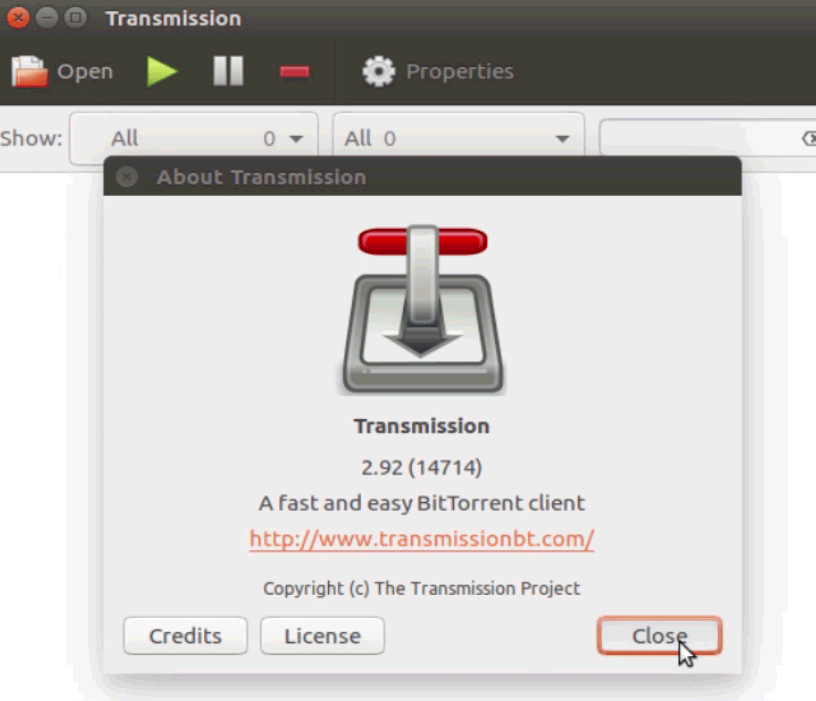
transmission bittorrent

That was so simple procedure, Wasn' t it? Stay connected to know more about BitTorrent clients.

Tags:
jayce
Author: 

Comments ( 0 )

No comments available

Add a comment
{{postCtrl.cmtErrMsg}}

Frequently asked questions ( 5 )

Q

List some of the best applications like this to download torrent files on linux?

A

There are so many files to use in the torrent
Utorrent, Bittorrent, Qbittorrent, Deluge, Transmission

Q

How do I play or open files within the app?

A

When the torrent has completed downloading, tap on it. You will land on the “files” page for your torrent. Tap on the icon of the file you wish to play/open. You may be prompted to choose a player to open the file.

Q

How do I choose where I want to download the file in BitTorrent?

A

A popup will prompt you to select your files from within the torrent, or choose a location before downloading. Tap “Download Location.” Navigate to the folder of your choice. Tap “Ok,” then “Add.”

Q

How do I pause torrents?

A

To pause all torrents, tap on the menu button (three dots) in upper-right corner of the screen in portrait (vertical) mode. Tap “Pause All.” (Exception: some Samsung devices will have the menu button appear when tapping on the phone’s built-in “menu” button the lower right corner of the PHONE--not on the screen.)

Q

How do I pause seeding in BitTorrent?

A

To pause one or more torrents, tap on the circles next to the torrents you would like to pause. A small menu will show up; tap on the || button to pause.

Back To Top!
Rank
User
Points

Top Contributers

userNamenaveelansari
135850

Top Contributers

userNameayanbhatti
92510

Top Contributers

userNamehamzaahmed
32150

Top Contributers

1
userNamelinuxhelp
31040

Top Contributers

userNamemuhammadali
24500
Can you help Elijah ?
Remote Desktop Connection Has Stopped Working

When accessing my remote machine server using remote desktop on a windows machine I am getting this error

forum (1)

Networking
  • Routing
  • trunk
  • Netmask
  • Packet Capture
  • domain
  • HTTP Proxy
Server Setup
  • NFS
  • KVM
  • Memory
  • Sendmail
  • WebDAV
  • LXC
Shell Commands
  • Cloud commander
  • Command line archive tools
  • last command
  • Shell
  • terminal
  • Throttle
Desktop Application
  • Linux app
  • Pithos
  • Retrospect
  • Scribe
  • TortoiseHg
  • 4Images
Monitoring Tool
  • Monit
  • Apache Server Monitoring
  • EtherApe 
  • Arpwatch Tool
  • Auditd
  • Barman
Web Application
  • Nutch
  • Amazon VPC
  • FarmWarDeployer
  • Rukovoditel
  • Mirror site
  • Chef
Contact Us | Terms of Use| Privacy Policy| Disclaimer
© 2025 LinuxHelp.com All rights reserved. Linux™ is the registered trademark of Linus Torvalds. This site is not affiliated with linus torvalds in any way.