• Categories
    Category
    {{ postCtrl.tags }}
    • {{ category.tag_type }}

      • {{tag.tag_name}}
      • View more
  • Categories
    Category
    {{ postCtrl.tags }}
    • {{ category.tag_type }}

      • {{tag.tag_name}}
      • View more
  • News
  • Tutorials
  • Forums
  • Tags
  • Users
Tutorial News Comments FAQ Related Articles

How to install Ubuntu 15.10 with Snapshots

{{postValue.id}}

To install Ubuntu 15.10 with Snapshots --------------------------------------

The new features in Ubuntu includes Intel SkyLake CPUs, New drivers for different input devices, Persistent network interface names, New AMD CPUs, Better drivers for sensors, Overlay Scroll bars and Core application updates.

To install Ubuntu 15.10

To create a bootable Ubuntu USB flash drive

Enter the UEFI settings and disable fast and secure boot options. Now configure your machine to reboot in UEFI

Ubuntu Installation Guide

You can try Ubuntu without installing. To run the installation choose Install Ubuntu.Ubuntu15.10_Installation_install

Now the Ubuntu runs checks if system satisfies the requirements for installing.
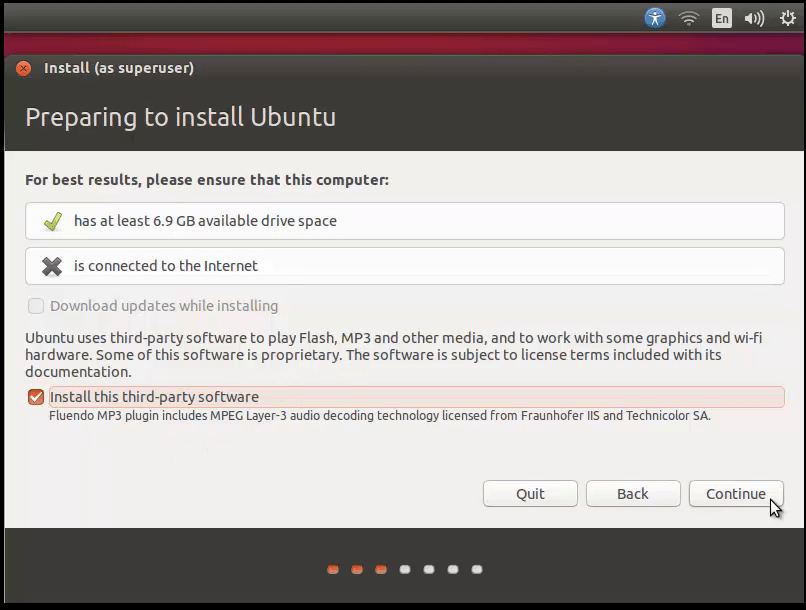
Ubuntu15.10_Installation_requirements

To configure the partitions of your Ubuntu installation

Choose Erase disk and install Ubuntu if Ubuntu is the only OS in your PC. To configure click something else.

Ubuntu15.10_Installation_type

To click on New partition table

Ubuntu15.10_Installation_partition

To create the new partitions on your system

In the beginning all partitions should be primary, the swap partition should be minimum 1GB, root partition should be minimum 10GB and EFI system partition should be 650MB.

Select free space to start and press Plus button to create first standard partition and use as EFI System Partition by setting it to 650 MB.

Now set the disk space to 10GB and configure the following

Mount point and Ext4 journalist system

Ubuntu15.10_Installation_ext4

To prepare swap partition

Ubuntu15.10_Installation_swap_partition

The final partition to create is home

Ubuntu15.10_Installation_swap_area

After creating the partitions click on install to continue with the installation process ans confirm the changes made to the hard disks.Ubuntu15.10_Installation_install_now

Ubuntu15.10_Installation_write_to_disk

To configure your location

Ubuntu15.10_Installation_location

To choose your keyboard layout

Ubuntu15.10_Installation_keyboard

To create new user

Fill in the details to configure new user

Ubuntu15.10_Installation_user

click continue for installation to start.

Ubuntu15.10_Installation_welcome

Note: Eject the installation media after the installation is complete

To login your new Ubuntu installed

Ubuntu15.10_Installation_restart
Ubuntu15.10_Installation_user_credentials
Ubuntu15.10_Installation_complete

Tags:
jackson
Author: 

Comments ( 0 )

No comments available

Add a comment
{{postCtrl.cmtErrMsg}}

Frequently asked questions ( 5 )

Q

Ubuntu installation has no bootable device found error

A

check your bootable media (dvd or usb) is properly working and also check the iso file (if using usb boot) is not currupted

Q

How to fix broken package in ubuntu

A

try dpkg –configure -a or apt-get install -f

Q

How to make a bootable usb drive on ubuntu

A

use the command dd if=ubuntu.iso of=/dev/sdb to make bootable usb from command line

Q

Where is the snapshots can be stored?

A

The snapshots can be used to stored in the data.

Q

How do I take a snapshot on AWS?

A

Open the Amazon EC2 console at https://console.aws.amazon.com/ec2/.
Choose Snapshots in the navigation pane.
Choose Create Snapshot.
On the Create Snapshot page, select the volume to create a snapshot for.
(Optional) Choose Add tags to your snapshot. ...

Back To Top!
Rank
User
Points

Top Contributers

userNamenaveelansari
135850

Top Contributers

userNameayanbhatti
92510

Top Contributers

userNamehamzaahmed
32150

Top Contributers

1
userNamelinuxhelp
31040

Top Contributers

userNamemuhammadali
24500
Can you help Luk Van De Looverbosch ?
How to create a root ?

Hello,
How to create root@linuxhelp in Linux Mint 20.1 64-bit ?
Thanks in advance for your reply.
Best regards.

Networking
  • Routing
  • trunk
  • Netmask
  • Packet Capture
  • domain
  • HTTP Proxy
Server Setup
  • NFS
  • KVM
  • Memory
  • Sendmail
  • WebDAV
  • LXC
Shell Commands
  • Cloud commander
  • Command line archive tools
  • last command
  • Shell
  • terminal
  • Throttle
Desktop Application
  • Linux app
  • Pithos
  • Retrospect
  • Scribe
  • TortoiseHg
  • 4Images
Monitoring Tool
  • Monit
  • Apache Server Monitoring
  • EtherApe 
  • Arpwatch Tool
  • Auditd
  • Barman
Web Application
  • Nutch
  • Amazon VPC
  • FarmWarDeployer
  • Rukovoditel
  • Mirror site
  • Chef
Contact Us | Terms of Use| Privacy Policy| Disclaimer
© 2025 LinuxHelp.com All rights reserved. Linux™ is the registered trademark of Linus Torvalds. This site is not affiliated with linus torvalds in any way.