• Categories
    Category
    {{ postCtrl.tags }}
    • {{ category.tag_type }}

      • {{tag.tag_name}}
      • View more
  • Categories
    Category
    {{ postCtrl.tags }}
    • {{ category.tag_type }}

      • {{tag.tag_name}}
      • View more
  • News
  • Tutorials
  • Forums
  • Tags
  • Users
Tutorial News Comments FAQ Related Articles

How to Install Ubuntu 16.04 (Xenial Xerus) on UEFI Systems

{{postValue.id}}

To Install Ubuntu 16.04 (Xenial Xerus) Desktop on UEFI Firmware Systems

In this article we are going to discuss about the Installation of Ubuntu 16.04 Desktop on UEFI Firmware machines.

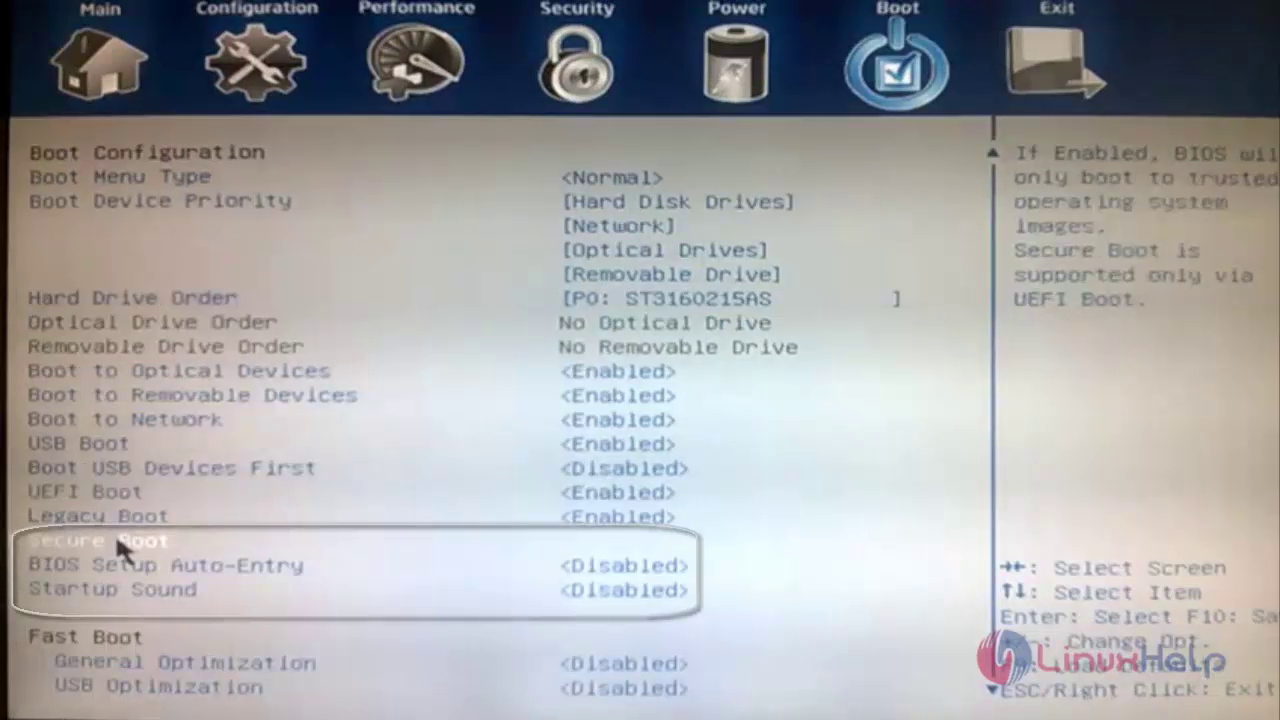
Before installation, disable Fast Boot and Secure Boot options on bios settings.
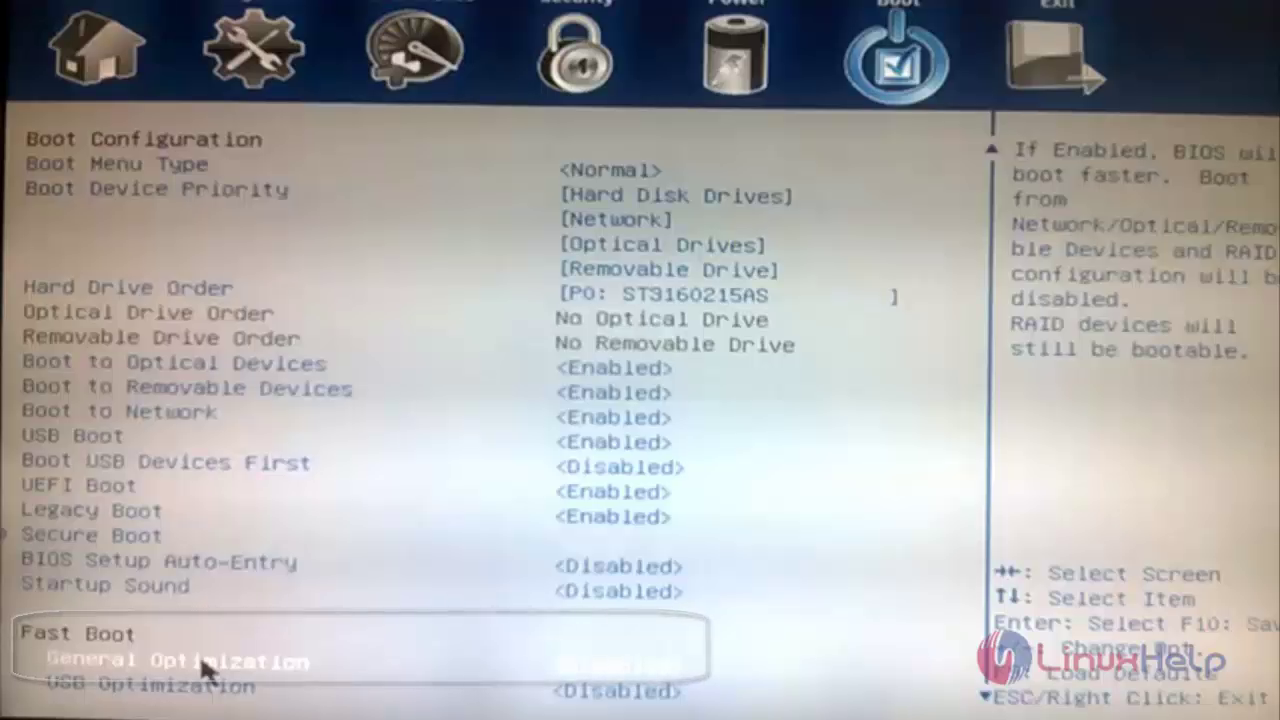
bios settings

boot configuration

To Download Ubuntu 16.04 ISO image, use the following link,

http://releases.ubuntu.com/16.04/

To Install Ubuntu 16.04 Desktop

Before starting with the installation, make sure that a standard EFI partition was created. Burn an Ubuntu ISO image into drive and restart UEFI with USB/CD drive. Choose Install Ubuntu and press Enter in the Grub screen.
installing ubuntu

Select the desired " Language" and click continue.
welcome page

In installation type, choose something else option so that you can create partition by yourself.
snap

Next you can see your hard disk on installation type wizard. Choose it and click continue to create new empty partition.
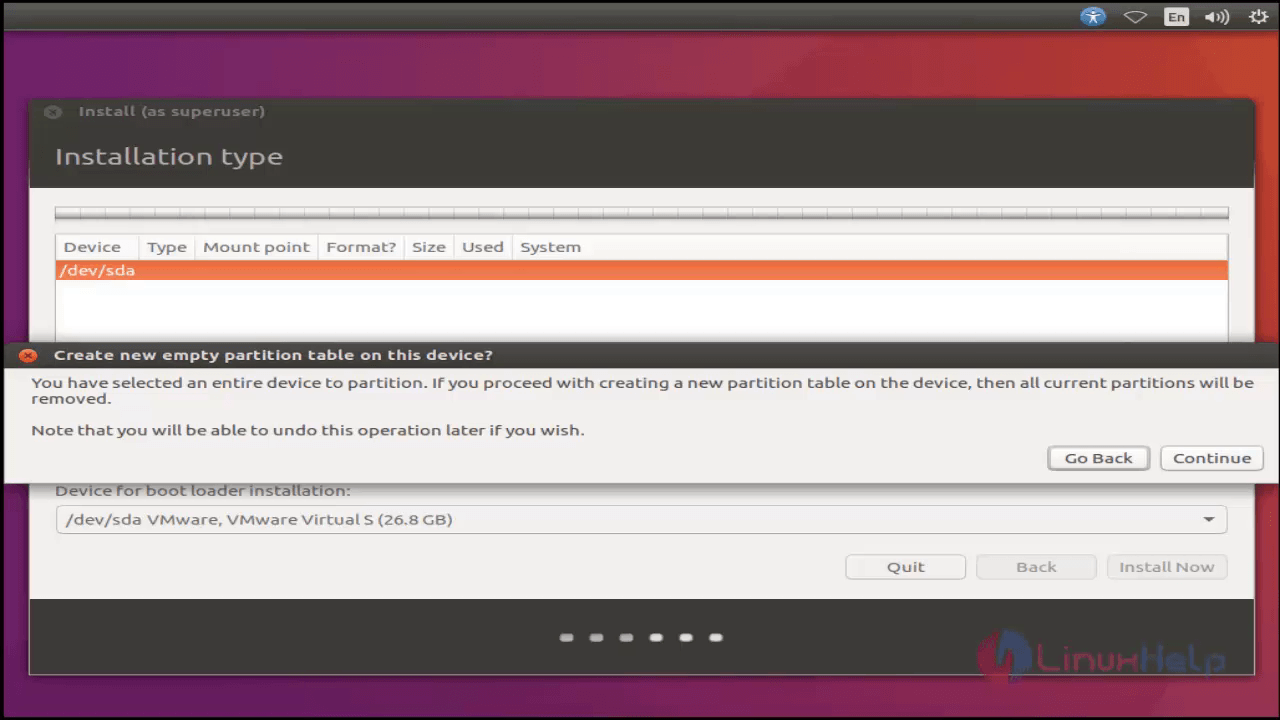
installation type

Select “ +” or click your hard disk free space. Now it shows create partition message box. Here you can create your partition as shown below and finally click ok.

Size 15000MB
Type of the new partition primary
Location for the new partition Beginning of this space
Use as Ext4 journaling file system
Mount point /

disk partitioning

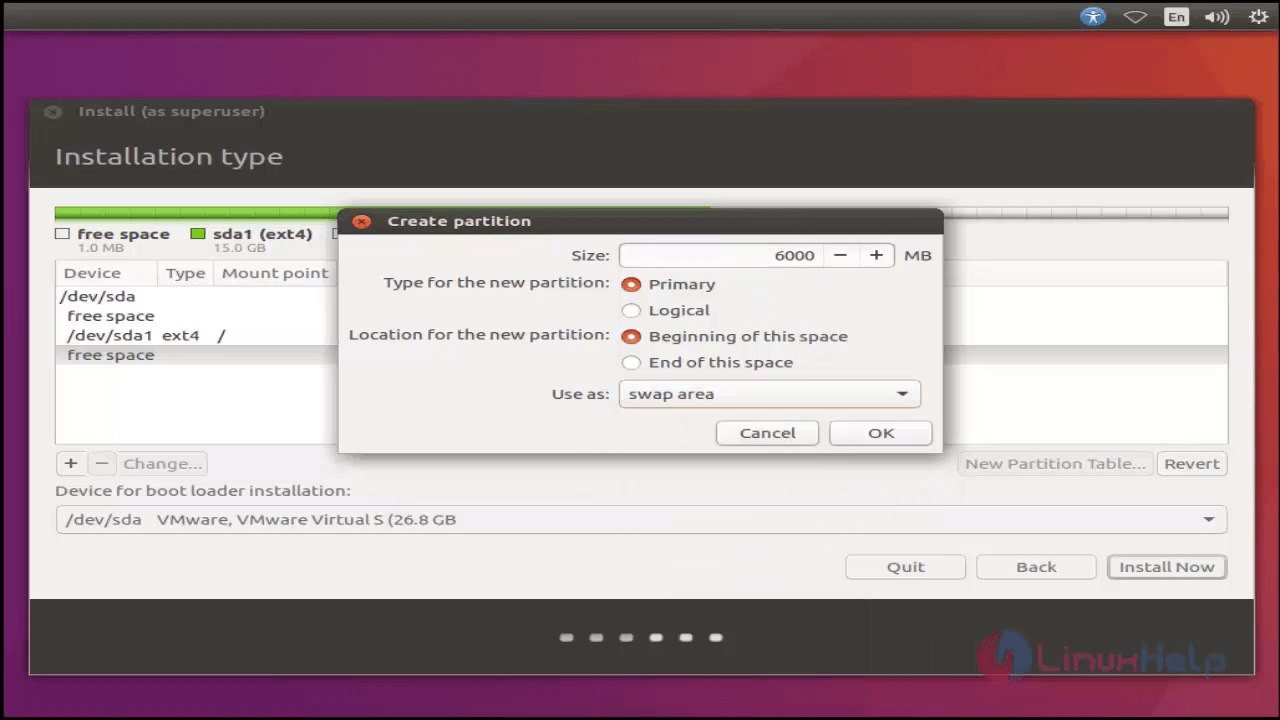
Then create new partition for swap memory. Here, swap memory size must be double of your actual physical memory (RAM).

Size 6000MB
Type of the new partition primary
Location for the new partition Beginning of this space
Use as swap area


swap memory

Instead of boot, create new partition for UEFI.

Size 500MB
Type of the new partition primary
Location for the new partition Beginning of this space
Use as EFI System Partition


new partion

Once the partition is done, click “ Install now” on installation wizard.
installation wizard

Then choose your Location.
location

Select your keyboard language and click “ Continue”
keyboard language

Set “ user name” , “ password” and “ host name” and click " continue”
user credentials

Now the installation starts.
welcome page

After the installation is completed, restart the system to apply changes.
restart

Enter user credentials to login.
login

Ubuntu 16.04 Desktop screen appears.
dashboard

Now the Ubuntu 16.04 installation process is completed on UEFI firmware machine.

Tags:
jacob
Author: 

Comments ( 0 )

No comments available

Add a comment
{{postCtrl.cmtErrMsg}}

Frequently asked questions ( 5 )

Q

How can I choose the customize partitioning while the installation of Ubuntu 16.04?

A

You can choose the "Something else" in :Installation Type" while the installation of Ubuntu 16.04

Q

If its possible to configure network connection while installing the Operating system?

A

Yes. You can configure the network connection while installing the Operating system of "Ubuntu 16.04"

Q

How many sizes will be allocated to the swap partition?

A

The memory allocation size of "swap" memory should be double the amount of existing size of physical RAM memory on the system.

Q

How to install Ubuntu 18.04?

A

You can use the following tutorial will explain the installation of Ubuntu 18.04 "https://www.linuxhelp.com/how-to-install-ubuntu-18-04/"

Q

I'm the newbie of using the Ubuntu OS. How can I switch into root user mode on the terminal?

A

You can use the following command to switch into "root" user mode on the terminal. For syntax: "sudo -su".

Back To Top!
Rank
User
Points

Top Contributers

userNamenaveelansari
135850

Top Contributers

userNameayanbhatti
92510

Top Contributers

userNamehamzaahmed
32150

Top Contributers

1
userNamelinuxhelp
31040

Top Contributers

userNamemuhammadali
24500
Can you help Jayce ?
What are the types of table used in IPtables

What are the various types of table used in IPtables and how to use that for my server security?

Networking
  • Routing
  • trunk
  • Netmask
  • Packet Capture
  • domain
  • HTTP Proxy
Server Setup
  • NFS
  • KVM
  • Memory
  • Sendmail
  • WebDAV
  • LXC
Shell Commands
  • Cloud commander
  • Command line archive tools
  • last command
  • Shell
  • terminal
  • Throttle
Desktop Application
  • Linux app
  • Pithos
  • Retrospect
  • Scribe
  • TortoiseHg
  • 4Images
Monitoring Tool
  • Monit
  • Apache Server Monitoring
  • EtherApe 
  • Arpwatch Tool
  • Auditd
  • Barman
Web Application
  • Nutch
  • Amazon VPC
  • FarmWarDeployer
  • Rukovoditel
  • Mirror site
  • Chef
Contact Us | Terms of Use| Privacy Policy| Disclaimer
© 2025 LinuxHelp.com All rights reserved. Linux™ is the registered trademark of Linus Torvalds. This site is not affiliated with linus torvalds in any way.