• Categories
    Category
    {{ postCtrl.tags }}
    • {{ category.tag_type }}

      • {{tag.tag_name}}
      • View more
  • Categories
    Category
    {{ postCtrl.tags }}
    • {{ category.tag_type }}

      • {{tag.tag_name}}
      • View more
  • News
  • Tutorials
  • Forums
  • Tags
  • Users
Tutorial News Comments FAQ Related Articles

How to install Ubuntu 17.10

{{postValue.id}}

To install Ubuntu 17.10

Ubuntu is free and open-source OS and one of the Linux distributions that based on the Debian operating system. Ubuntu has a default user interface called unity. The Debian based operating system contains several pre-installed software like Firefox, transmission, Sudoku game, etc. Users can also enjoy the additional in-built software in Ubuntu. This tutorial explains the installation procedure of Ubuntu 17.10.

Installation Procedure

To install the Ubuntu 17.10, go to Ubuntu’ s official site and download the ISO and burn it bootable media devices like DVD or USB. Boot it into the target machine and it will lead to the installation page as shown below. Select the Install Ubuntu option.
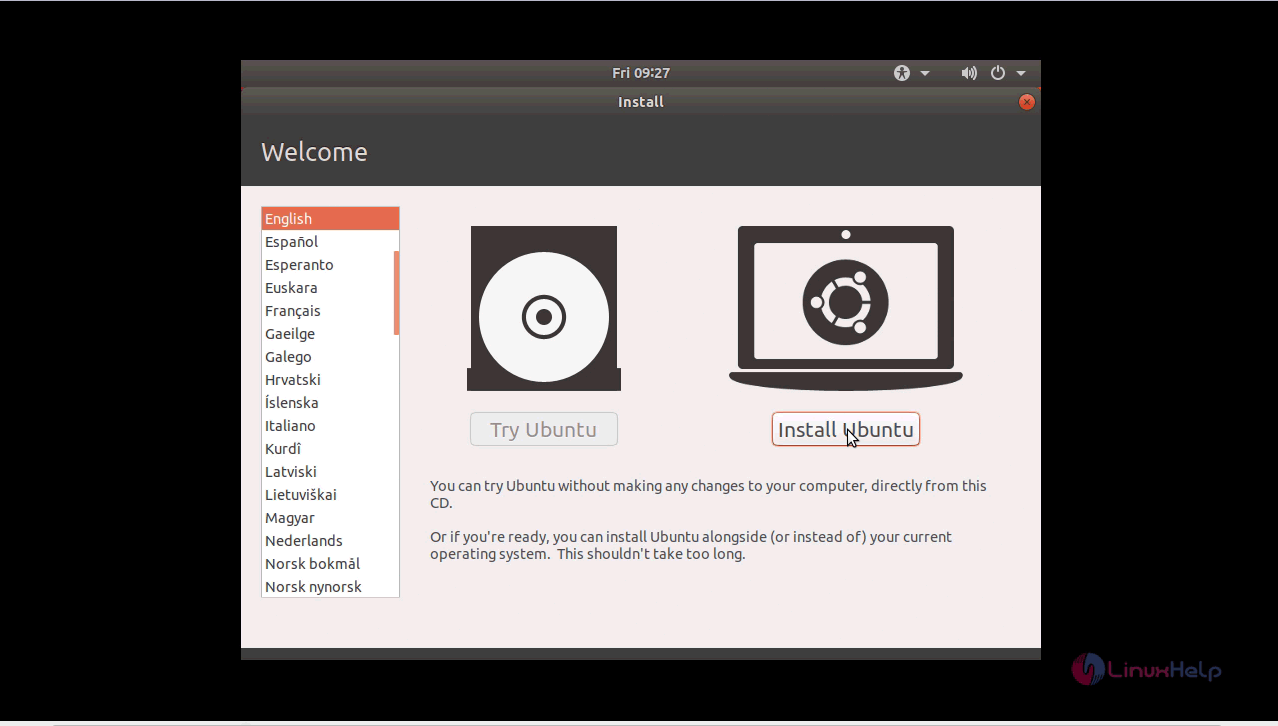
install Ubuntu


Click Install third party software option to proceed with the installation and click continue.

third party software

Choose Something else option for configuring the manual partitioning for Ubuntu. And click continue button

manual partitioning

Select the New partition table option to manually configure the partition table.

new partition table

To create three partitions like boot, swap and root partition. Click the “ +” symbol to create new partition. Enter the size of Swap area and create the swap partition.

swap partition

Now create the root partition with mount point as " /" and enter the size of the partition.

root partition

Next create the boot partition which should be the twice the size of the physical memory present in the system. After finishing the partition changes, the summary of the partition will be displayed on the screen. Click continue to navigate to next page.

summary of partition

Select the TimeZone and click continue.

time zone

Select the keyboard layout option and click continue.

keyboard layout

Create an username and password for Ubuntu along with the other credentials and click continue option to continue with the installation. user credentials

The installation of Ubuntu is in progress and you may have to wait for sometime for the changes to be implemented in the system.

installation in progress

additional softwares

The installation is complete and now click Restart Now option to restart the system.

restart

The login page of Ubuntu appears on the screen.
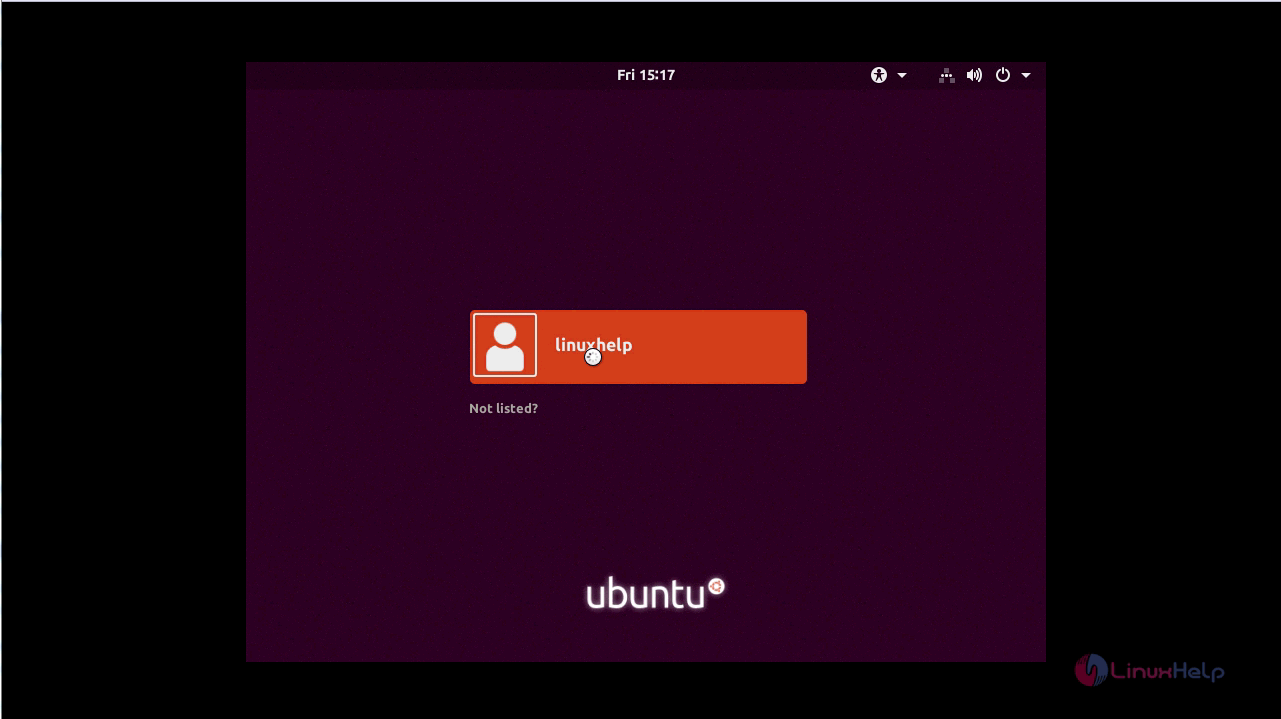
login page

Enter the required password credentials to login to Ubuntu and click Sign In option.

password

The home page of Ubuntu 17.10 is displayed on the screen.

home page

Thus we conclude the installation procedure of Ubuntu 17.10.

Tags:
matthew
Author: 

Comments ( 0 )

No comments available

Add a comment
{{postCtrl.cmtErrMsg}}

Frequently asked questions ( 5 )

Q

Is this version of Ubuntu LTS?

A

No, it is not only the version released with *.04 will become Ubuntu LTS on every year April month.

Q

What software did you use for booting your Ubuntu iso?

A

Power iso or Rufus can be used for booting Os.

Q

Is power iso can be installed in Ubuntu Linux?

A

Yes, you can get tar format of Power ISO on its site, from which you install that on Ubuntu Linux.

Q

Are Ubuntu and Linux the same thing?

A

Ubuntu was created by people that had been involved with Debian and Ubuntu is officially proud of its Debian roots. It's all ultimately GNU/Linux but Ubuntu is a flavor. In the same way that you can have different dialects of English. The source is open so anyone can create their own version of it.

Q

Which is better Ubuntu or Kali?

A

Kali is following from Backtrack and Backtrack was Ubuntu with penetration packages installed. So, no, comparing Kali and Ubuntu on God knows what is just mean. Ubuntu runs on the most number of clouds around and Ubuntu runs on phones too. Both Kali and Ubuntu are Debian based and hence you can dpkg -i *.deb on both.

Back To Top!
Rank
User
Points

Top Contributers

userNamenaveelansari
135850

Top Contributers

userNameayanbhatti
92510

Top Contributers

userNamehamzaahmed
32150

Top Contributers

1
userNamelinuxhelp
31040

Top Contributers

userNamemuhammadali
24500
Can you help Ryan ?
how to use visual traceroute tool

Am using traceroute command to check for the route. i got this tool while surfing. So pls help me out installation and usage of Visual traceroute tool.

Networking
  • Routing
  • trunk
  • Netmask
  • Packet Capture
  • domain
  • HTTP Proxy
Server Setup
  • NFS
  • KVM
  • Memory
  • Sendmail
  • WebDAV
  • LXC
Shell Commands
  • Cloud commander
  • Command line archive tools
  • last command
  • Shell
  • terminal
  • Throttle
Desktop Application
  • Linux app
  • Pithos
  • Retrospect
  • Scribe
  • TortoiseHg
  • 4Images
Monitoring Tool
  • Monit
  • Apache Server Monitoring
  • EtherApe 
  • Arpwatch Tool
  • Auditd
  • Barman
Web Application
  • Nutch
  • Amazon VPC
  • FarmWarDeployer
  • Rukovoditel
  • Mirror site
  • Chef
Contact Us | Terms of Use| Privacy Policy| Disclaimer
© 2025 LinuxHelp.com All rights reserved. Linux™ is the registered trademark of Linus Torvalds. This site is not affiliated with linus torvalds in any way.