• Categories
    Category
    {{ postCtrl.tags }}
    • {{ category.tag_type }}

      • {{tag.tag_name}}
      • View more
  • Categories
    Category
    {{ postCtrl.tags }}
    • {{ category.tag_type }}

      • {{tag.tag_name}}
      • View more
  • News
  • Tutorials
  • Forums
  • Tags
  • Users
Tutorial News Comments FAQ Related Articles

How to install Ubuntu 18.04

{{postValue.id}}

To install Ubuntu 18.04

The latest version of Ubuntu - 18.04 has been released recently, as a beta version. The release of the stable version is expected in the last week of April 2018. This tutorial covers the installation of Ubuntu 18.04. Ubuntu 18.04 is codenamed as Bionic Beaver while the previous release is codenamed as Artful Aardvark and it uses Gnome 3.28 which looks more than satisfiable.

Installing Ubuntu 18.04

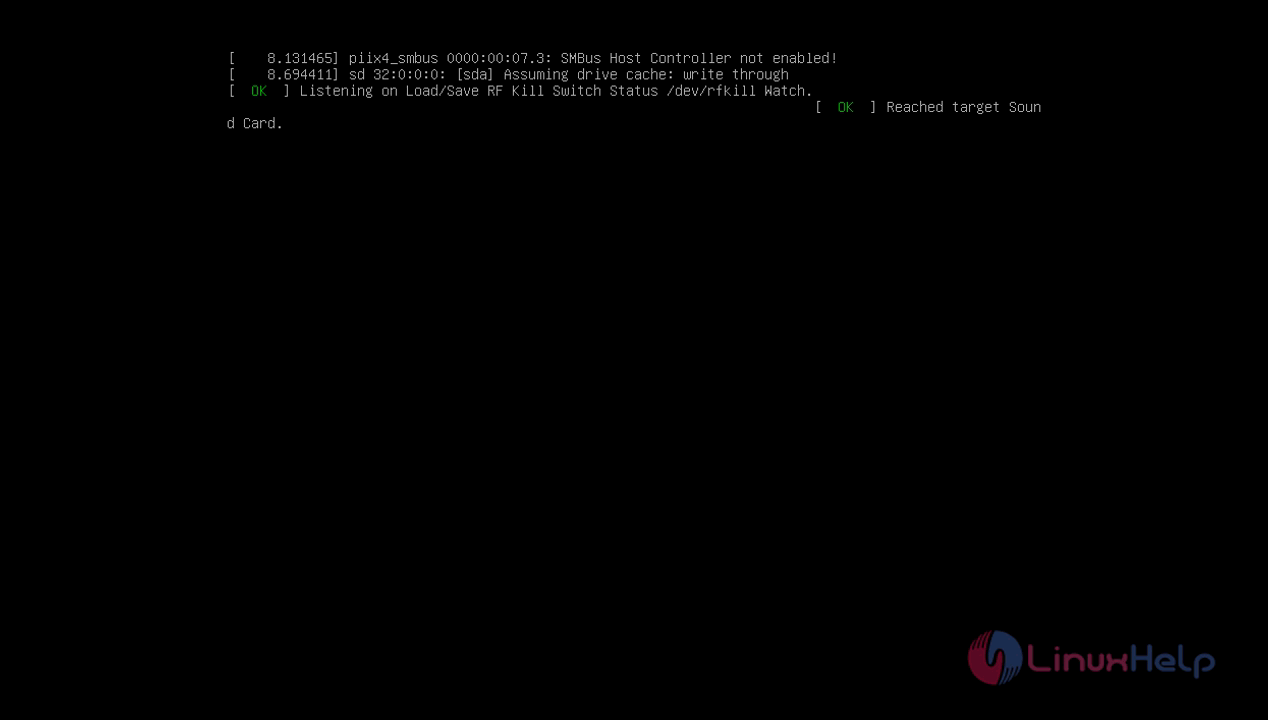
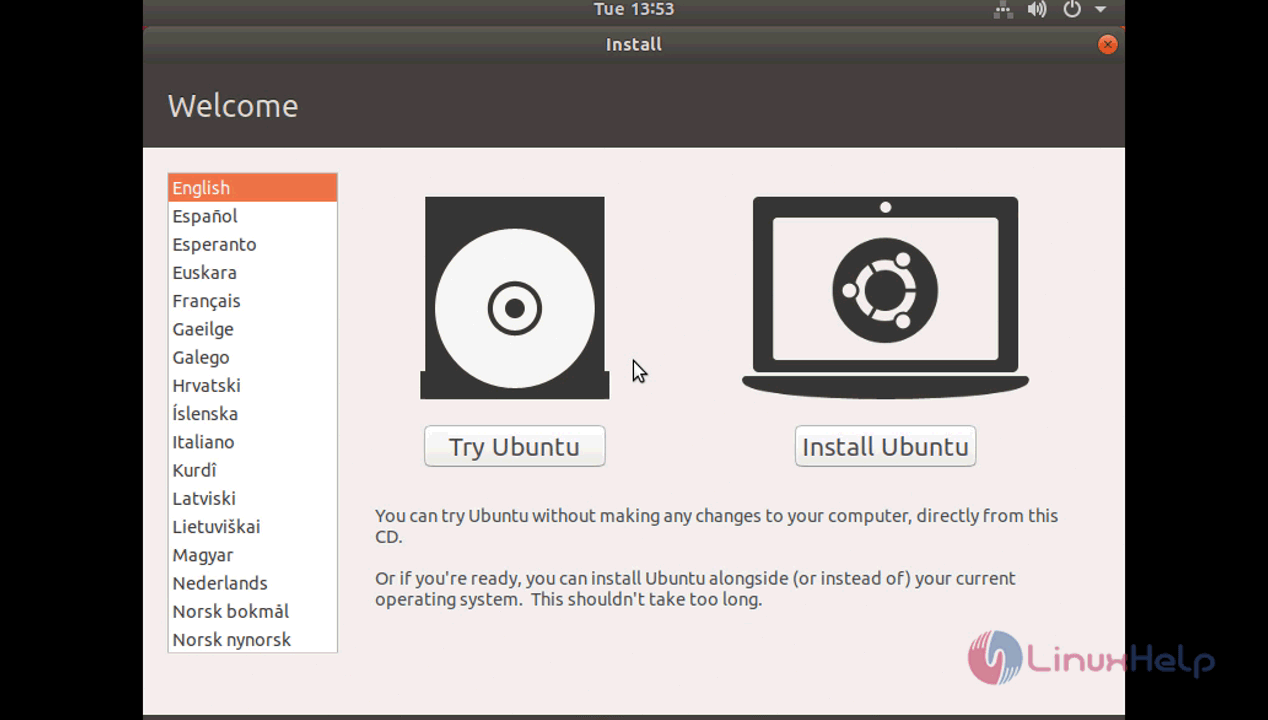
Once you boot your installation setup, the following screen will appear. Choose the Installation language and click on “ Install Ubuntu”
Ubuntu

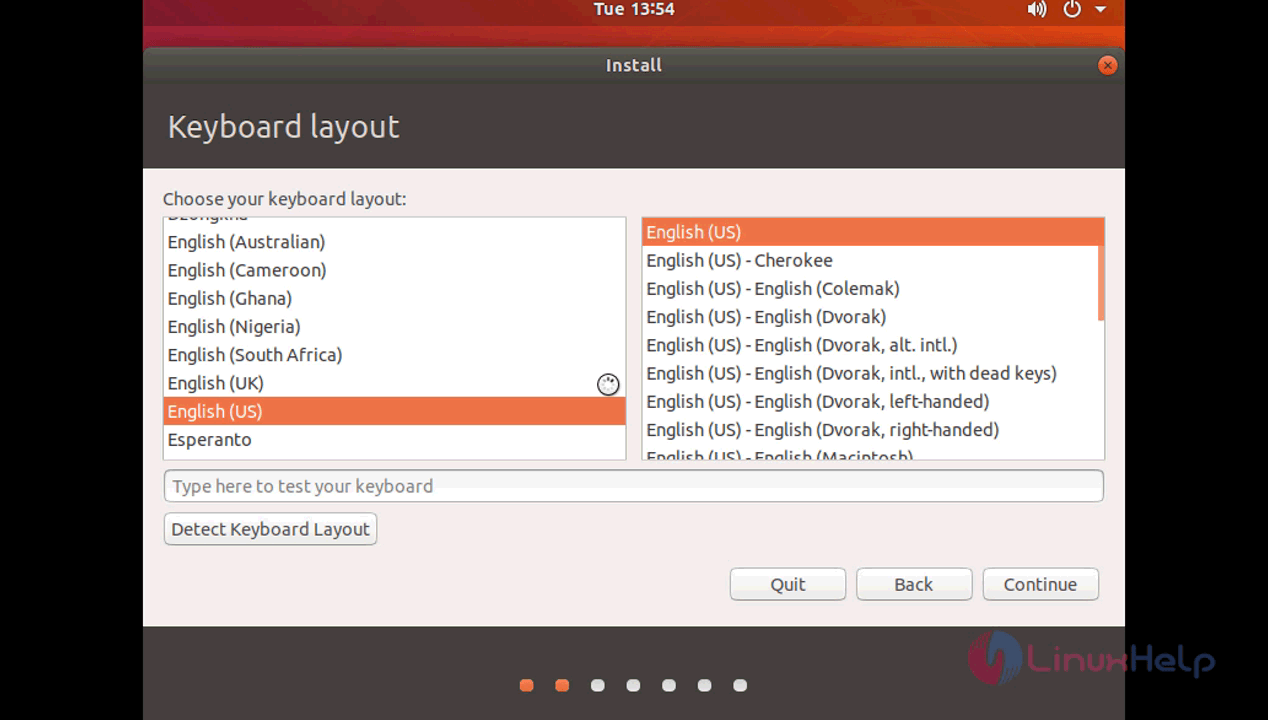
On next screen, you have to choose the keyboard layout and click Continue.
Keyboard


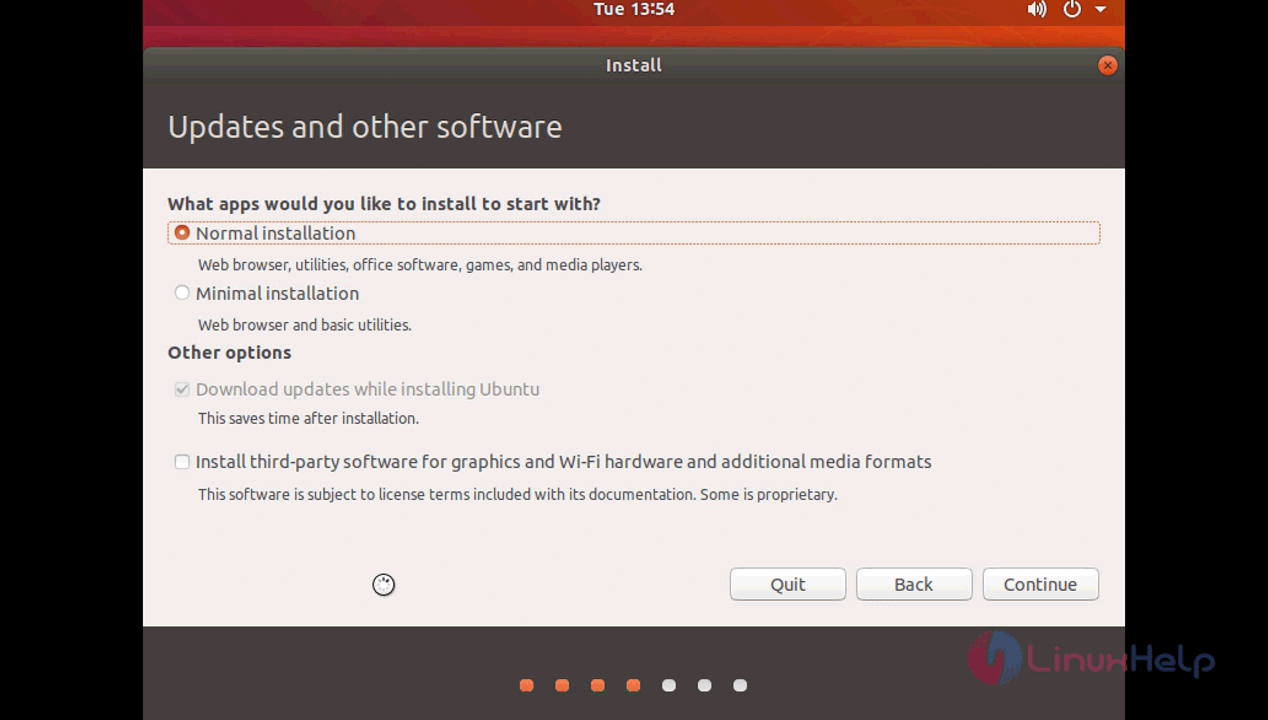
And then, choose the installation type on Ubuntu 18.04 (Minimal installation utility is also there with just basic utilities and web browser only). Here we are going to use normal installation method where you get all basic application and utilities offered by Ubuntu.
Normal

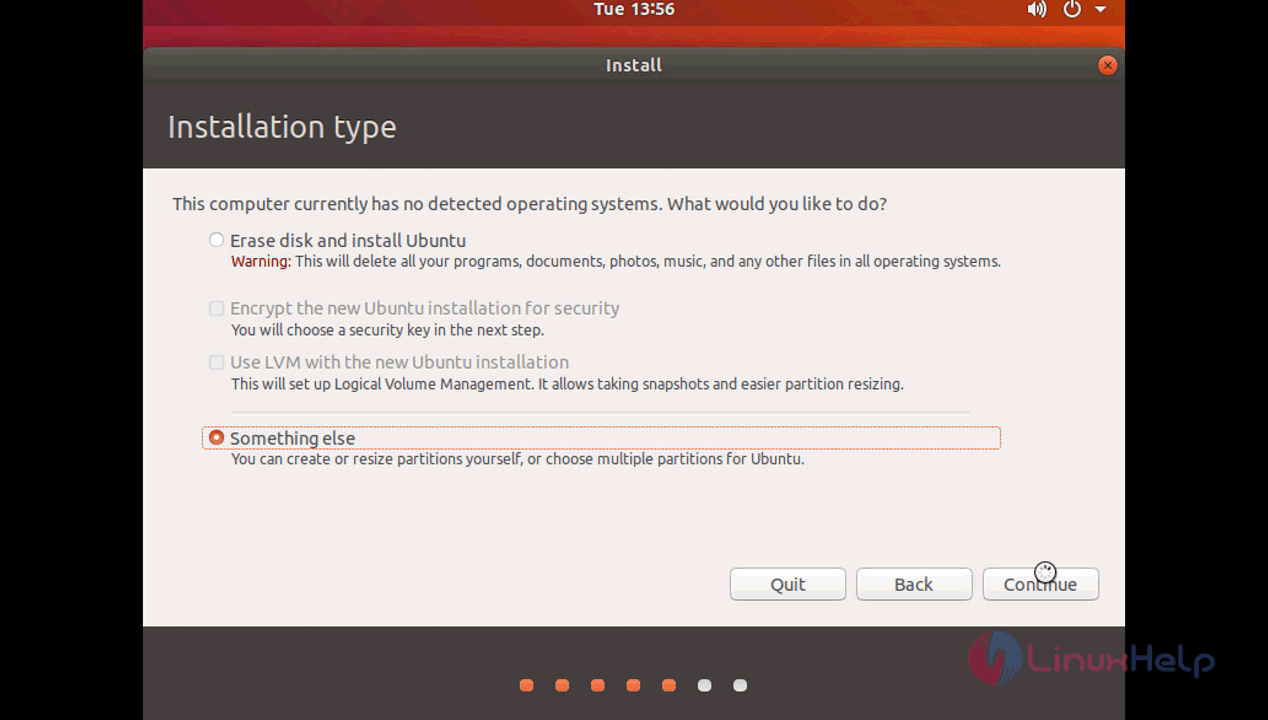
Next, we have to choose the installation type and if you want to utilize whole storage choose to erase everything and install Ubuntu but here we are going to do a manual partitioning so choose “ something else.”
Storage


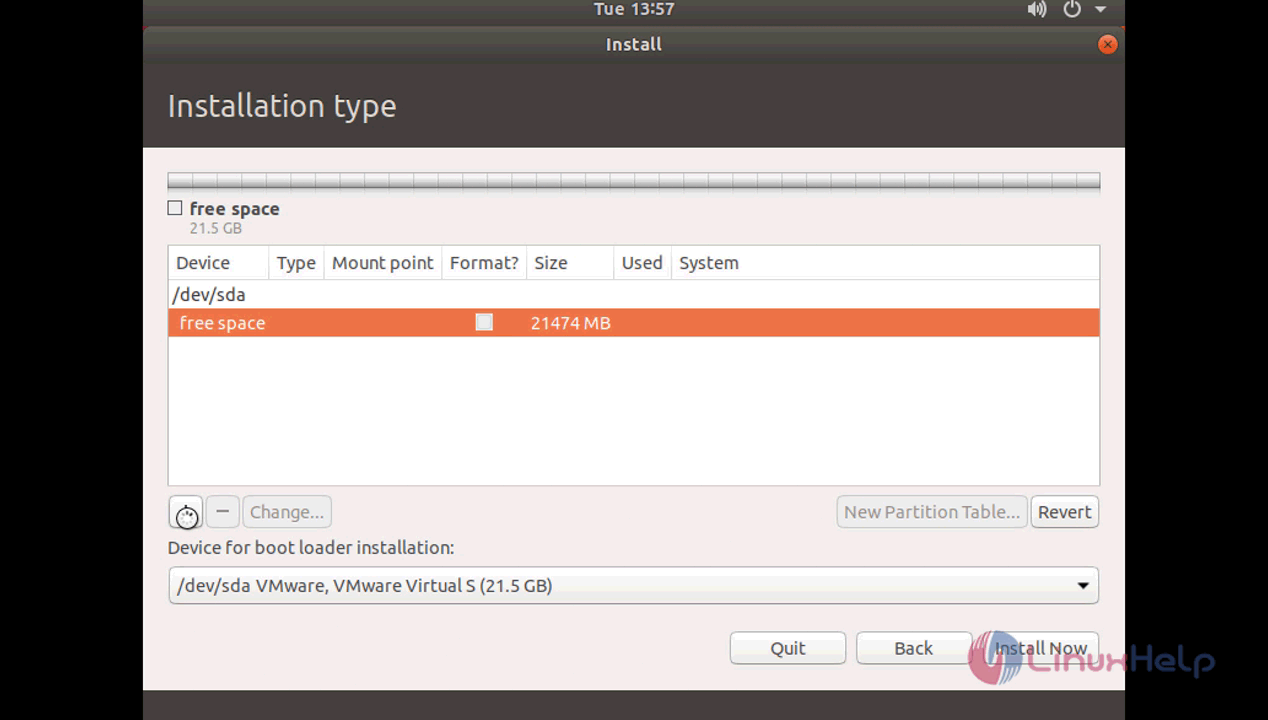
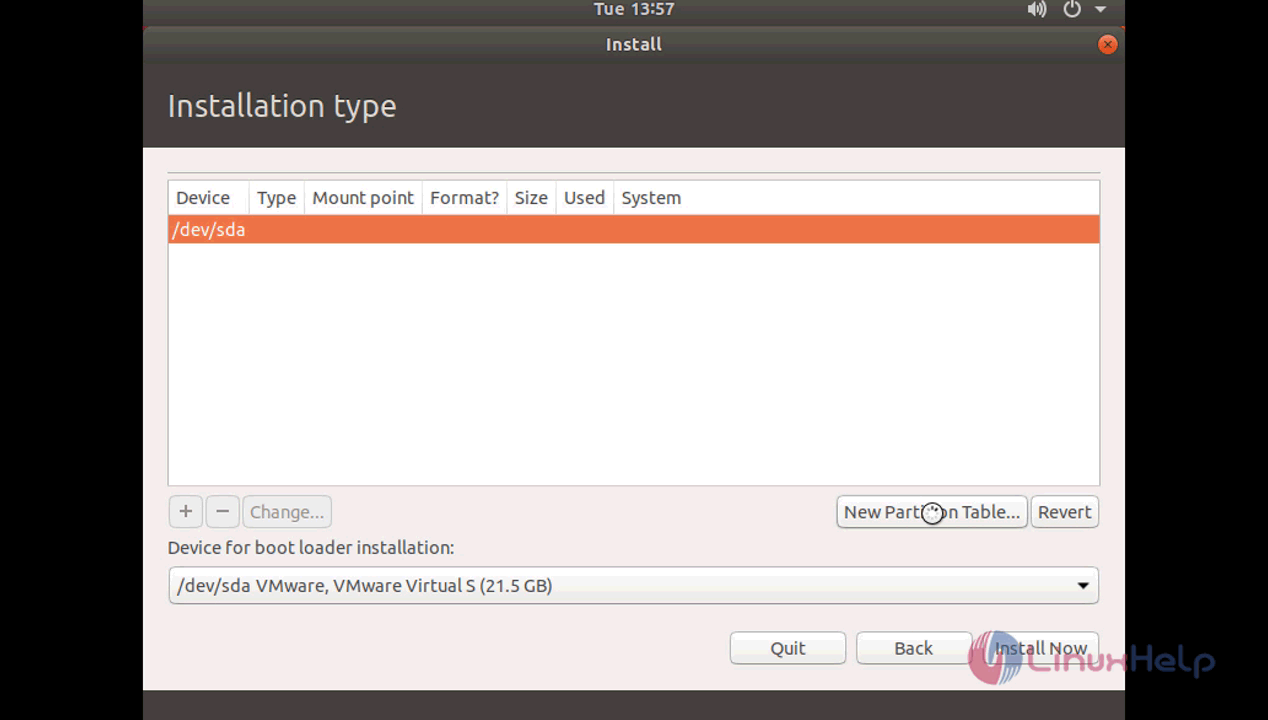
On next screen choose “ new partition table” and select the “ free space” and click on “ + ” button.
Partition
Vmare

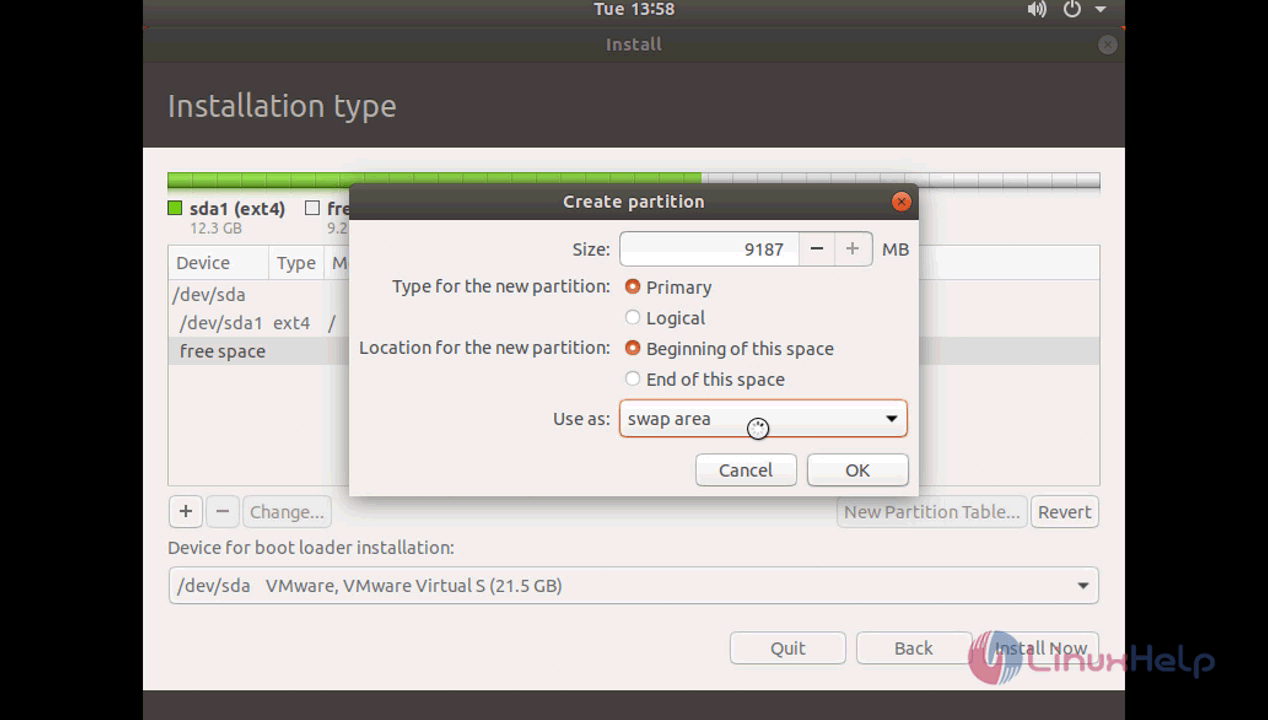
In the dialog box that appears, create a partition by assigning size, type, location, file system and mount point.
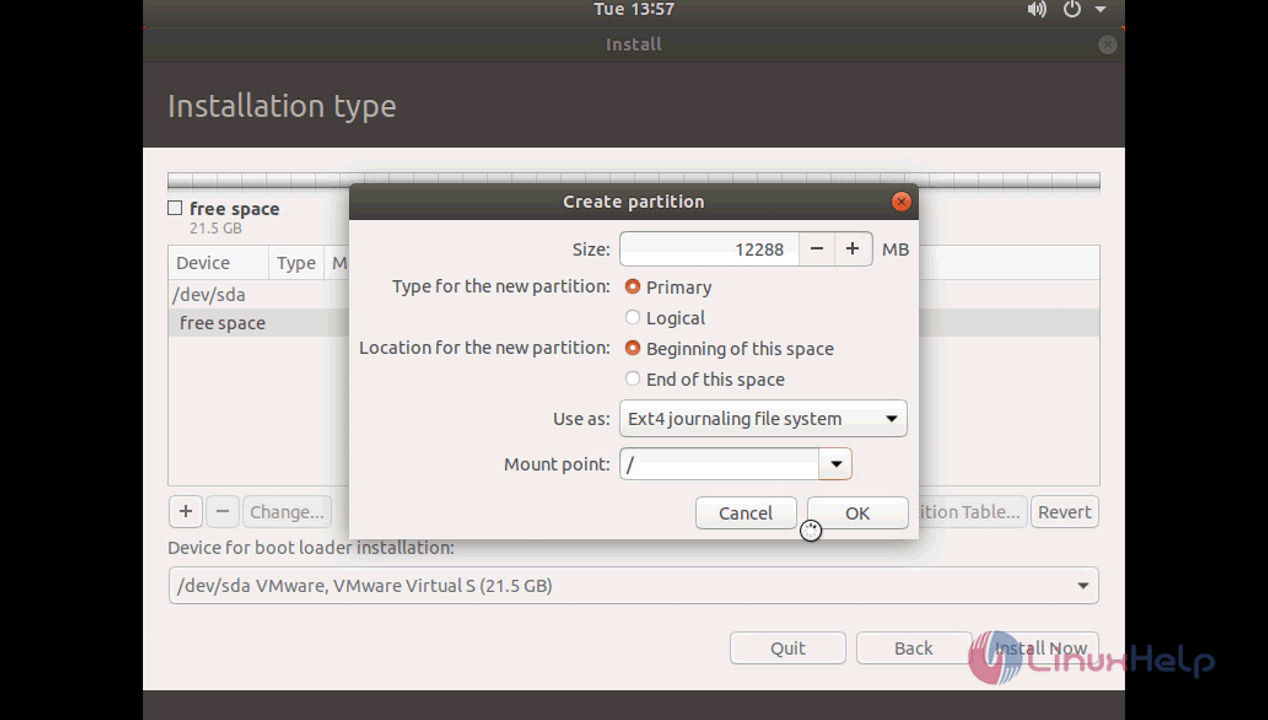
Location


Now create a swap partition in a remaining available space.
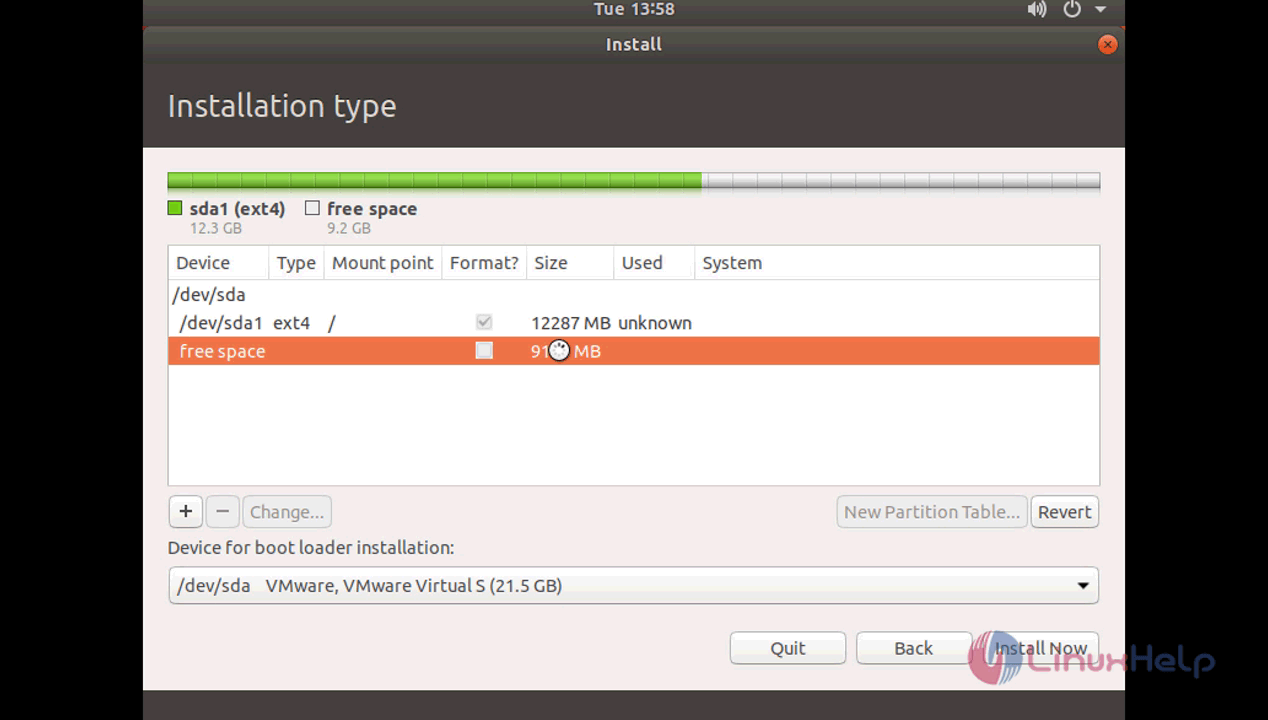
Swap
Device

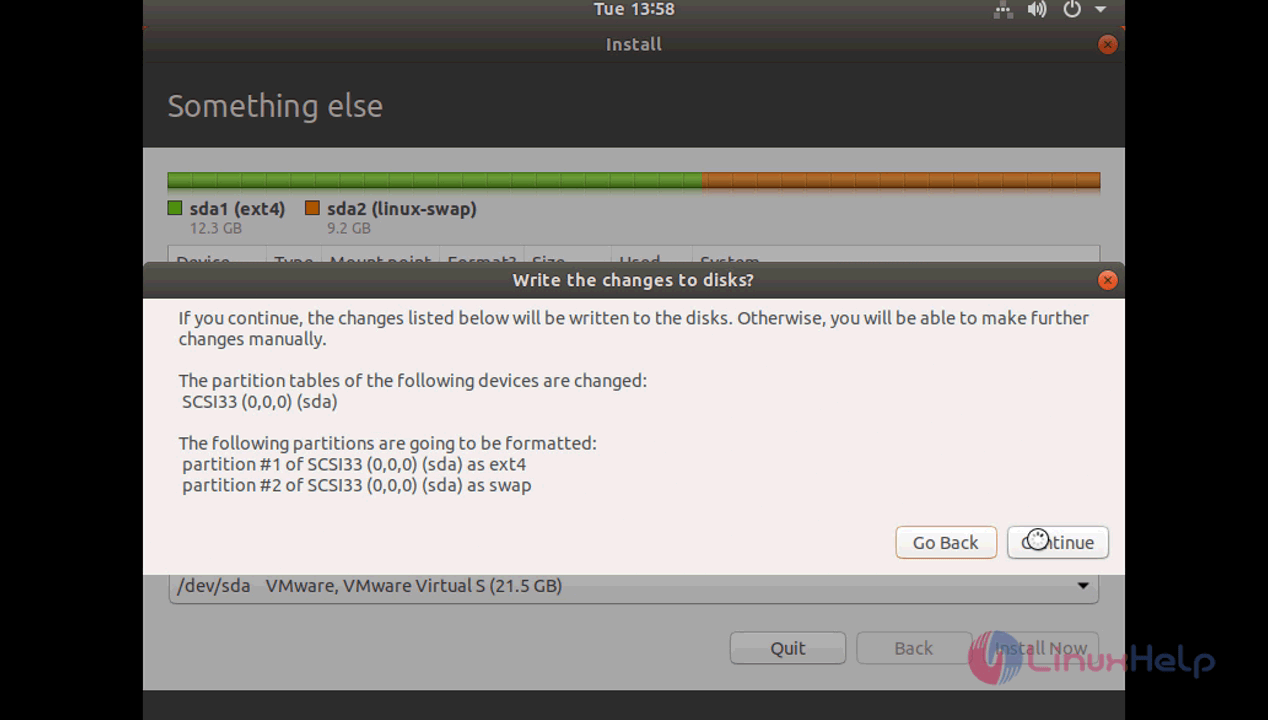
And then choose the install now and confirm the changes.
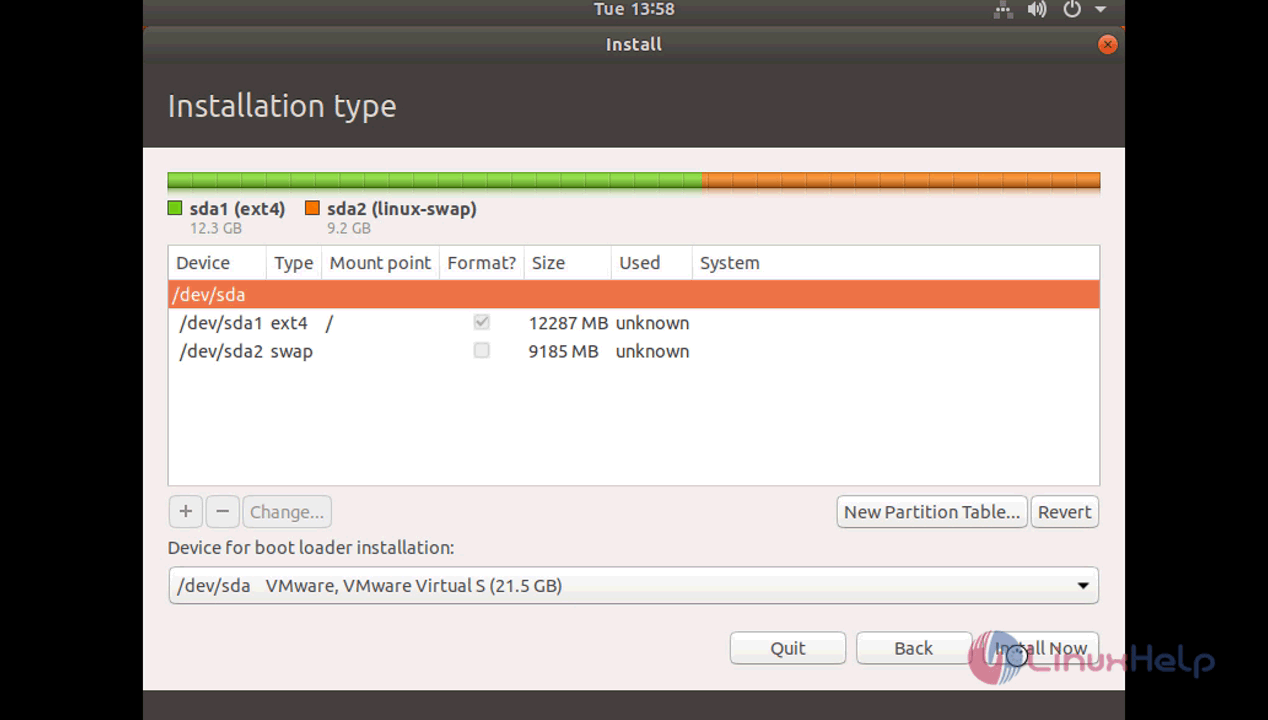
Confirm
virtual


Next, choose your region and time zone.
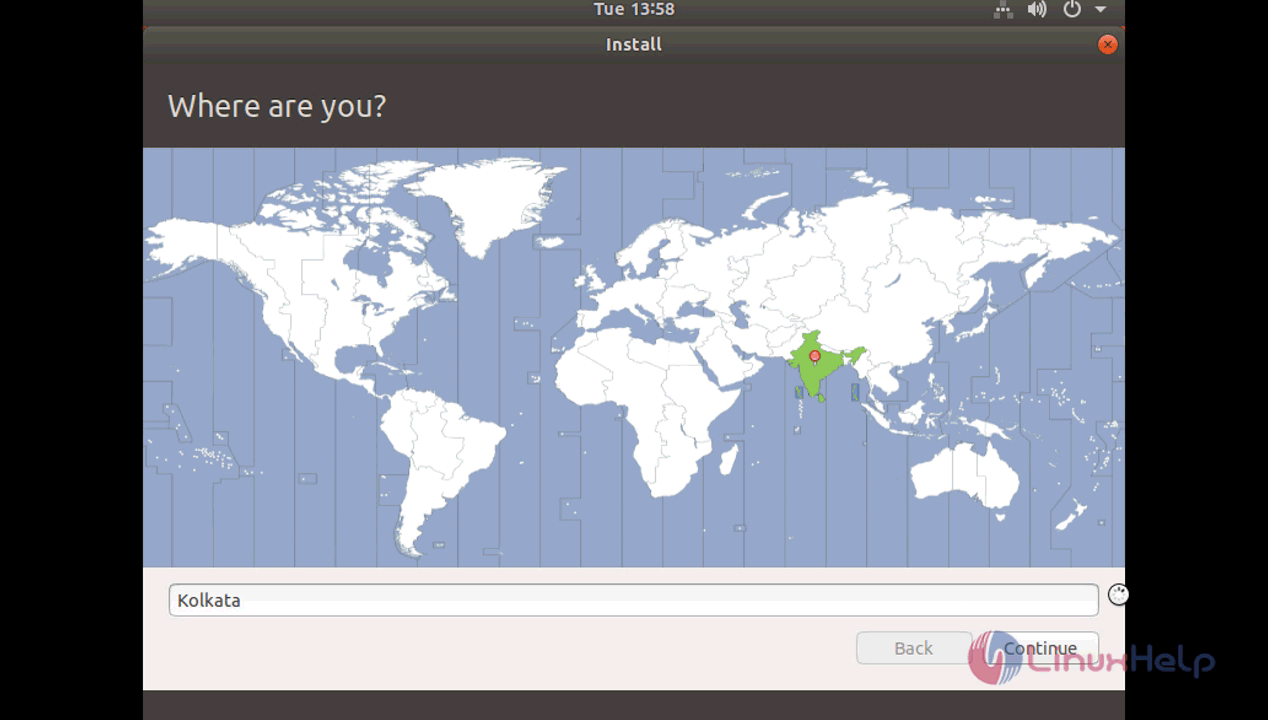
Region

Next, assign the username and password of the account.
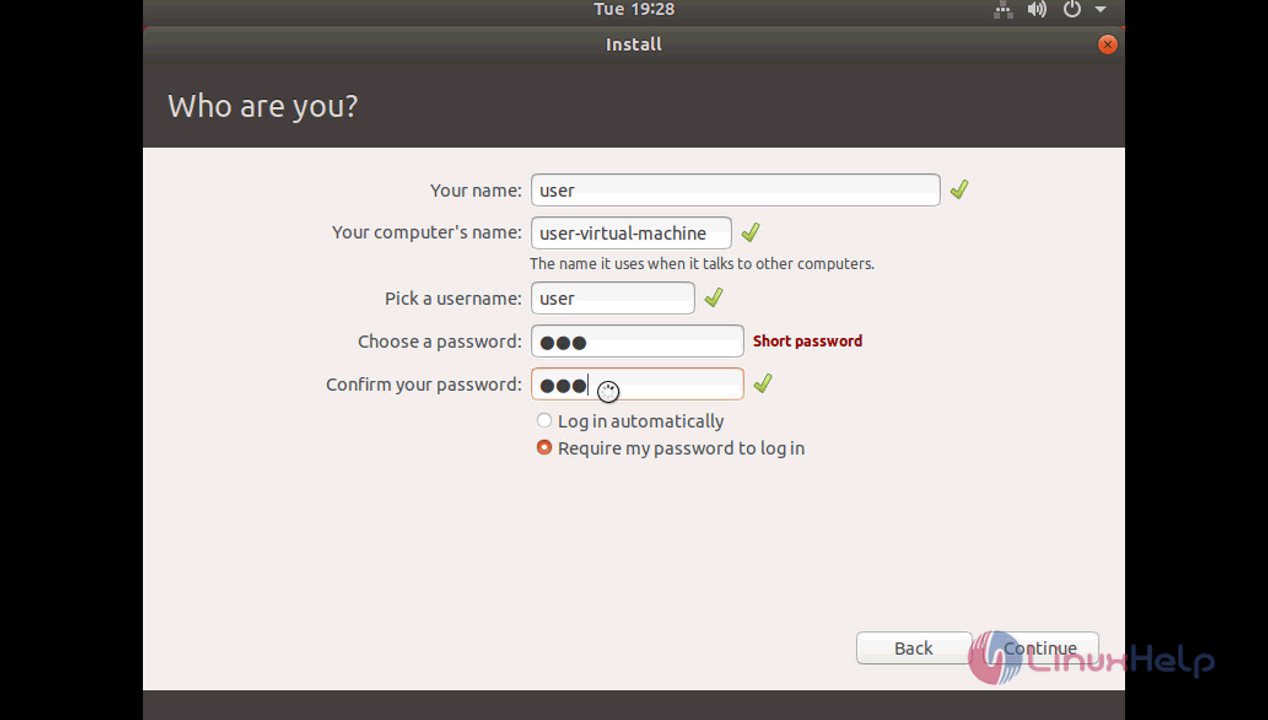
Password


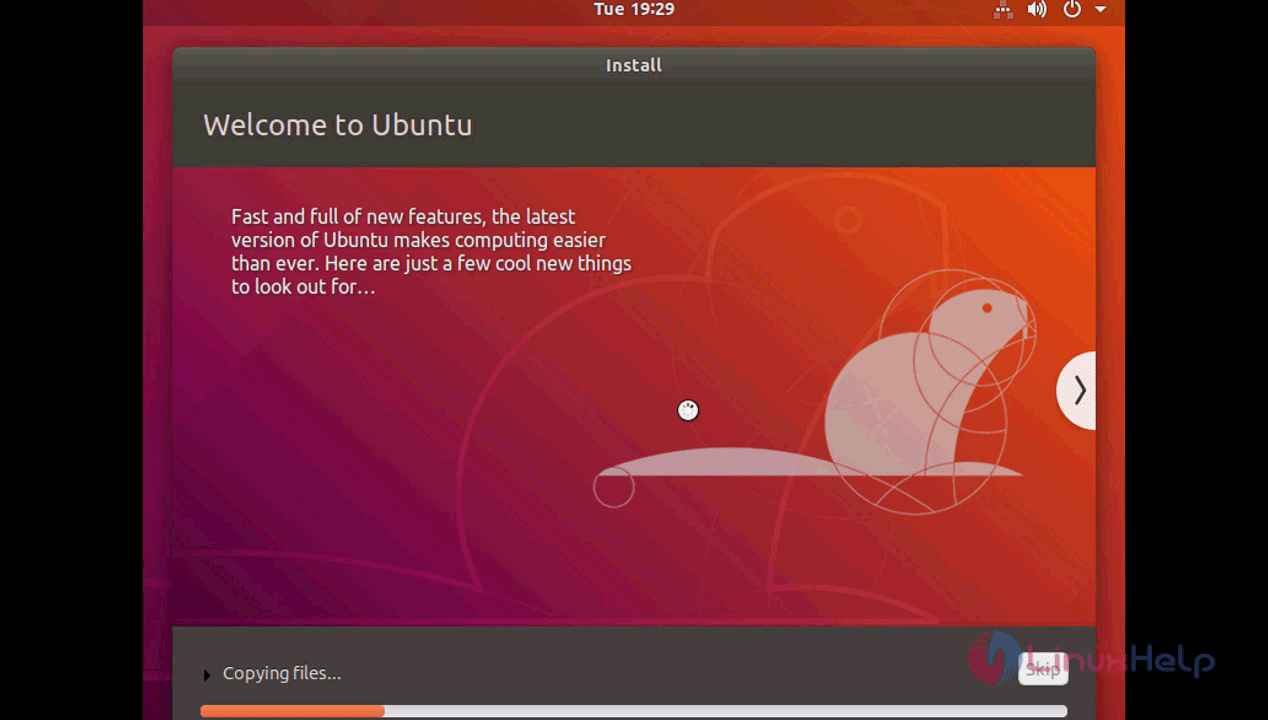
And the installation will begin now.
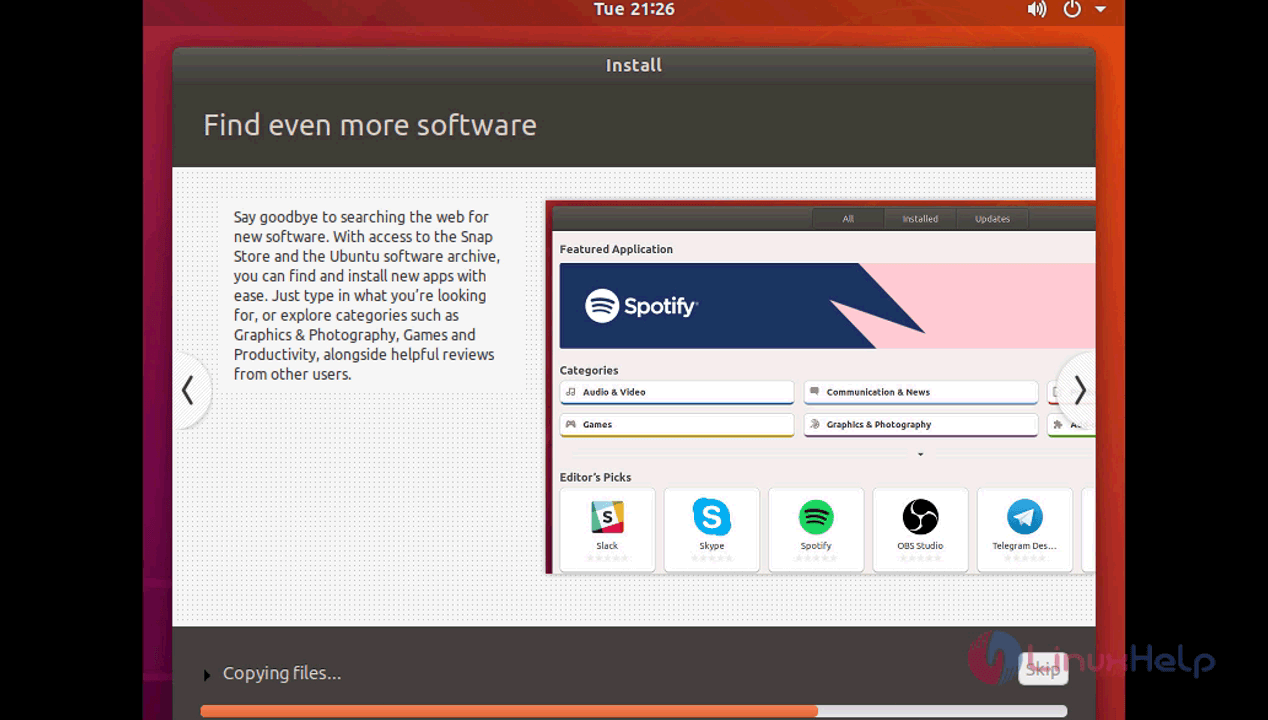
Install
Features


After the installation, you need to reboot your machine.
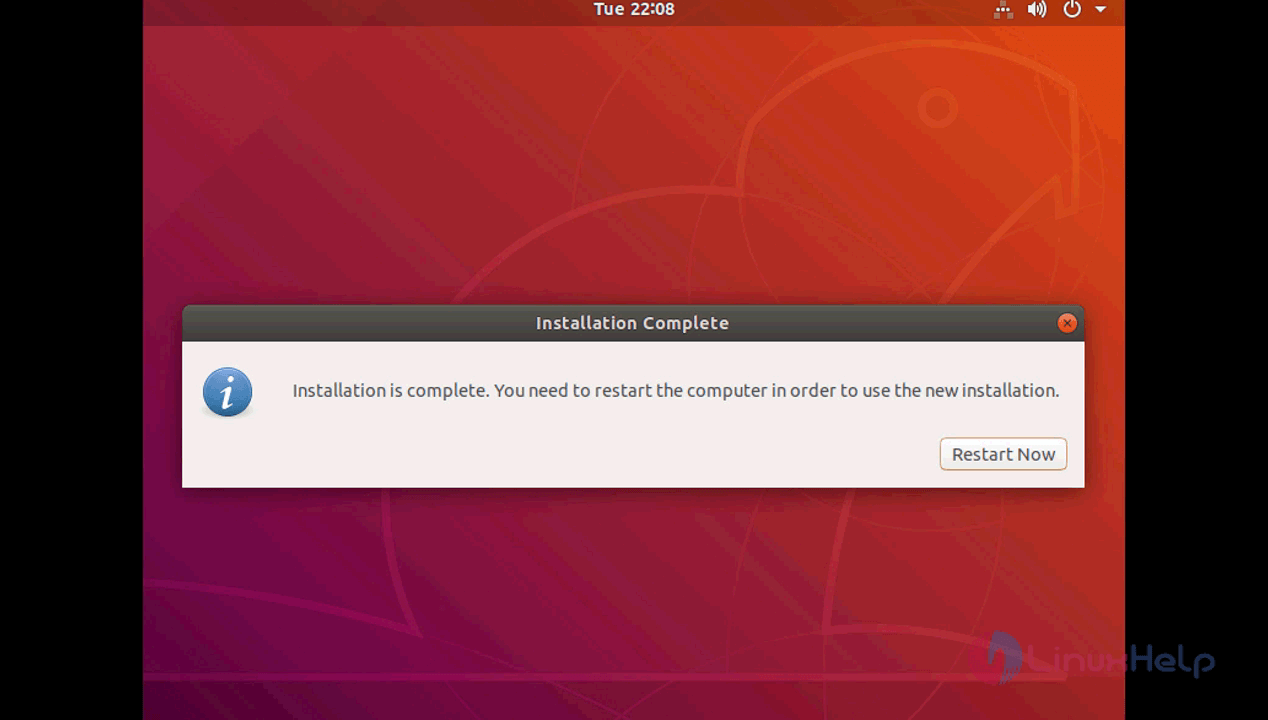
Machine
Restart
Controller


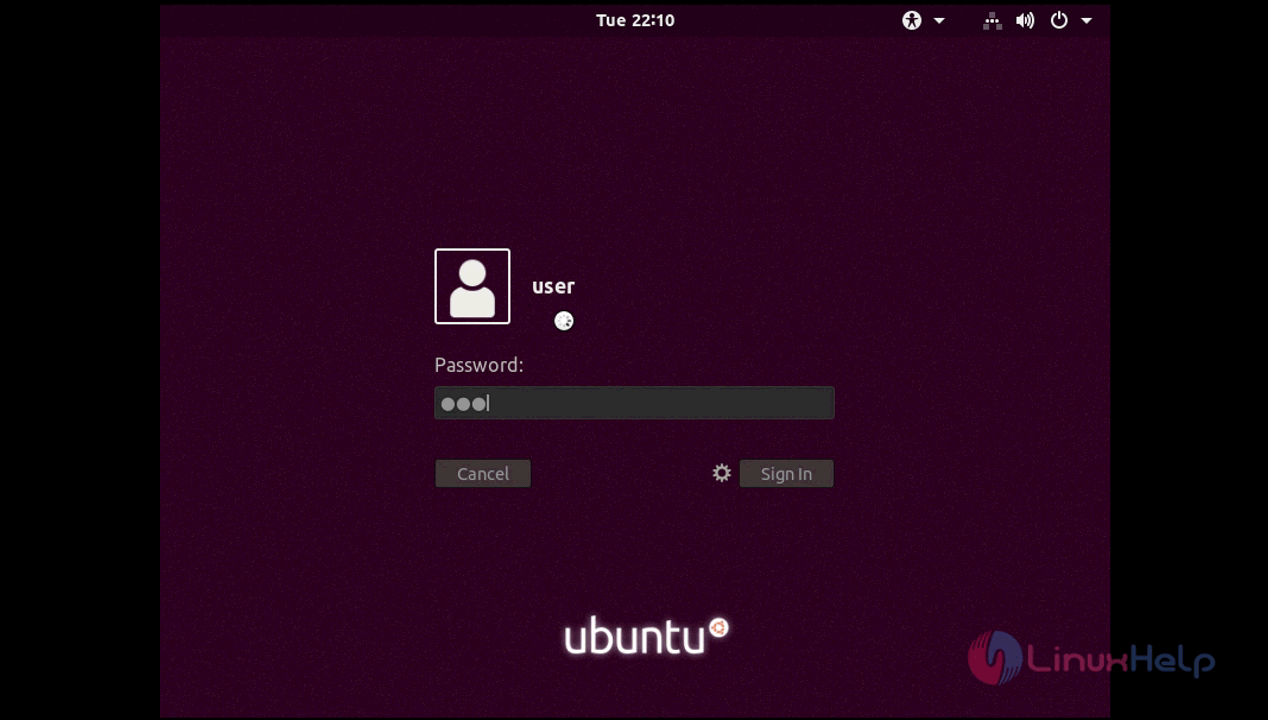
Now login using the user login credentials which you assigned during installation.
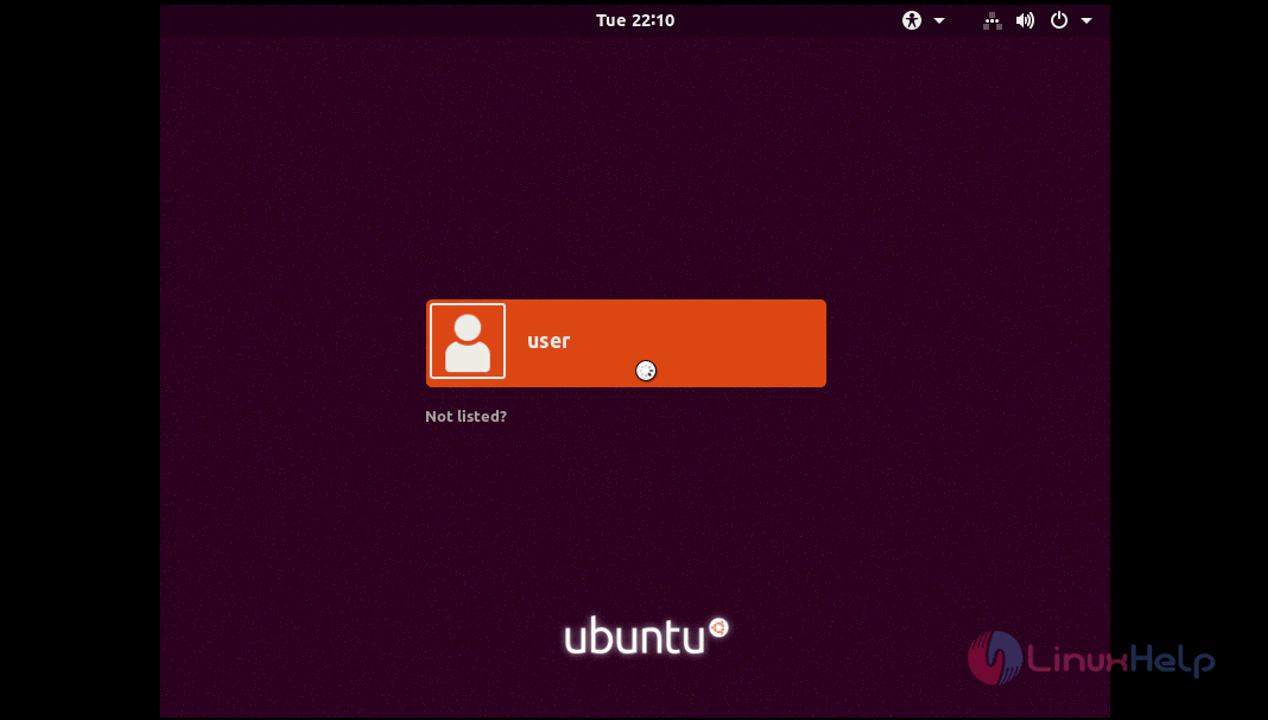
Login
Credentials

You can now experience Ubuntu 18.04.
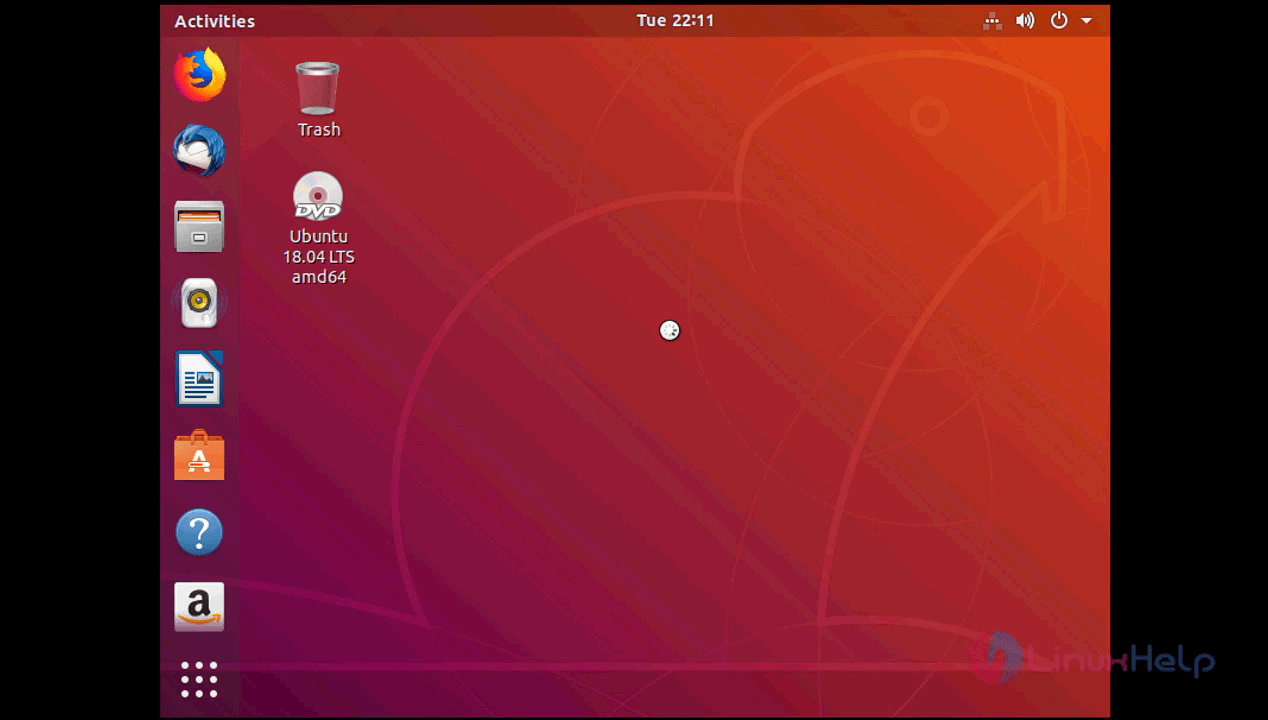
User


With this, the tutorial on how to install Ubuntu 18.04 comes to an end.

Tags:
aiden
Author: 

Comments ( 0 )

No comments available

Add a comment
{{postCtrl.cmtErrMsg}}

Frequently asked questions ( 5 )

Q

what are the features of ubuntu 18.04?

A

You can get the features from following tutorial

"https://linuxhelp.com/features-of-ubuntu-18-04/ "

Q

is there any Torrent Link to download iso file of ubuntu 18.04?

A

follow this link to get the Torrent Link :

" http://releases.ubuntu.com/18.04/ubuntu-18.04.1-live-server-amd64.iso.torrent "

Q

where to download ubuntu 18 server os ?

A

use the following link to download ubuntu 18 server os: " https://www.ubuntu.com/download/server/thank-you?version=18.04.1&architecture=amd64 "

Q

What GNOME version does it have?

A

At the time of its release, Ubuntu 18.04 has GNOME 3.28.

Q

Can I install vanilla GNOME on ubuntu 18.04?

A

Yes, you can.
Existing GNOME users might not like the Unity resembling, customized GNOME desktop in Ubuntu 18.04. There are some packages available in Ubuntu’s main and universe repositories that allows you to install vanilla GNOME on Ubuntu 18.04.

Back To Top!
Rank
User
Points

Top Contributers

userNamenaveelansari
135850

Top Contributers

userNameayanbhatti
92510

Top Contributers

userNamehamzaahmed
32150

Top Contributers

1
userNamelinuxhelp
31040

Top Contributers

userNamemuhammadali
24500
Can you help Owen ?
How to add SSH key to my Gitlab account

I need to add the SSH key in my gitlab account. How to do so ????

Networking
  • Routing
  • trunk
  • Netmask
  • Packet Capture
  • domain
  • HTTP Proxy
Server Setup
  • NFS
  • KVM
  • Memory
  • Sendmail
  • WebDAV
  • LXC
Shell Commands
  • Cloud commander
  • Command line archive tools
  • last command
  • Shell
  • terminal
  • Throttle
Desktop Application
  • Linux app
  • Pithos
  • Retrospect
  • Scribe
  • TortoiseHg
  • 4Images
Monitoring Tool
  • Monit
  • Apache Server Monitoring
  • EtherApe 
  • Arpwatch Tool
  • Auditd
  • Barman
Web Application
  • Nutch
  • Amazon VPC
  • FarmWarDeployer
  • Rukovoditel
  • Mirror site
  • Chef
Contact Us | Terms of Use| Privacy Policy| Disclaimer
© 2025 LinuxHelp.com All rights reserved. Linux™ is the registered trademark of Linus Torvalds. This site is not affiliated with linus torvalds in any way.