How to Install Ubuntu Cleaner on Linux mint 18.03
To Install Ubuntu Cleaner on Linux mint 18.03
Ubuntu Cleaner is an open-source graphical cleaner application for Ubuntu and other Ubuntu-based operating systems. It can be used to clean all temporary files and caches so that your system performance can be boosted. Installing Ubuntu Cleaner is as simple as it sounds. In this tutorial, you will be briefed about the installation procedure involved with Linux Mint 18.03.
Installation
Add the repository of Ubuntu-cleaner by using PPA.
linuxhelp ~ # add-apt-repository ppa:gerardpuig/ppa
You are about to add the following PPA:
 Official Ubuntu Cleaner stable repository
 More info: https://launchpad.net/~gerardpuig/+archive/ubuntu/ppa
Press Enter to continue or Ctrl+C to cancel

Executing: /tmp/tmp.HjX4gQNBjW/gpg.1.sh --keyserver
hkp://keyserver.ubuntu.com:80
--recv-keys
A892A73C
gpg: requesting key A892A73C from hkp server keyserver.ubuntu.com
gpg: key A892A73C: public key "Launchpad PPA for Gerard Puig" imported
gpg: Total number processed: 1
gpg:               imported: 1  (RSA: 1)
Let's first start with updating the system repositories.
linuxhelp ~ # apt-get update
Hit:1 http://archive.canonical.com/ubuntu xenial InRelease
Hit:2 http://archive.ubuntu.com/ubuntu xenial InRelease
Ign:3 http://packages.linuxmint.com sylvia InRelease
Get:4 http://ppa.launchpad.net/gerardpuig/ppa/ubuntu xenial InRelease [18.1 kB]
Hit:5 http://packages.linuxmint.com sylvia Release
Hit:7 http://ppa.launchpad.net/ondrej/php/ubuntu xenial InRelease
.
.
.
Get:17 http://archive.ubuntu.com/ubuntu xenial-updates/universe amd64 Packages [680 kB]
Get:18 http://archive.ubuntu.com/ubuntu xenial-updates/universe i386 Packages [620 kB]
Fetched 3,227 kB in 9s (358 kB/s)
Reading package lists... Done
Install the Ubuntu Cleaner application run the following command.
linuxhelp ~ # apt-get install ubuntu-cleaner
Reading package lists... Done
Building dependency tree
Reading state information... Done
The following NEW packages will be installed:
  ubuntu-cleaner
0 upgraded, 1 newly installed, 0 to remove and 443 not upgraded.
Need to get 63.0 kB of archives.
After this operation, 239 kB of additional disk space will be used.
Get:1 http://ppa.launchpad.net/gerardpuig/ppa/ubuntu xenial/main amd64 ubuntu-cleaner all 1.0.4-1 [63.0 kB]
Fetched 63.0 kB in 0s (64.5 kB/s)
Selecting previously unselected package ubuntu-cleaner.
(Reading database ... 236947 files and directories currently installed.)
Preparing to unpack .../ubuntu-cleaner_1.0.4-1_all.deb ...
Unpacking ubuntu-cleaner (1.0.4-1) ...
Processing triggers for desktop-file-utils (0.22+linuxmint1) ...
Processing triggers for mime-support (3.59ubuntu1) ...
Processing triggers for hicolor-icon-theme (0.15-0ubuntu1) ...
Processing triggers for dbus (1.10.6-1ubuntu3.3) ...
Setting up ubuntu-cleaner (1.0.4-1) ...
Processing triggers for dbus (1.10.6-1ubuntu3.3) ...
Once Installation is done you can access the application from the Menu as shown here
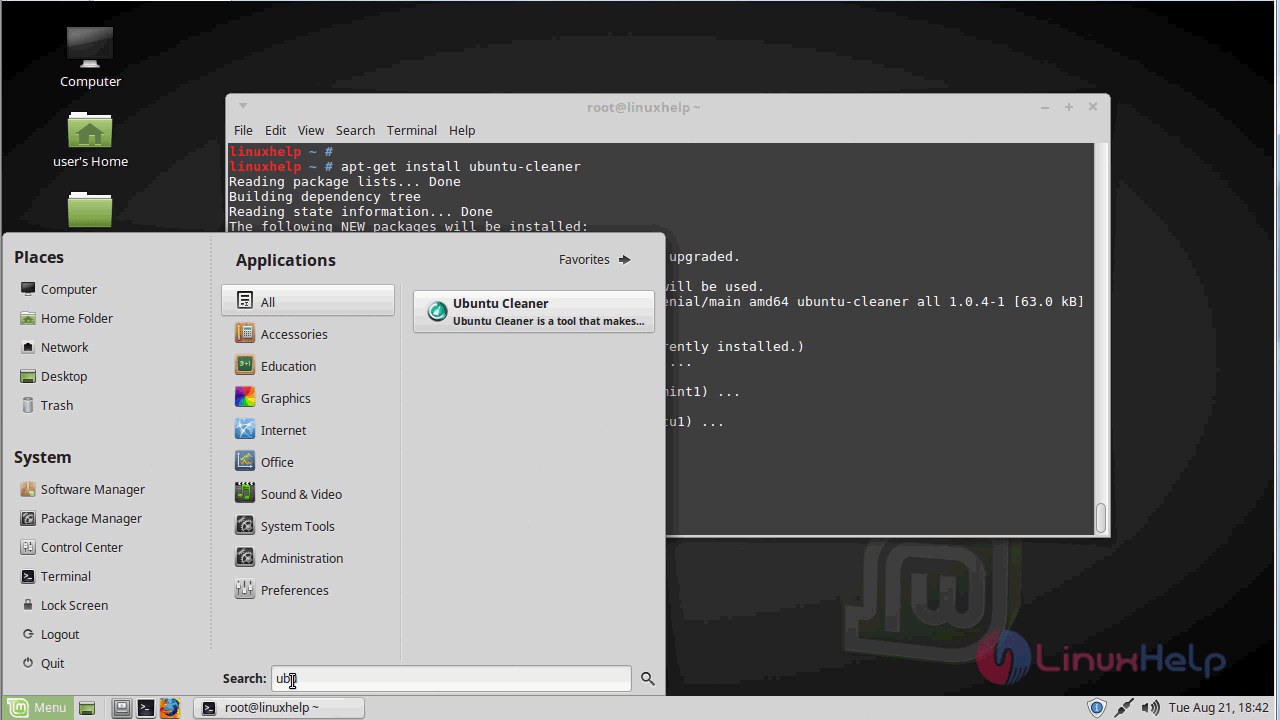
Now, you can able to use the Ubuntu Cleaner application.
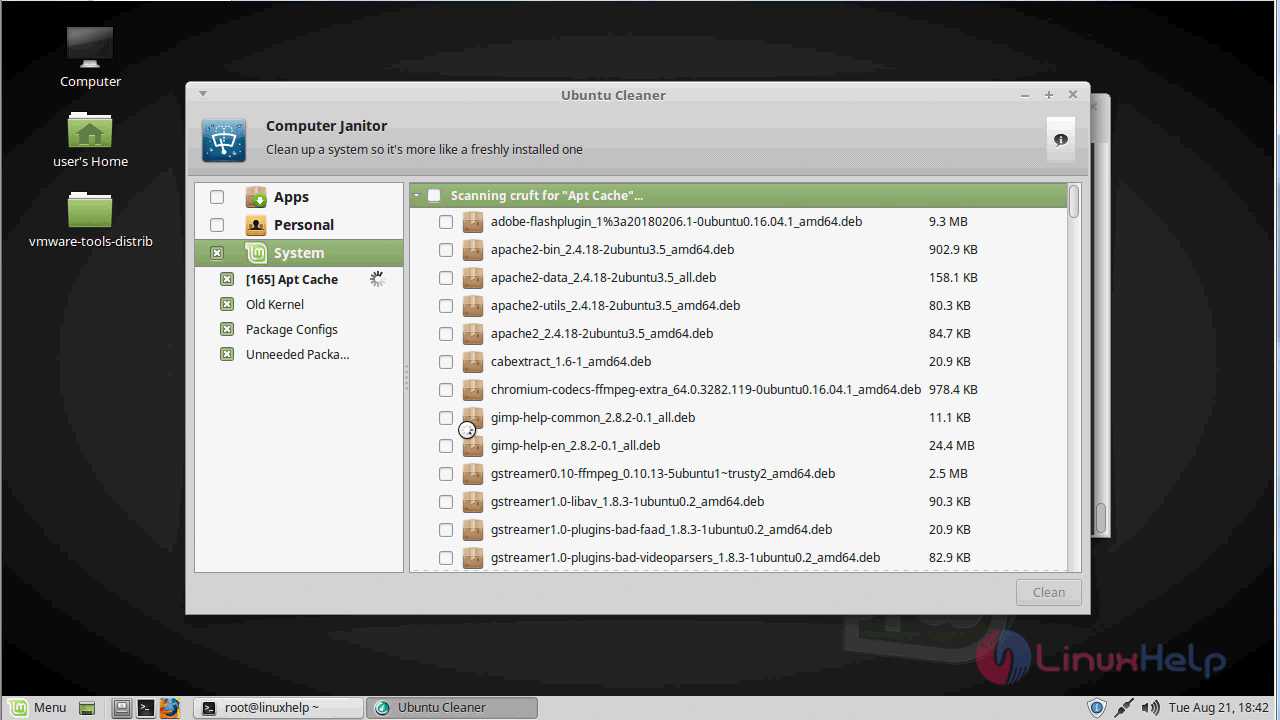
With this, the method to install Ubuntu Cleaner on Linuxmint 18.03 comes to an end.
Comments ( 0 )
No comments available