• Categories
    Category
    {{ postCtrl.tags }}
    • {{ category.tag_type }}

      • {{tag.tag_name}}
      • View more
  • Categories
    Category
    {{ postCtrl.tags }}
    • {{ category.tag_type }}

      • {{tag.tag_name}}
      • View more
  • News
  • Tutorials
  • Forums
  • Tags
  • Users
Tutorial News Comments FAQ Related Articles

How to Install Unity Tweak Tool on Ubuntu

{{postValue.id}}

To Install Unity Tweak tool on Ubuntu

Unity Tweak tool is a popular settings manager used to customize the Ubuntu Desktop. User can change the whole desktop environment with different themes and icons. Installation of Unity Tweak tool on Ubuntu is explained in this article.

Installation of Unity Tweak Tool

First add the repository files to install unity tweak tool.

root@linuxhelp:~# add-apt-repository ppa:freyja-dev/unity-tweak-tool-daily
 Daily unstable builds of Unity Tweak Tool. 
 More info: https://launchpad.net/~freyja-dev/+archive/ubuntu/unity-tweak-tool-daily
Press [ENTER] to continue or ctrl-c to cancel adding it

gpg: keyring `/tmp/tmp9okxyt2e/secring.gpg'  created
gpg: keyring `/tmp/tmp9okxyt2e/pubring.gpg'  created
gpg: requesting key 7D103299 from hkp server keyserver.ubuntu.com
gpg: /tmp/tmp9okxyt2e/trustdb.gpg: trustdb created
gpg: key 7D103299: public key " Launchpad PPA for Freyja Development"  imported
gpg: Total number processed: 1
gpg:               imported: 1  (RSA: 1)
OK

Next update the added repositories by using the below command.

root@linuxhelp:~# apt-get update
Hit http://in.archive.ubuntu.com wily InRelease
Hit http://security.ubuntu.com wily-security InRelease                                      
Get:1 http://ppa.launchpad.net wily InRelease [15.5 kB]                                     
Hit http://in.archive.ubuntu.com wily-updates InRelease                             
Hit http://in.archive.ubuntu.com wily-backports InRelease                                                 
Hit http://security.ubuntu.com wily-security/main Sources                                      
Hit http://in.archive.ubuntu.com wily/main Sources                                                           
Get:2 http://ppa.launchpad.net wily/main amd64 Packages [561 B]
.
.
.
backports/multiverse i386 Packages                                                                                                             
Hit http://in.archive.ubuntu.com wily-backports/main Translation-en                                                                                                                  
Hit http://in.archive.ubuntu.com wily-backports/multiverse Translation-en                                                                                                            
Hit http://in.archive.ubuntu.com wily-backports/restricted Translation-en                                                                                                            
Hit http://in.archive.ubuntu.com wily-backports/universe Translation-en                                                                                                              
Fetched 16.9 kB in 9s (1,705 B/s)                                                                                                                                                    
Reading package lists... Done

Now run the following command to install Unity tweak tool.

root@linuxhelp:~# apt-get install unity-tweak-tool
Reading package lists... Done
Building dependency tree       
Reading state information... Done
The following NEW packages will be installed:
  unity-tweak-tool
0 upgraded, 1 newly installed, 0 to remove and 252 not upgraded.
Need to get 375 kB of archives.
After this operation, 2,847 kB of additional disk space will be used.
Get:1 http://ppa.launchpad.net/freyja-dev/unity-tweak-tool-daily/ubuntu/ wily/main unity-tweak-tool all 0.0.7-0~210~ubuntu15.10.1 [375 kB]
.
.
.
Processing triggers for bamfdaemon (0.5.2~bzr0+15.10.20150627.1-0ubuntu1) ...
Rebuilding /usr/share/applications/bamf-2.index...
Processing triggers for mime-support (3.58ubuntu1) ...
Processing triggers for hicolor-icon-theme (0.15-0ubuntu1) ...
Processing triggers for man-db (2.7.4-1) ...
Processing triggers for libglib2.0-0:amd64 (2.46.1-1) ...
Setting up unity-tweak-tool (0.0.7-0~210~ubuntu15.10.1) ...

If you want to install unity tweak tool in a graphical way, then open Ubuntu software centre. Search unity tweak tool and click Install option.
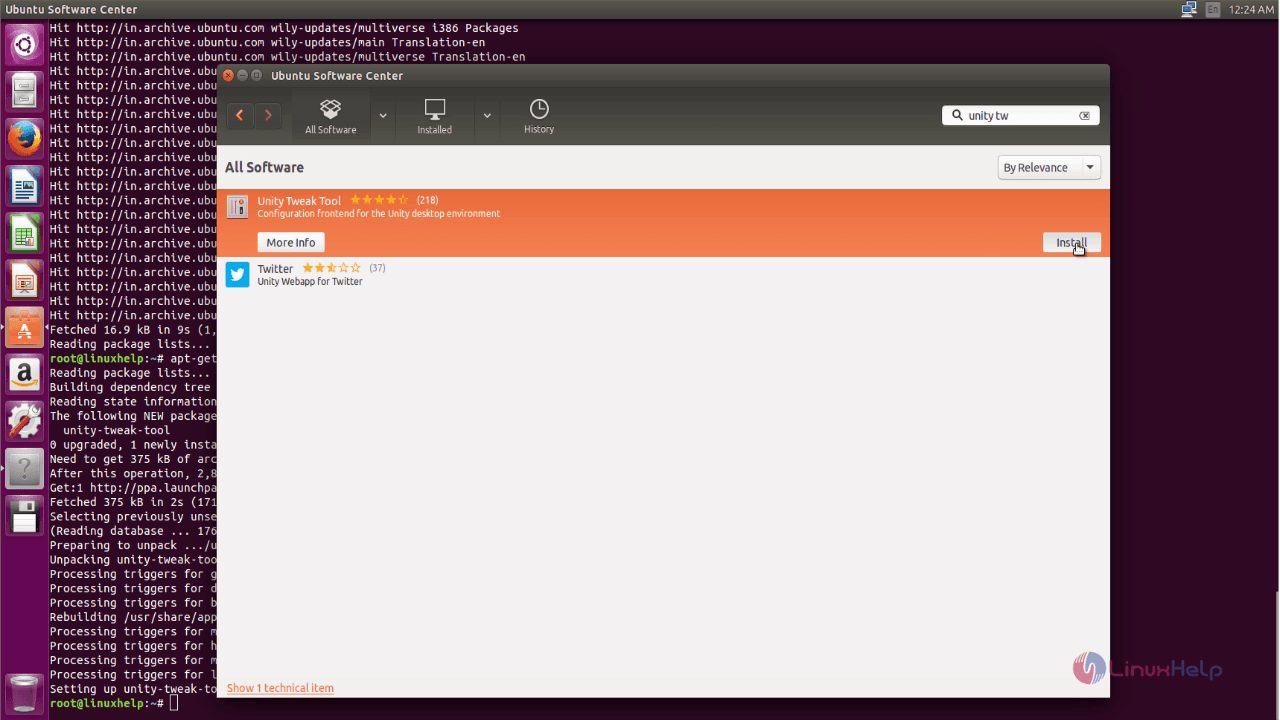
all_software

After installed successfully, type unity-tweak-tool in the search bar to open the tool.
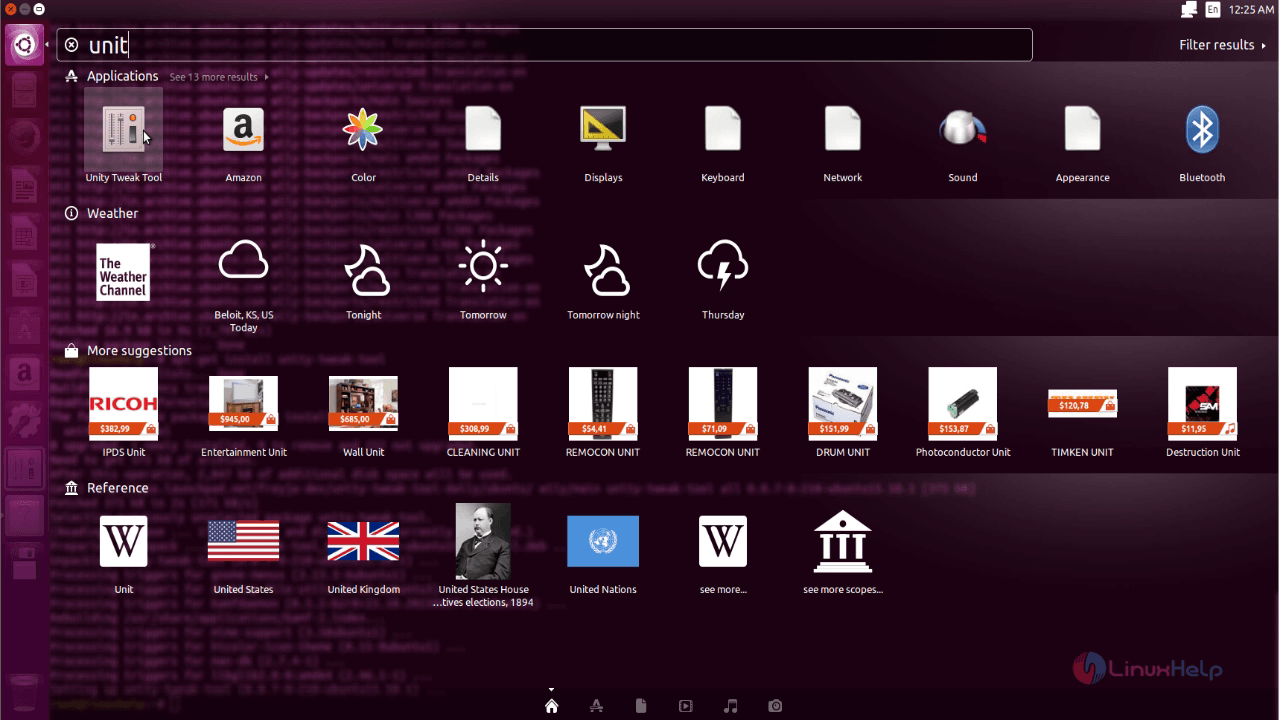
unity_tweak_tool

Home page of unity tweak tool will display as shown below.
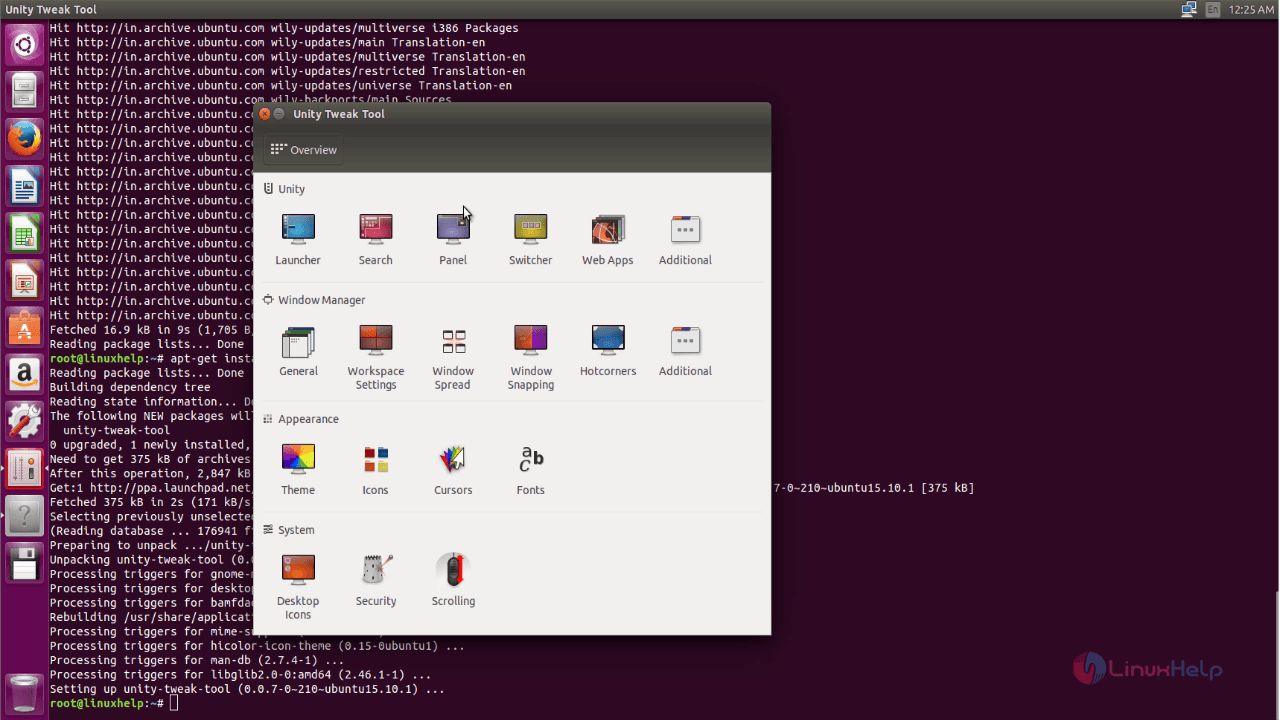
home_page

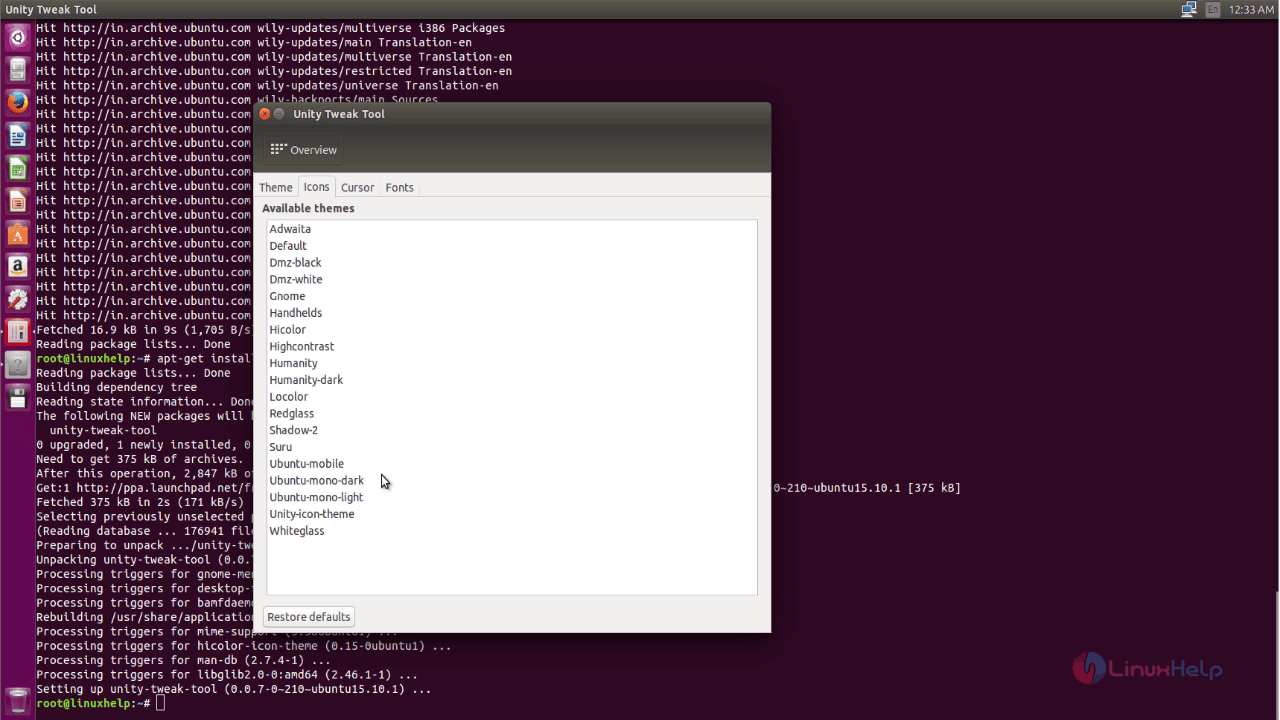
Here you can customize your desktop environment, click Launcher icon.
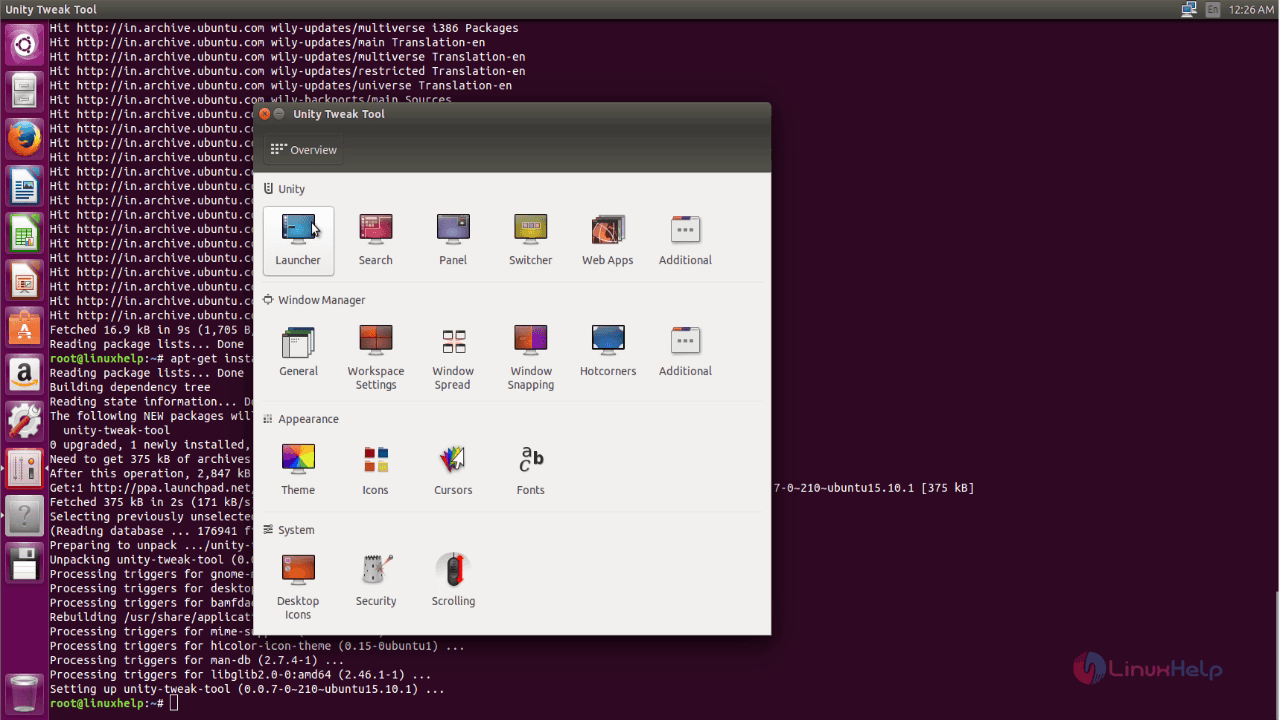
launcher

In launcher, you can change the appearance of the desktop with customized colors.
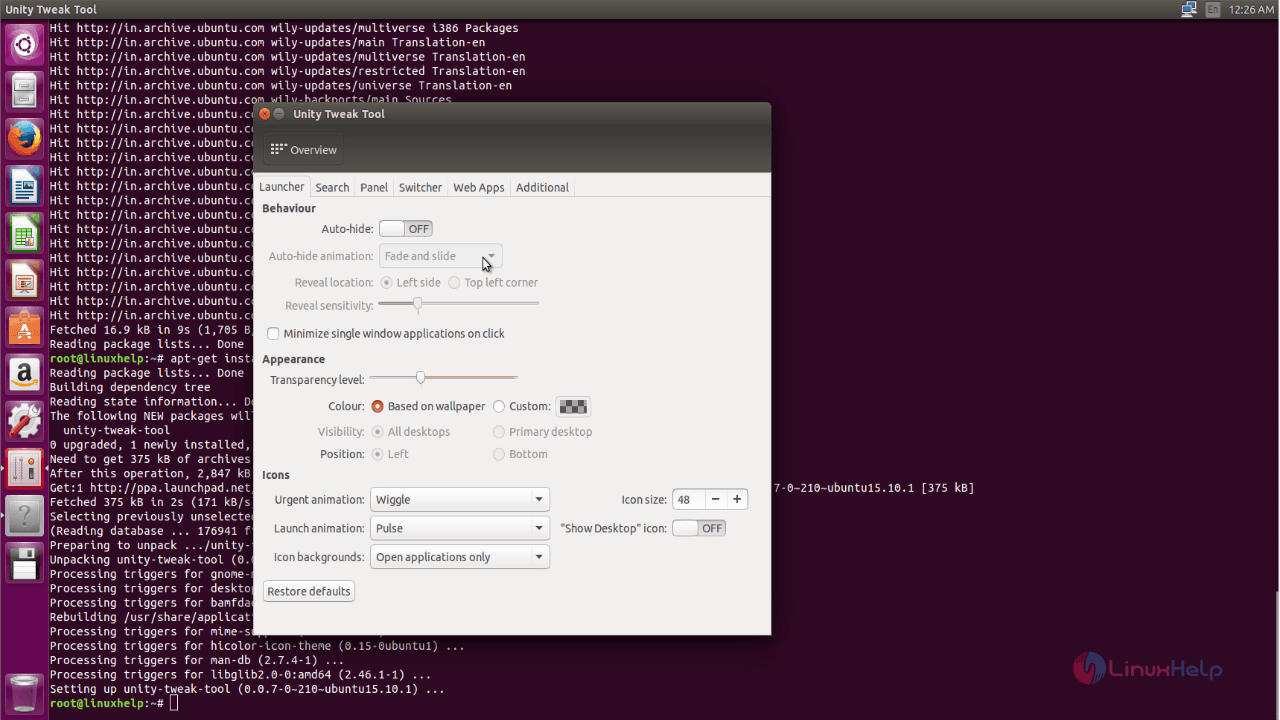
change_appearance

Next, click on theme icon to change theme.
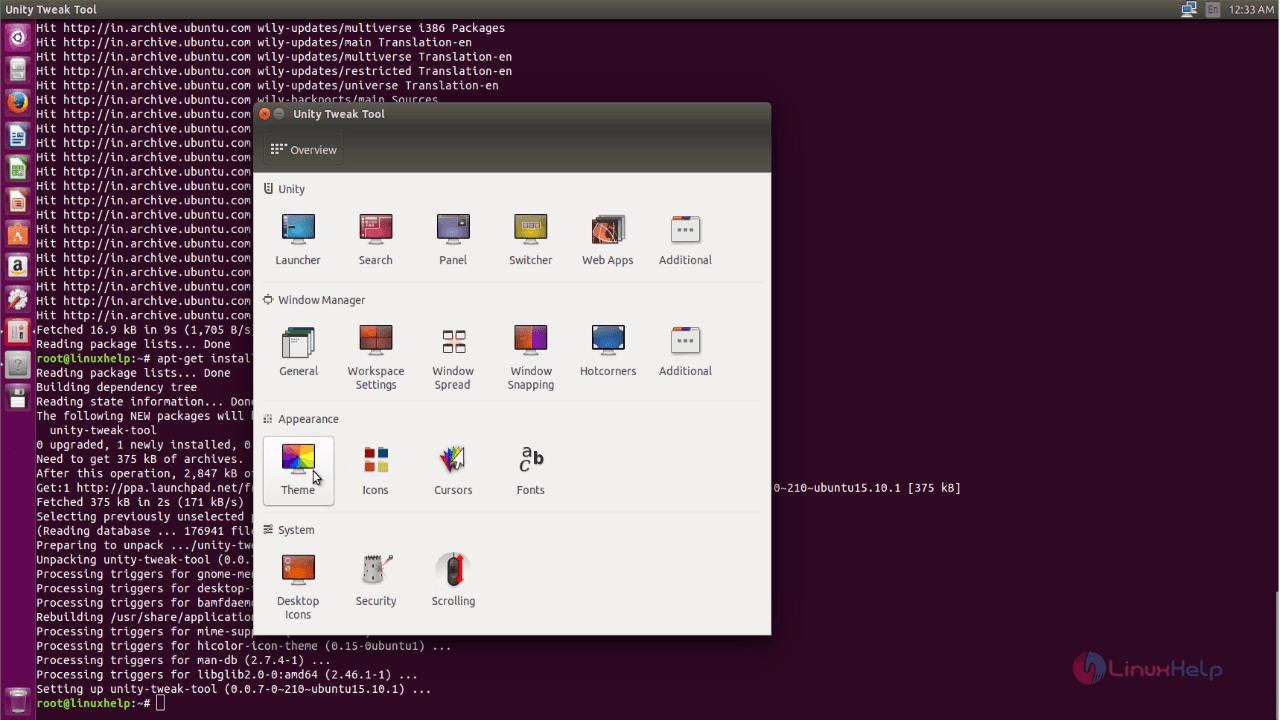
change_theme

Select any one of the theme in the listed themes.
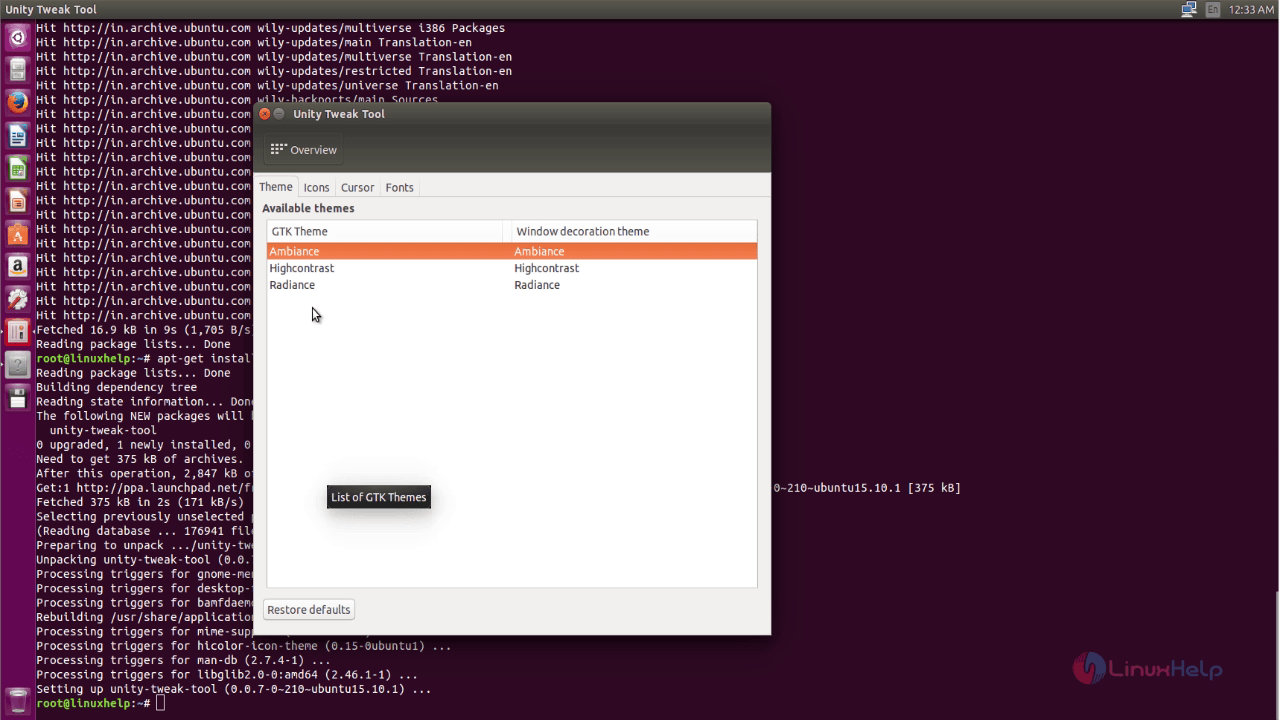
set_theme

Next click on icon to change icon view.
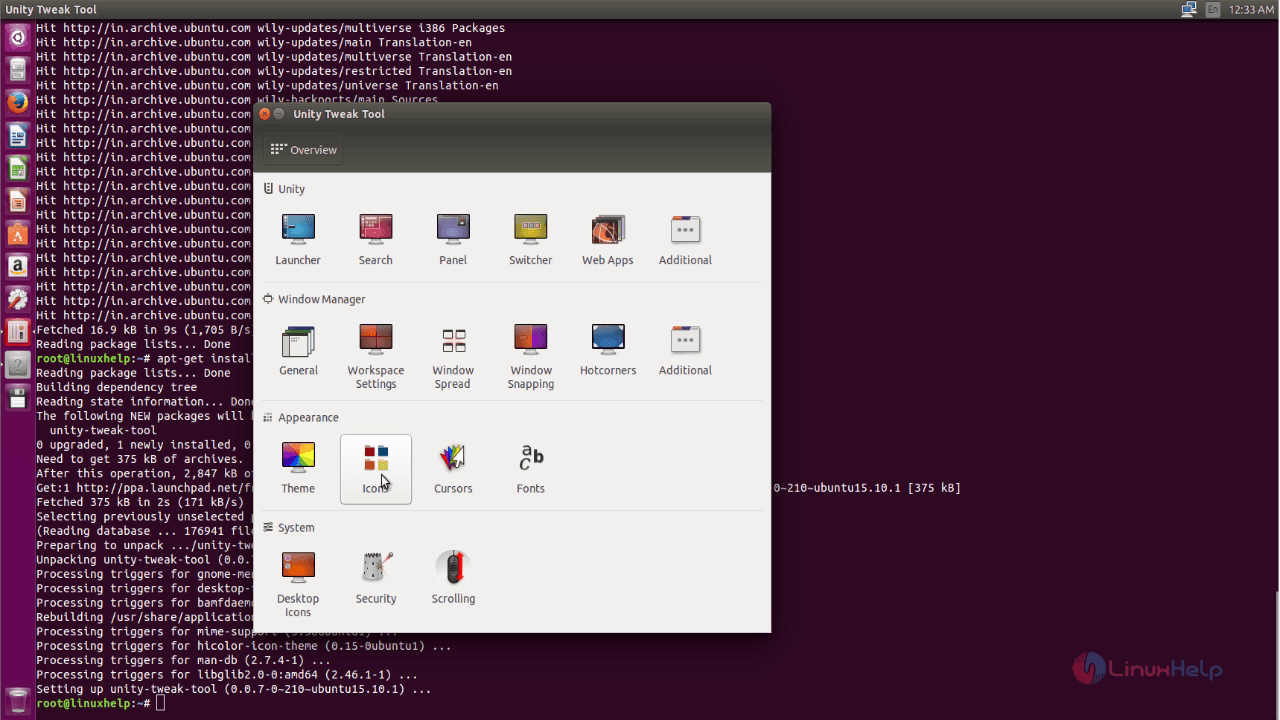
change_icon_view

Select any icon type from the list.

icon_type

Next click on cursor icon to change the cursors.
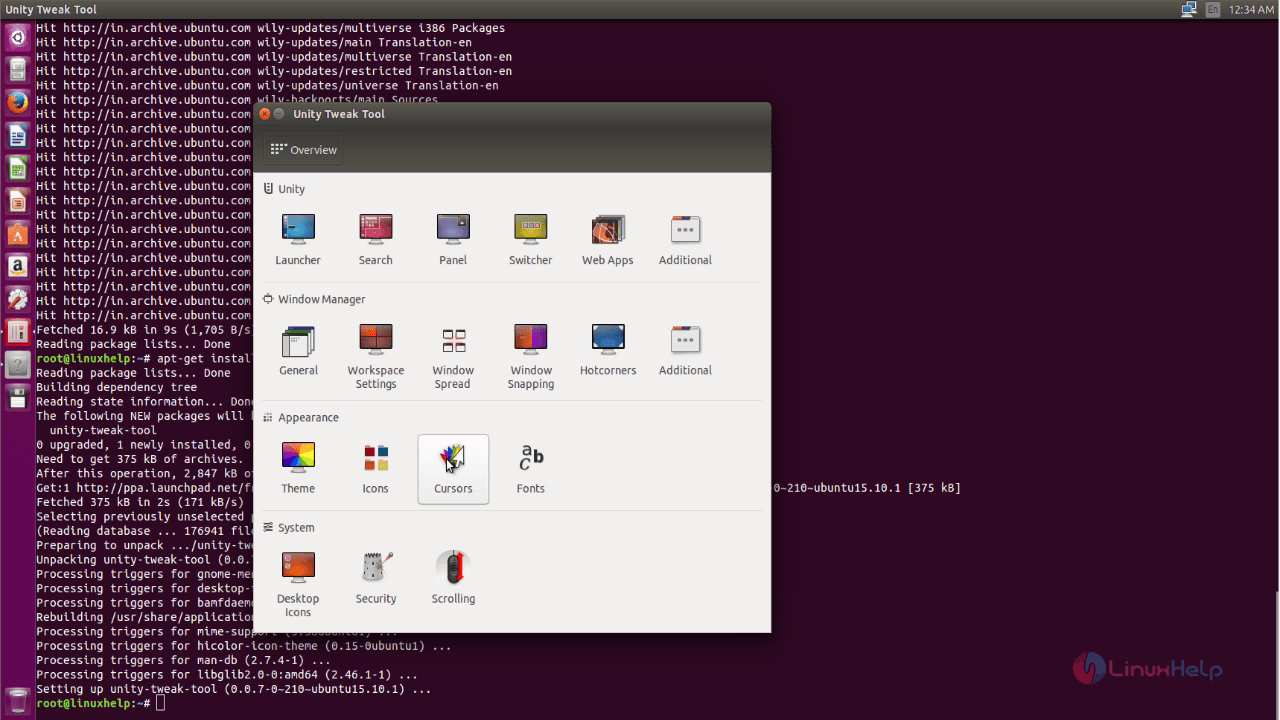
change_cursor

Here select cursor type to change the desktop view.
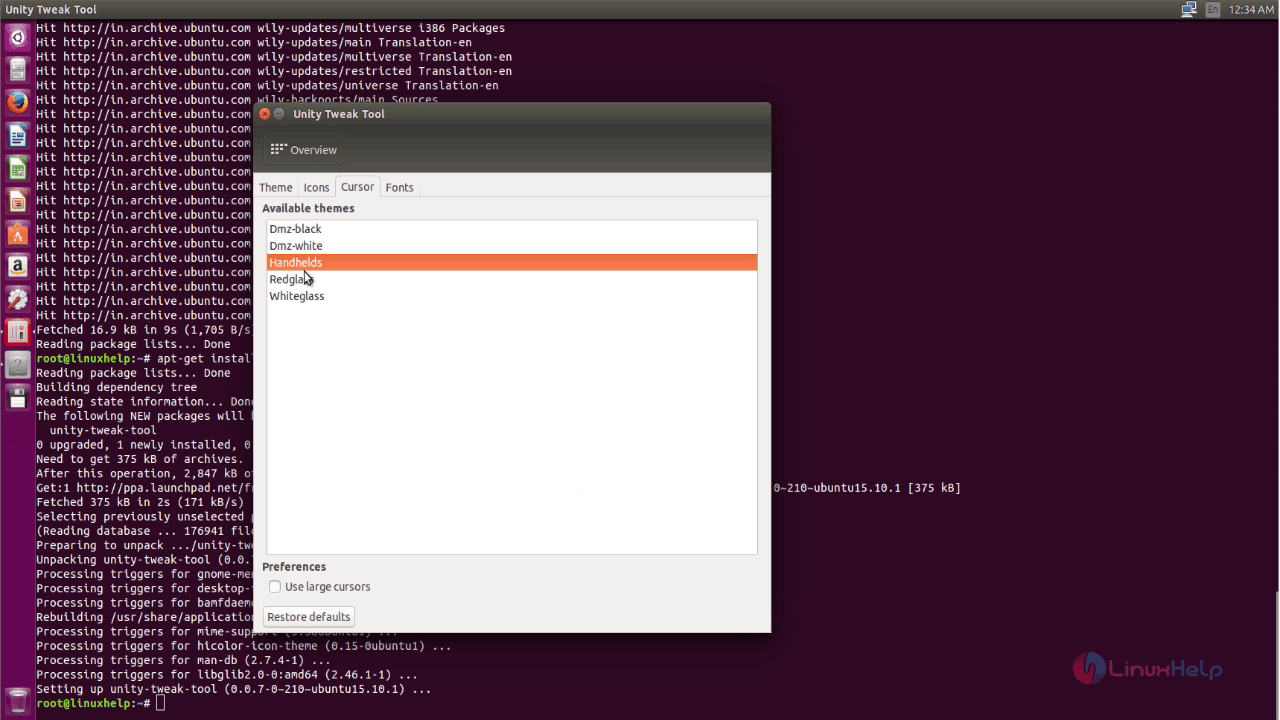
desktop_view

Tags:
liam
Author: 

Comments ( 0 )

No comments available

Add a comment
{{postCtrl.cmtErrMsg}}

Frequently asked questions ( 5 )

Q

How to install Tweak tool on Ubuntu 16.04?

A

For installing the Tweak tool on Ubuntu 16.04, use the following link as given below "https://www.linuxhelp.com/how-to-install-gnome-tweak-tool-on-ubuntu-16-04/"

Q

What is the Procedure to install Gnome tweak for linux mint ?

A

For installing the Tweak tool on Linuxmint, use the following link as given below https://www.linuxhelp.com/how-to-install-gnome-tweak-tool-in-linux-mint-18-3/

Q

What is the requirement for installing the Tweak tool ?

A

Privileged access to your Ubuntu System as root or via sudo command is required.

Q

What type of the themes available in Tweak tool?

A

The following types of themes available in Tweak tool,
Shell theme – Stored or installed in ~/.themes/ directory. Shell themes are themes for the shell.
GTK3 theme – Stored or installed in /usr/share/themes/ directory. GTK3 themes are themes for applications.

Q

How can I see which codecs and filters are being used to play a file in Tweak tool?

A

You can do that in several ways.

Media Player Classic: While playing a file, click on 'Play' in the top menu, then move your mouse onto 'Filters' in the drop down menu.

GraphStudioNext: Start GraphStudioNext. Drag and drop a file into the window. A graph will be build showing all filters that are used to play the file.

ZoomPlayer: While playing a file, right-click on ZoomPlayer. In the menu that appears, click on 'Filter Properties', then on 'Graph Information'.

BS.Player: While playing a file, right-click on BS.Player. In the menu that appears, click on 'options', then on 'Filters'.

Back To Top!
Rank
User
Points

Top Contributers

userNamenaveelansari
135850

Top Contributers

userNameayanbhatti
92510

Top Contributers

userNamehamzaahmed
32150

Top Contributers

1
userNamelinuxhelp
31040

Top Contributers

userNamemuhammadali
24500
Can you help Luk Van De Looverbosch ?
How to create a root ?

Hello,
How to create root@linuxhelp in Linux Mint 20.1 64-bit ?
Thanks in advance for your reply.
Best regards.

Networking
  • Routing
  • trunk
  • Netmask
  • Packet Capture
  • domain
  • HTTP Proxy
Server Setup
  • NFS
  • KVM
  • Memory
  • Sendmail
  • WebDAV
  • LXC
Shell Commands
  • Cloud commander
  • Command line archive tools
  • last command
  • Shell
  • terminal
  • Throttle
Desktop Application
  • Linux app
  • Pithos
  • Retrospect
  • Scribe
  • TortoiseHg
  • 4Images
Monitoring Tool
  • Monit
  • Apache Server Monitoring
  • EtherApe 
  • Arpwatch Tool
  • Auditd
  • Barman
Web Application
  • Nutch
  • Amazon VPC
  • FarmWarDeployer
  • Rukovoditel
  • Mirror site
  • Chef
Contact Us | Terms of Use| Privacy Policy| Disclaimer
© 2025 LinuxHelp.com All rights reserved. Linux™ is the registered trademark of Linus Torvalds. This site is not affiliated with linus torvalds in any way.