How to install Unity Tweak Tool on Ubuntu 17.04
To install Unity Tweak Tool on Ubuntu 17.04
Unity tweak tool is fast, simple and easy to use interface for Unity Desktop Environment. It is a configuration management tool for ubuntu to manage some configuration like themes for ubuntu’ s system. Installing Unity Tweak Tool is so simple and this article covers the installation method involved with it on Ubuntu 17.04
Installing Unity Tweak Tool
Before initiating the installation of Unity Tweak Tool, update your repositories as follows.
root@linuxhelp1:~# apt-get update
Get:1 http://security.ubuntu.com/ubuntu zesty-security InRelease [89.2 kB]
Hit:2 http://in.archive.ubuntu.com/ubuntu zesty InRelease
Get:3 http://in.archive.ubuntu.com/ubuntu zesty-updates InRelease [89.2 kB]
Hit:4 http://in.archive.ubuntu.com/ubuntu zesty-backports InRelease
Get:5 http://security.ubuntu.com/ubuntu zesty-security/main amd64 Packages [37.0 kB]
Get:6 http://in.archive.ubuntu.com/ubuntu zesty-updates/main i386 Packages [44.7 kB]
Get:7 http://in.archive.ubuntu.com/ubuntu zesty-updates/main amd64 Packages [45.8 kB]
Get:8 http://in.archive.ubuntu.com/ubuntu zesty-updates/main Translation-en [19.6 kB]
.
.
.
Get:27 http://security.ubuntu.com/ubuntu zesty-security/multiverse i386 Packages [1,336 B]
Get:28 http://security.ubuntu.com/ubuntu zesty-security/multiverse Translation-en [628 B]
Fetched 563 kB in 5s (110 kB/s)
Reading package lists... Done
After the update, download the Debian (.deb) package for Unity Tweak Tool.
root@linuxhelp1:~# wget http://archive.ubuntu.com/ubuntu/pool/universe/u/unity-tweak-tool/unity-tweak-tool_0.0.7ubuntu2_all.deb
--2017-05-10 11:54:22--   http://archive.ubuntu.com/ubuntu/pool/universe/u/unity-tweak-tool/unity-tweak-tool_0.0.7ubuntu2_all.deb
Resolving archive.ubuntu.com (archive.ubuntu.com)... 91.189.88.161, 91.189.88.152, 91.189.88.149, ...
Connecting to archive.ubuntu.com (archive.ubuntu.com)|91.189.88.161|:80... connected.
HTTP request sent, awaiting response... 200 OK
Length: 376490 (368K) [application/x-debian-package]
Saving to: ‘ unity-tweak-tool_0.0.7ubuntu2_all.deb’

unity-tweak-tool_0.0.7ubuntu2_all.deb             100%[==============================================================================================> ] 367.67K    352KB/s      in 1.0s

2017-05-10 11:54:24 (352 KB/s) - ‘ unity-tweak-tool_0.0.7ubuntu2_all.deb’  saved [376490/376490]
Once the download is completed, you can install it by using offline package manager command like dpkg, but here gdebi command is used as it can be used for installing Unity Tweak Tool.
root@linuxhelp1:~# apt-get install gdebi -y
Reading package lists... Done
Building dependency tree
Reading state information... Done
The following additional packages will be installed:
   gconf-service gconf-service-backend gconf2 gconf2-common gdebi-core gksu gnome-icon-theme libgconf-2-4 libgksu2-0
Suggested packages:
   gconf-defaults-service
.
.
.
update-alternatives: using /usr/share/libgksu/debian/gconf-defaults.libgksu-sudo to provide /usr/share/gconf/defaults/10_libgksu (libgksu-gconf-defaults) in auto mode
Processing triggers for gconf2 (3.2.6-3ubuntu7) ...
Setting up gksu (2.0.2-9ubuntu1) ...
Setting up gdebi (0.9.5.7+nmu1) ...
Processing triggers for libc-bin (2.24-9ubuntu2) ...
Now you can install Unity tweak tool using gdebi command as follows.
root@linuxhelp1:~# gdebi unity-tweak-tool_0.0.7ubuntu2_all.deb
Reading package lists... Done
Building dependency tree
Reading state information... Done
Reading state information... Done

configuration tool for the Unity desktop environment
 Unity Tweak Tool is a settings manager for the Unity desktop.
 It provides users with a fast, simple and easy-to-use interface
 with which to access many useful and little known features and settings
 of the desktop environment that one may want to configure.
Do you want to install the software package? [y/N]:y
Selecting previously unselected package unity-tweak-tool.
(Reading database ... 175060 files and directories currently installed.)
Preparing to unpack unity-tweak-tool_0.0.7ubuntu2_all.deb ...
.
.
.
Processing triggers for man-db (2.7.6.1-2) ...
Processing triggers for libglib2.0-0:amd64 (2.52.0-1) ...
Processing triggers for hicolor-icon-theme (0.15-1) ...
Processing triggers for gnome-icon-theme (3.12.0-2) ...
Unity Tweak tool has been installed, use your Ubuntu Dash to launch it.
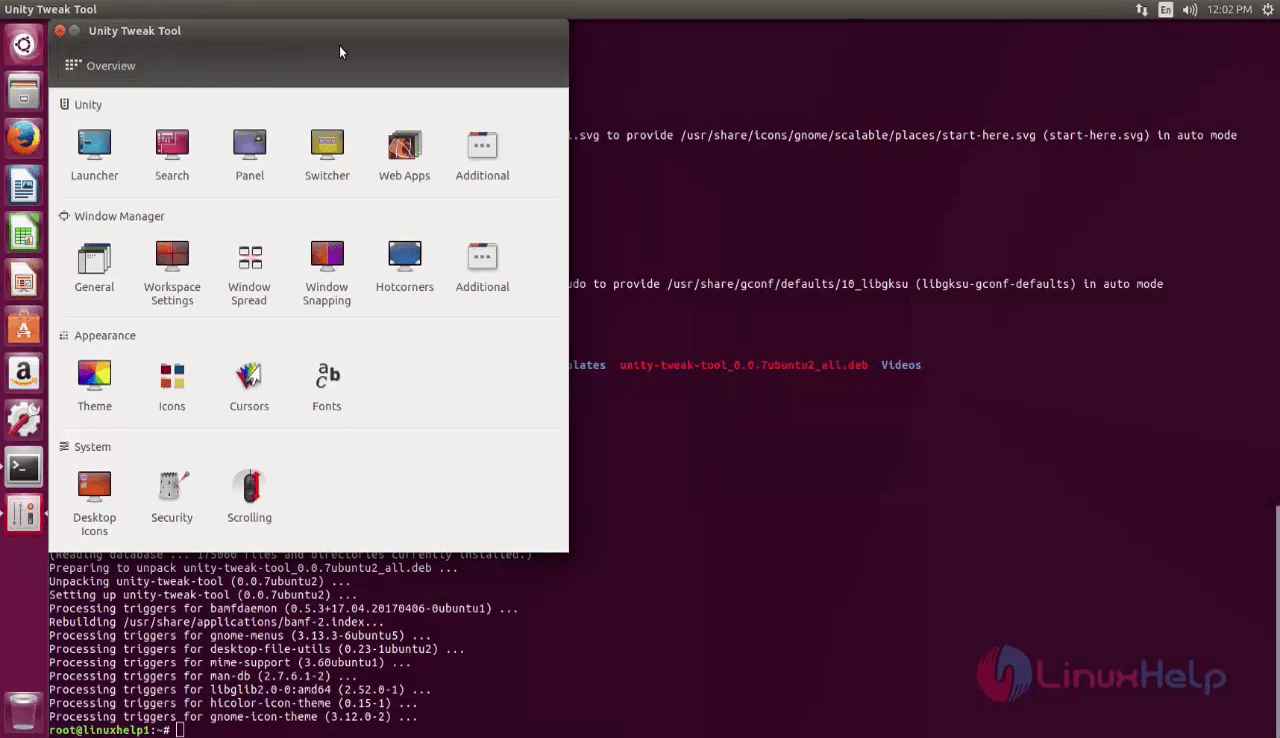
Don' t you agree that it was a simple installation process? It is also very simple to use the Unity Tweak tool.
Comments ( 0 )
No comments available