How to install unsettings in Ubuntu
To install Unsettings in Ubuntu
UnSettings is an application that lets you to change the unity settings. This is used to change the GTK and icon themes, launcher look and appeal, adjust Dash, font sizes and to restore the default settings. Installation of Unsettings is explained in this manual.
To install Unsettings
Run the following command to add the necessary repositories into it.
root@linuxhelp:~# add-apt-repository ppa:diesch/testing
 This PPA contains the most recent alpha/beta releases for
 * Arronax http://www.florian-diesch.de/software/arronax/
 * ClassicMenu Indicator http://www.florian-diesch.de/software/classicmenu-indicator/
 * Privacy Indicator http://www.florian-diesch.de/software/indicator-privacy/
 * RunLens http://www.florian-diesch.de/software/runlens/
.
.
.
gpg: key 0FEB6DD9: public key " Launchpad PPA for Florian Diesch"  imported
gpg: Total number processed: 1
gpg:               imported: 1  (RSA: 1)
OK
Then update the apt source, by utilizing the following command.
root@linuxhelp:~# apt-get update
Hit:1 http://in.archive.ubuntu.com/ubuntu xenial InRelease
Get:4 http://ppa.launchpad.net/diesch/testing/ubuntu xenial InRelease [22.4 kB]
Get:2 http://security.ubuntu.com/ubuntu xenial-security InRelease [94.5 kB]
Hit:5 http://in.archive.ubuntu.com/ubuntu xenial-backports InRelease
.
.
.
.
.
Get:54 http://in.archive.ubuntu.com/ubuntu xenial-updates/universe amd64 Packages [324 kB]
Get:55 http://in.archive.ubuntu.com/ubuntu xenial-updates/universe i386 Packages [320 kB]
Get:56 http://in.archive.ubuntu.com/ubuntu xenial-updates/universe Translation-en [111 kB]
Get:57 http://in.archive.ubuntu.com/ubuntu xenial-updates/universe amd64 DEP-11 Metadata [101 kB]
Get:58 http://in.archive.ubuntu.com/ubuntu xenial-updates/universe DEP-11 64x64 Icons [93.1 kB]
Get:59 http://in.archive.ubuntu.com/ubuntu xenial-updates/multiverse amd64 Packages [5,488 B]
Get:60 http://in.archive.ubuntu.com/ubuntu xenial-updates/multiverse i386 Packages [4,280 B]
Get:61 http://in.archive.ubuntu.com/ubuntu xenial-updates/multiverse Translation-en [2,428 B]
Get:62 http://in.archive.ubuntu.com/ubuntu xenial-updates/multiverse amd64 DEP-11 Metadata [2,473 B]
Get:63 http://in.archive.ubuntu.com/ubuntu xenial-updates/multiverse DEP-11 64x64 Icons [2,699 B]
Fetched 18.5 MB in 34s (532 kB/s)
AppStream cache update completed, but some metadata was ignored due to errors.
Reading package lists... Done
Lets start installing the Unsettings with the help of the below command.
root@linuxhelp:~# apt-get install unsettings
Reading package lists... Done
Building dependency tree
Reading state information... Done
The following additional packages will be installed:
  gir1.2-gconf-2.0 python-dbus python-gi python-gobject python-gobject-2
  python-pkg-resources python-xdg python-zeitgeist
Suggested packages:
  python-dbus-doc python-dbus-dbg python-gi-cairo python-gobject-2-dbg
  python-setuptools
The following NEW packages will be installed:
  gir1.2-gconf-2.0 python-dbus python-gi python-gobject python-gobject-2
  python-pkg-resources python-xdg python-zeitgeist unsettings
0 upgraded, 9 newly installed, 0 to remove and 384 not upgraded.
.
.
.
.
Setting up python-gobject (3.20.0-0ubuntu1) ...
Setting up python-pkg-resources (20.7.0-1) ...
Setting up python-xdg (0.25-4) ...
Setting up python-zeitgeist (0.9.16-0ubuntu4) ...
Setting up unsettings (0.11) ...
Processing triggers for libc-bin (2.23-0ubuntu3) ...
To launch Unsettings
Run the following command to start using Unsettings.
root@linuxhelp:~# unsettings
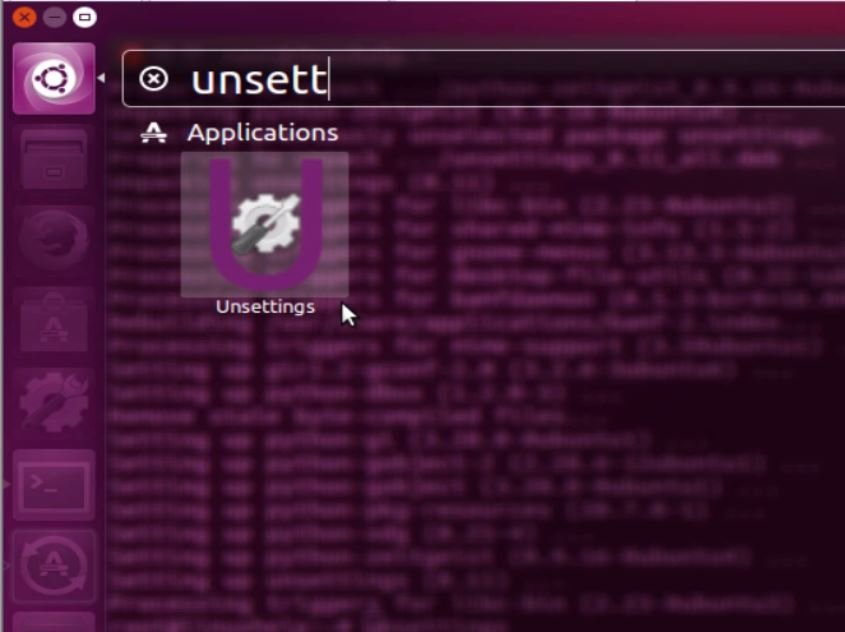
You can also start Unsettings from the Unity dashboard.
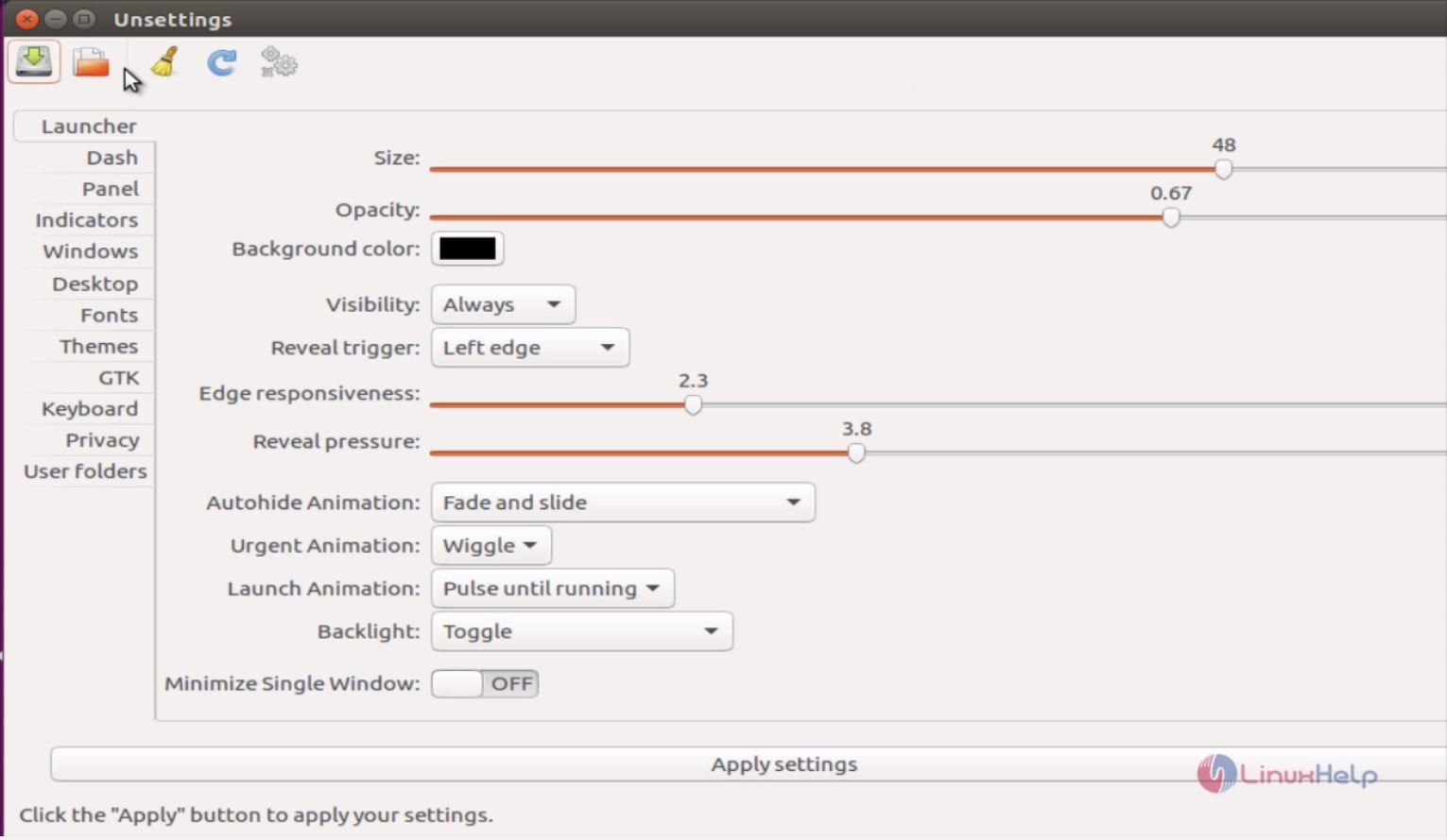
Now you can start configuring the Unsettings. To change the launcher settings, click Launcher. After making the required changes, click Apply settings.
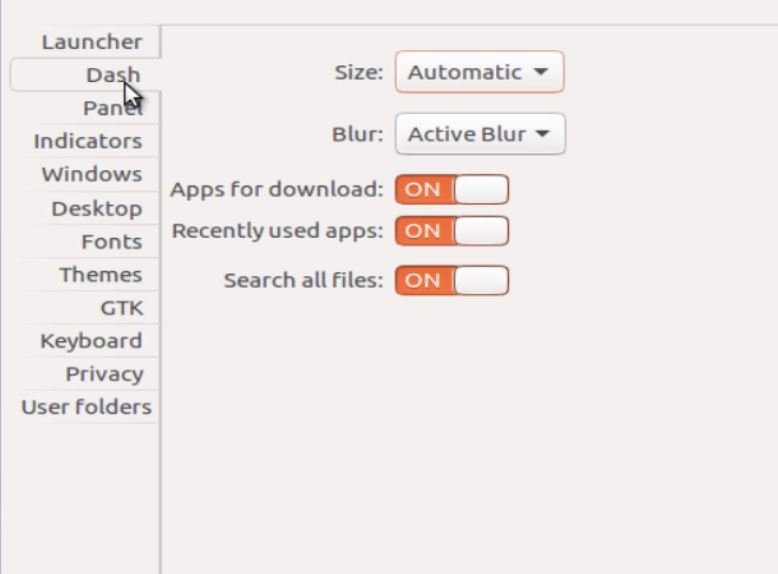
Click on Dash, to view the Dash settings.
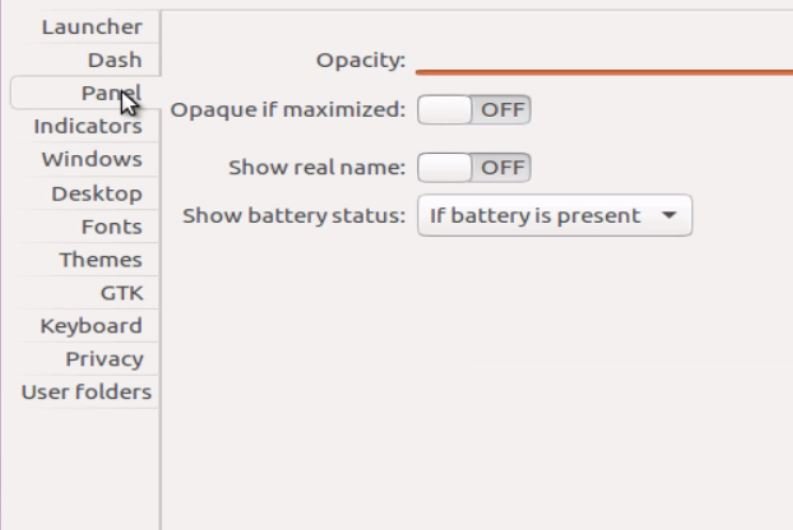
Click on Panel, to view the Panel settings.
Click on Indicators, to view the Indicators settings.
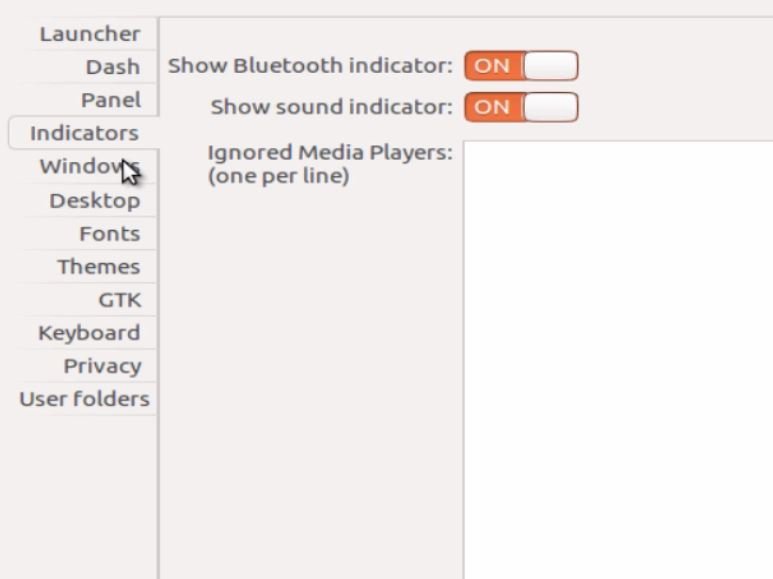
Click on Windows, to check the Windows settings.
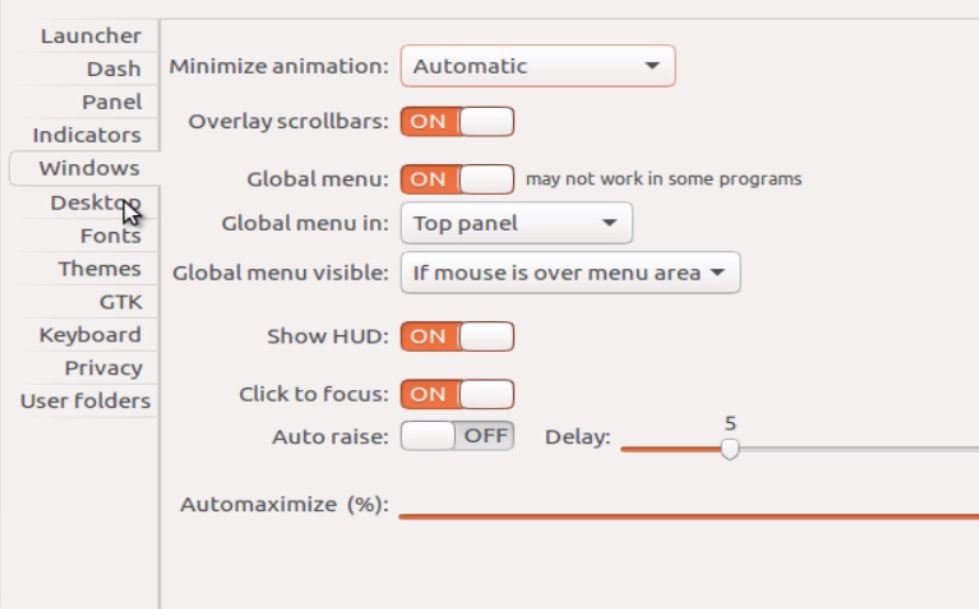
Hit on Desktop, to view the Desktop settings.
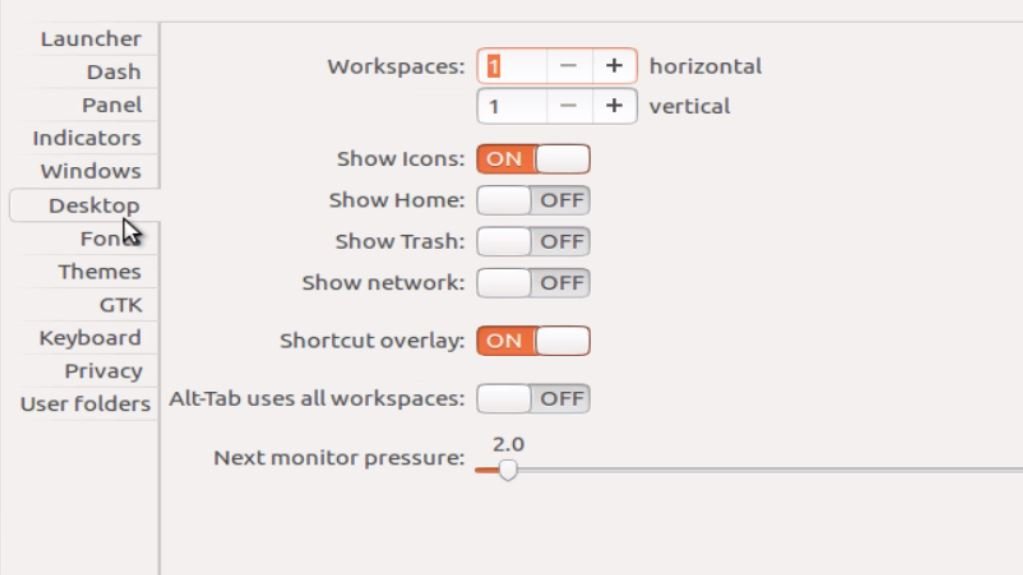
Hit on Fonts, to view the Fonts settings.
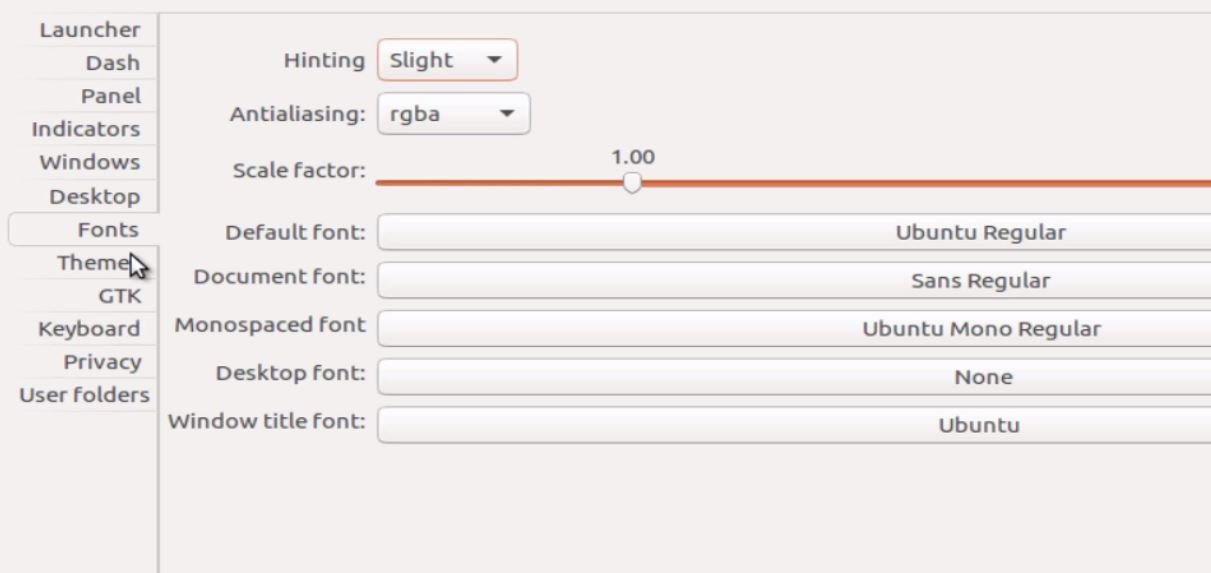
Click on Themes, to view the Theme settings.
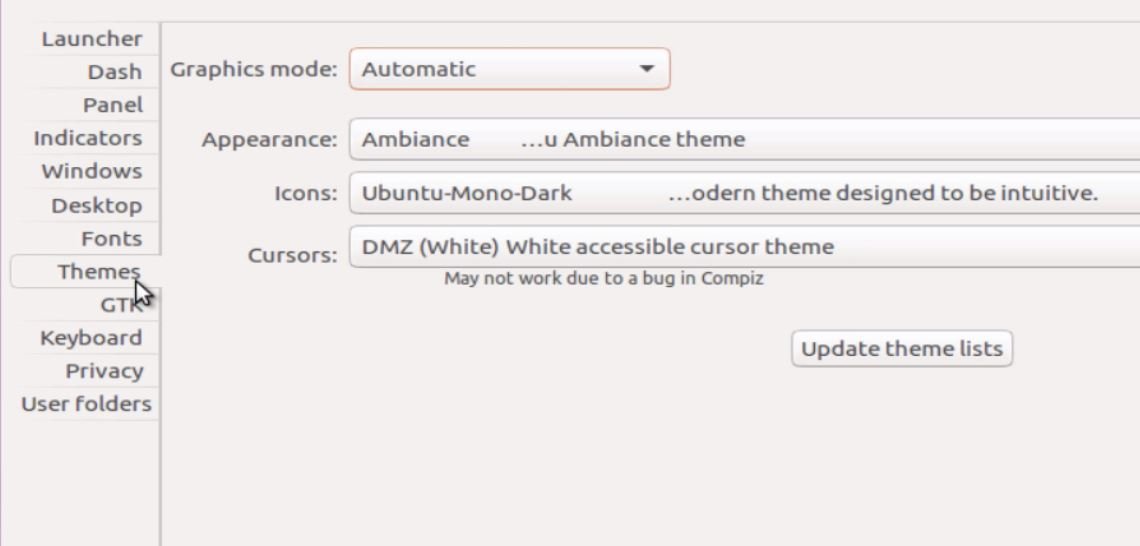
Select GTK, to configure the GTK settings.
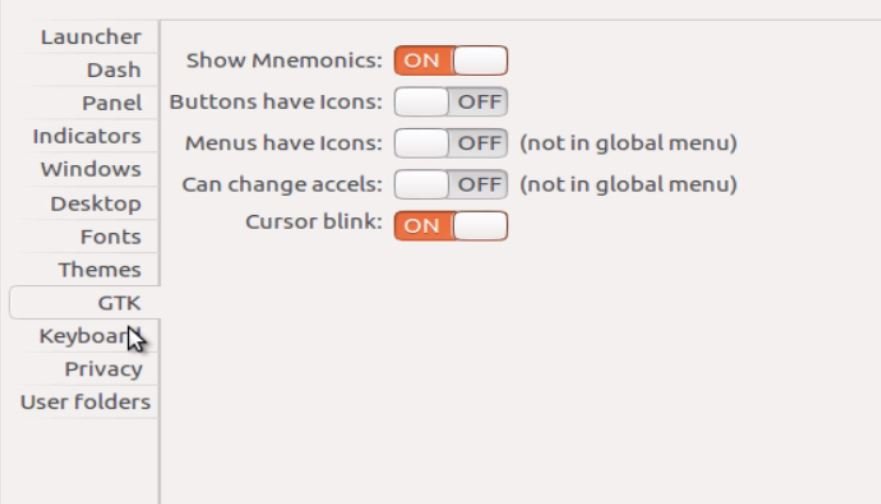
Open Keyboard interface to change the keyboard settings.
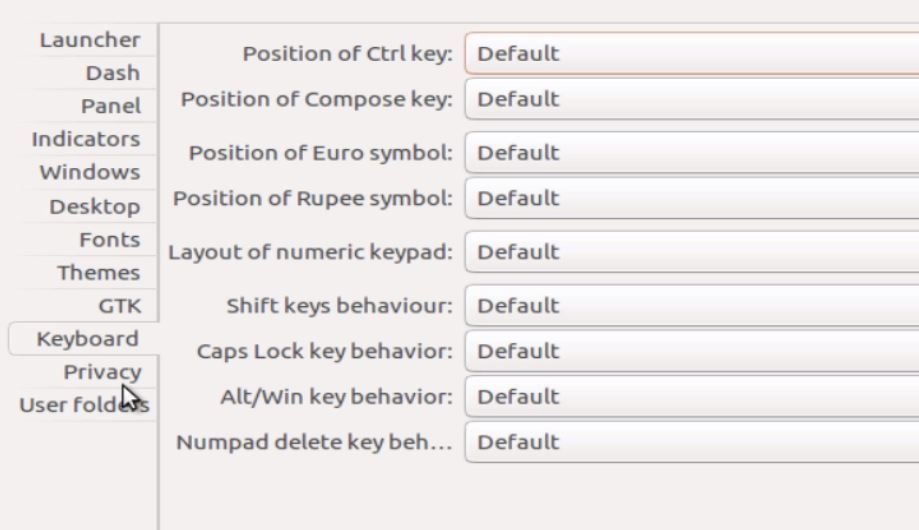
Click on Privacy tab to view the privacy settings.
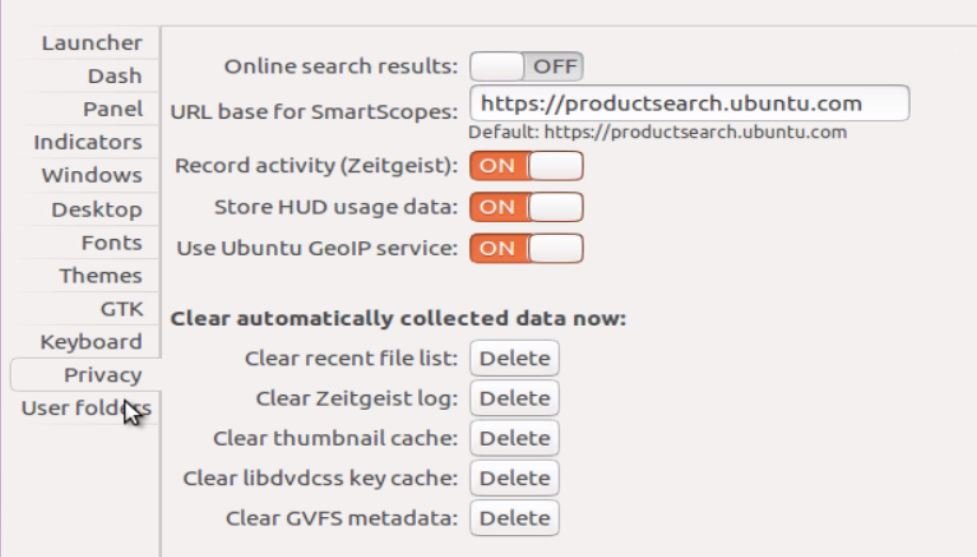
Click on User folders to check the settings.
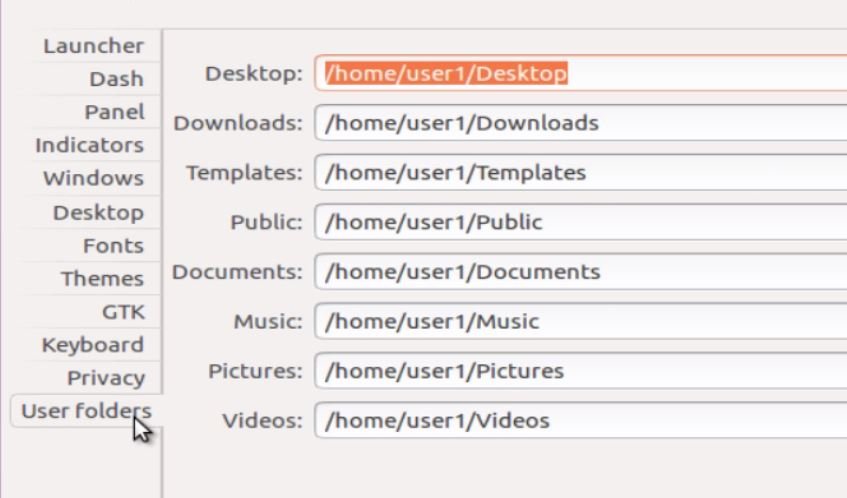
Click “ Apply settings” , after making all the changes to the unity fields.
Comments ( 0 )
No comments available