How to install uTorrent on Ubuntu 17.04
How to install uTorrent on Ubuntu 17.04
uTorrent is a torrent client application used to download torrent files. It is mostly used for small memory footprint and uses minimal computer resources while offering functionality comparable to larger BitTorrent clients. This tutorial explains the installation procedure for uTorrent on Ubuntu 17.04.
Installation procedure
To start the installation procedure, go to torrent official website to download the appropriate package for the Linux Distribution. Use the below command if the target system is either 64-bit Ubuntu 17.04 or 16.04 machine.
root@linuxhelp1:~# wget http://download.ap.bittorrent.com/track/beta/endpoint/utserver/os/linux-x64-ubuntu-13-04 -O utserver.tar.gz
--2017-06-06 23:24:41--  http://download.ap.bittorrent.com/track/beta/endpoint/utserver/os/linux-x64-ubuntu-13-04
Resolving download.ap.bittorrent.com (download.ap.bittorrent.com)... 67.215.238.66
Connecting to download.ap.bittorrent.com (download.ap.bittorrent.com)|67.215.238.66|:80... connected.
HTTP request sent, awaiting response... 200 OK
Length: 2259698 (2.2M) [application/octet-stream]
Saving to: ‘ utserver.tar.gz’
utserver.tar.gz                               100%[==============================================================================================> ]   2.15M   143KB/s    in 13s
2017-06-06 23:24:56 (165 KB/s) - ‘ utserver.tar.gz’  saved [2259698/2259698]
The package is downloaded. Extract the package directly into /opt/ directory by running the following command.
root@linuxhelp1:~# tar -xvf utserver.tar.gz -C /opt/
utorrent-server-alpha-v3_3/
utorrent-server-alpha-v3_3/webui.zip
utorrent-server-alpha-v3_3/utserver
utorrent-server-alpha-v3_3/docs/
utorrent-server-alpha-v3_3/docs/style.css
utorrent-server-alpha-v3_3/docs/license.txt
utorrent-server-alpha-v3_3/docs/Changes.txt
utorrent-server-alpha-v3_3/docs/Server_Changes.pdf
utorrent-server-alpha-v3_3/docs/footer_ut_address.gif
utorrent-server-alpha-v3_3/docs/Server_Changes.html
utorrent-server-alpha-v3_3/docs/Server_Changes.txt
utorrent-server-alpha-v3_3/docs/uTorrent_Server.txt
utorrent-server-alpha-v3_3/docs/uTorrent_Server.pdf
utorrent-server-alpha-v3_3/docs/ut-logo.gif
utorrent-server-alpha-v3_3/docs/uTorrent_Server.html
The package is extracted to the required directory. Install the dependent package for uTorrent by executing the below command and press y to continue with the installation procedure.
root@linuxhelp1:~# apt install libssl1.0.0 libssl-dev -y
Reading package lists... Done
Building dependency tree
Reading state information... Done
libssl1.0.0 is already the newest version (1.0.2g-1ubuntu11).
The following additional packages will be installed:
  libssl-doc zlib1g-dev
The following NEW packages will be installed:
  libssl-dev libssl-doc zlib1g-dev
0 upgraded, 3 newly installed, 0 to remove and 94 not upgraded.
Need to get 2,586 kB of archives.
After this operation, 10.5 MB of additional disk space will be used.
Get:1 http://in.archive.ubuntu.com/ubuntu zesty/main amd64 zlib1g-dev amd64 1:1.2.11.dfsg-0ubuntu1 [173 kB]
.
.
.
Processing triggers for man-db (2.7.6.1-2) ...
Setting up libssl-doc (1.0.2g-1ubuntu11) ...
Setting up zlib1g-dev:amd64 (1:1.2.11.dfsg-0ubuntu1) ...
Setting up libssl-dev:amd64 (1.0.2g-1ubuntu11) ...
Create the softlink for utserver in /usr/bin directory and run the following command.
root@linuxhelp1:~# ln -s /opt/utorrent-server-alpha-v3_3/utserver /usr/bin/utserver
Now the uTorrent application is running successfully and set the path by executing the following command.
root@linuxhelp1:~# utserver -settingspath /opt/utorrent-server-alpha-v3_3/ &
[1] 6905
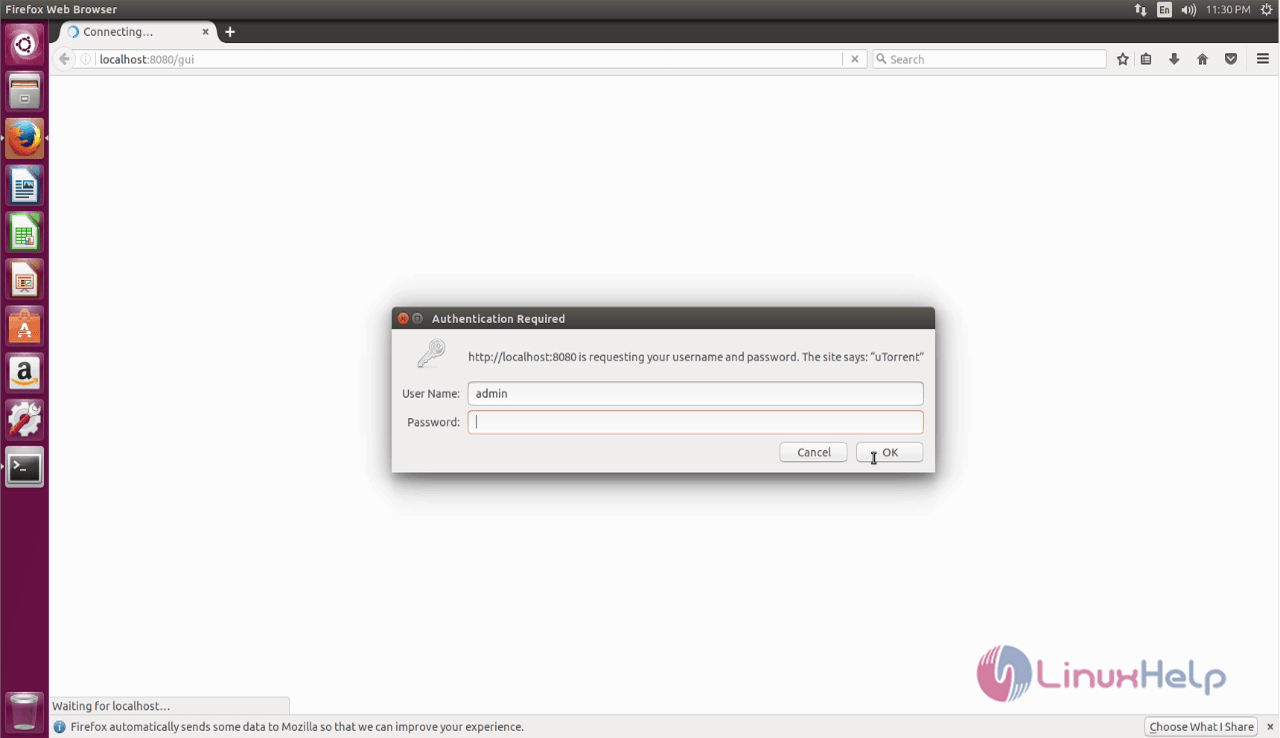
Go to the web browser and navigate to link http://your-ip:8080/gui (http://192.168.7.232:8080/gui) and run it. Type username as admin and leave password as empty and login.
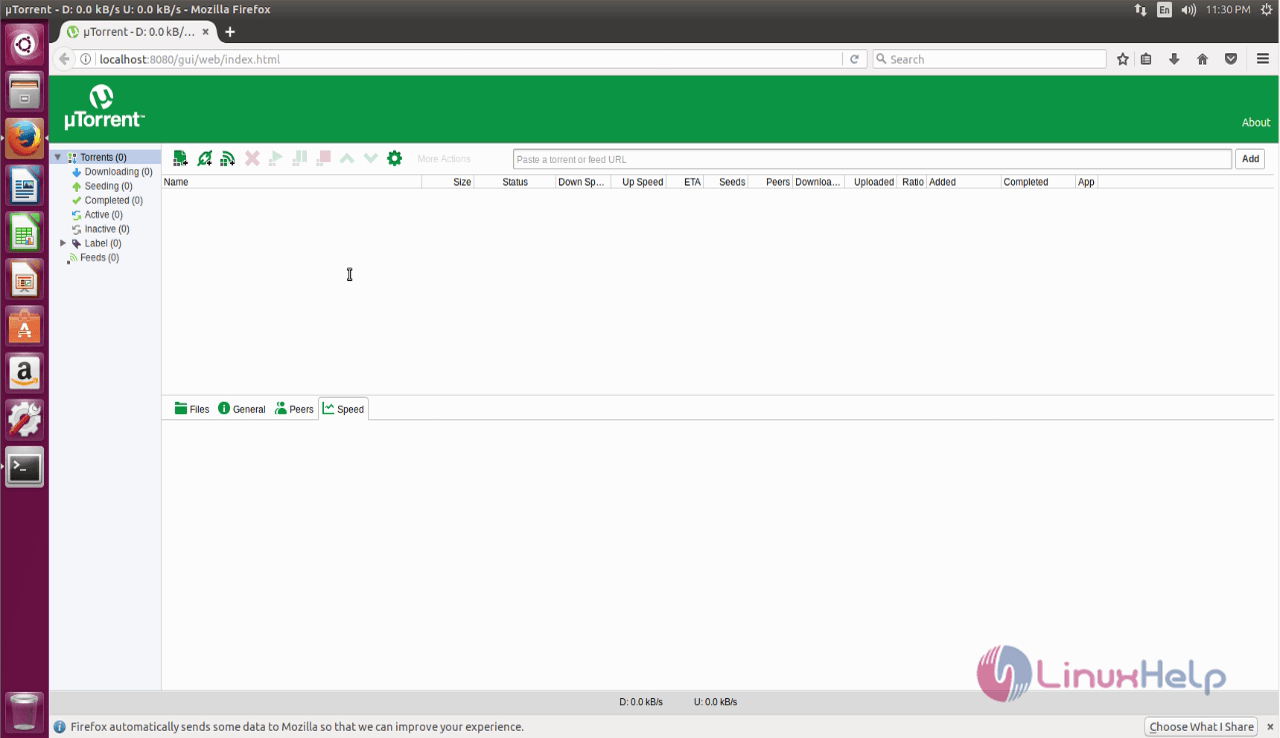
The uTorrent application is running successfully.
Wasn' t that an easy installation procedure? uTorrent supports micro transport protocol, embedded tracker, protocol encryption and full proxy server support
Comments ( 1 )