• Categories
    Category
    {{ postCtrl.tags }}
    • {{ category.tag_type }}

      • {{tag.tag_name}}
      • View more
  • Categories
    Category
    {{ postCtrl.tags }}
    • {{ category.tag_type }}

      • {{tag.tag_name}}
      • View more
  • News
  • Tutorials
  • Forums
  • Tags
  • Users
Tutorial News Comments FAQ Related Articles

How to install Variety 0.6.0 in Ubuntu

{{postValue.id}}

To install Variety 0.6.0 in Ubuntu

Variety is an automatic wallpaper changer application that changes the desktop wallpaper on regular basis. It suits for popular desktop environments including Unity, Gnome Shell, KDE, XFCE,etc. The Variety application allows the users to rotate the process on regular interval and also displays funny quotes or digital clock on the desktop. Installation of Variety 0.6.0 in Ubuntu is explained in this article.

Installation of Variety 0.6.0

First add the repository to the system with following command.

root@linuxhelp:/home/user1# add-apt-repository ppa:peterlevi/ppa
 Contains packages for the Variety wallpaper changer
http://launchpad.net/variety
 More info: https://launchpad.net/~peterlevi/+archive/ubuntu/ppa
Press [ENTER] to continue or ctrl-c to cancel adding it

gpg: keyring `/tmp/tmpvhx6zpik/secring.gpg'  created
gpg: keyring `/tmp/tmpvhx6zpik/pubring.gpg'  created
gpg: requesting key A546BE4F from hkp server keyserver.ubuntu.com
gpg: /tmp/tmpvhx6zpik/trustdb.gpg: trustdb created
gpg: key A546BE4F: public key " Launchpad PPA for Peter Levi"  imported
gpg: Total number processed: 1
gpg:               imported: 1  (RSA: 1)
OK

Then update added repository with apt-get update command.

root@linuxhelp:/home/user1# apt-get update
Hit http://in.archive.ubuntu.com wily InRelease
Hit http://security.ubuntu.com wily-security InRelease Get:1 http://ppa.launchpad.net wily InRelease [15.4 kB]
Hit http://in.archive.ubuntu.com wily-updates InRelease &hellip  &hellip  Hit http://in.archive.ubuntu.com wily-backports/universe Translation-en Fetched 17.7 kB in 10s (1,657 B/s) Reading package lists... Done

Now run the below command to install variety.

root@linuxhelp:/home/user1# apt-get install variety variety-slideshow
Reading package lists... Done
Building dependency tree       
Reading state information... Done
&hellip 
&hellip 
Setting up variety (0.6.2-0~570~201608092115~ubuntu15.10.1) ...
Setting up variety-slideshow (0.1-0~21~ubuntu15.10.1) ...
Processing triggers for libc-bin (2.21-0ubuntu4) ...


To open variety application, just enter variety in the terminal.

root@linuxhelp:/home/user1# variety

Welcome page of Variety will display as shown below. Click on continue option for further process.
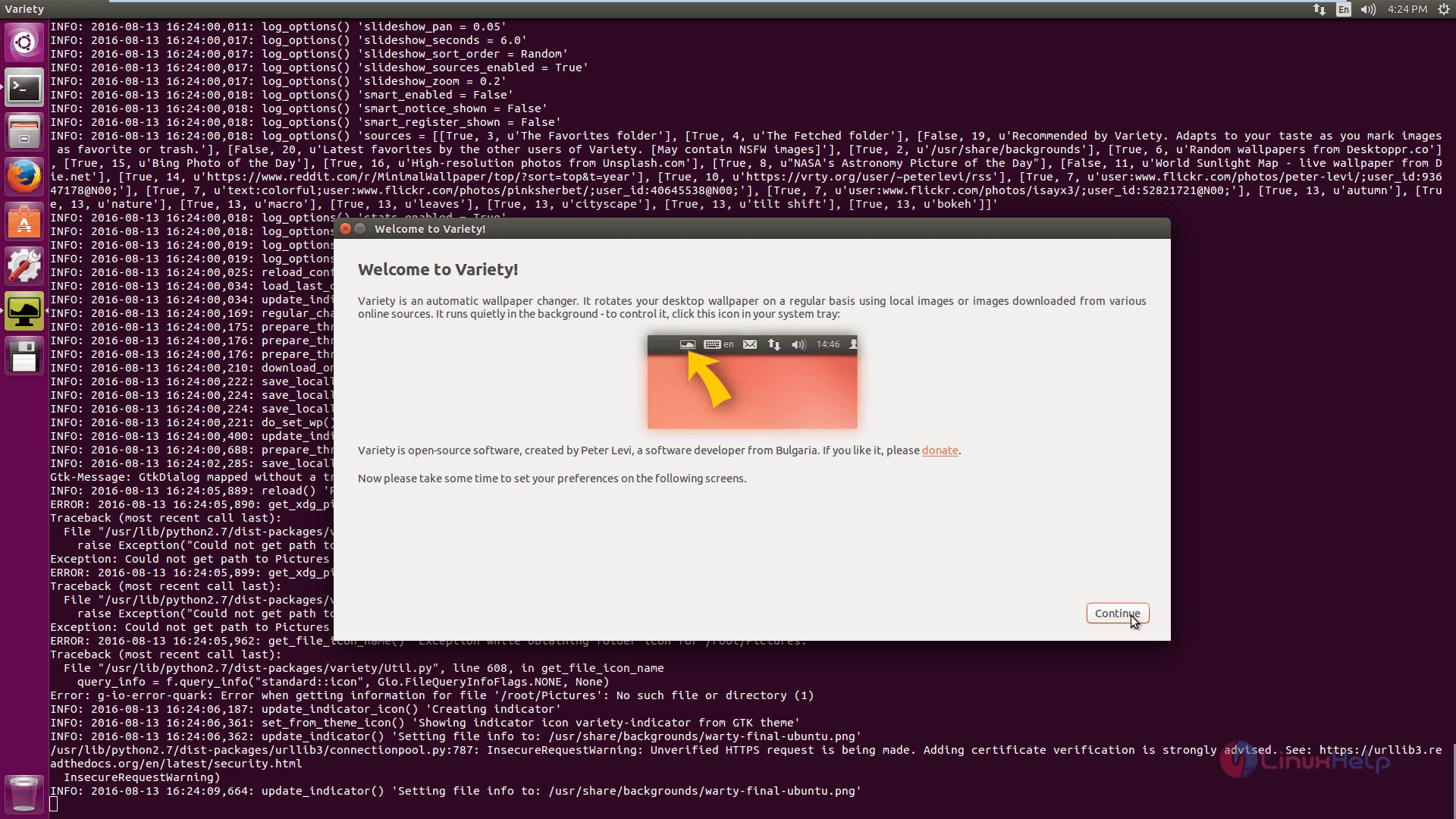
Variety-welcome-page

In the Variety Preferences window, you can customize the settings. First in General tab, fix the wallpaper changing time and downloading websites.
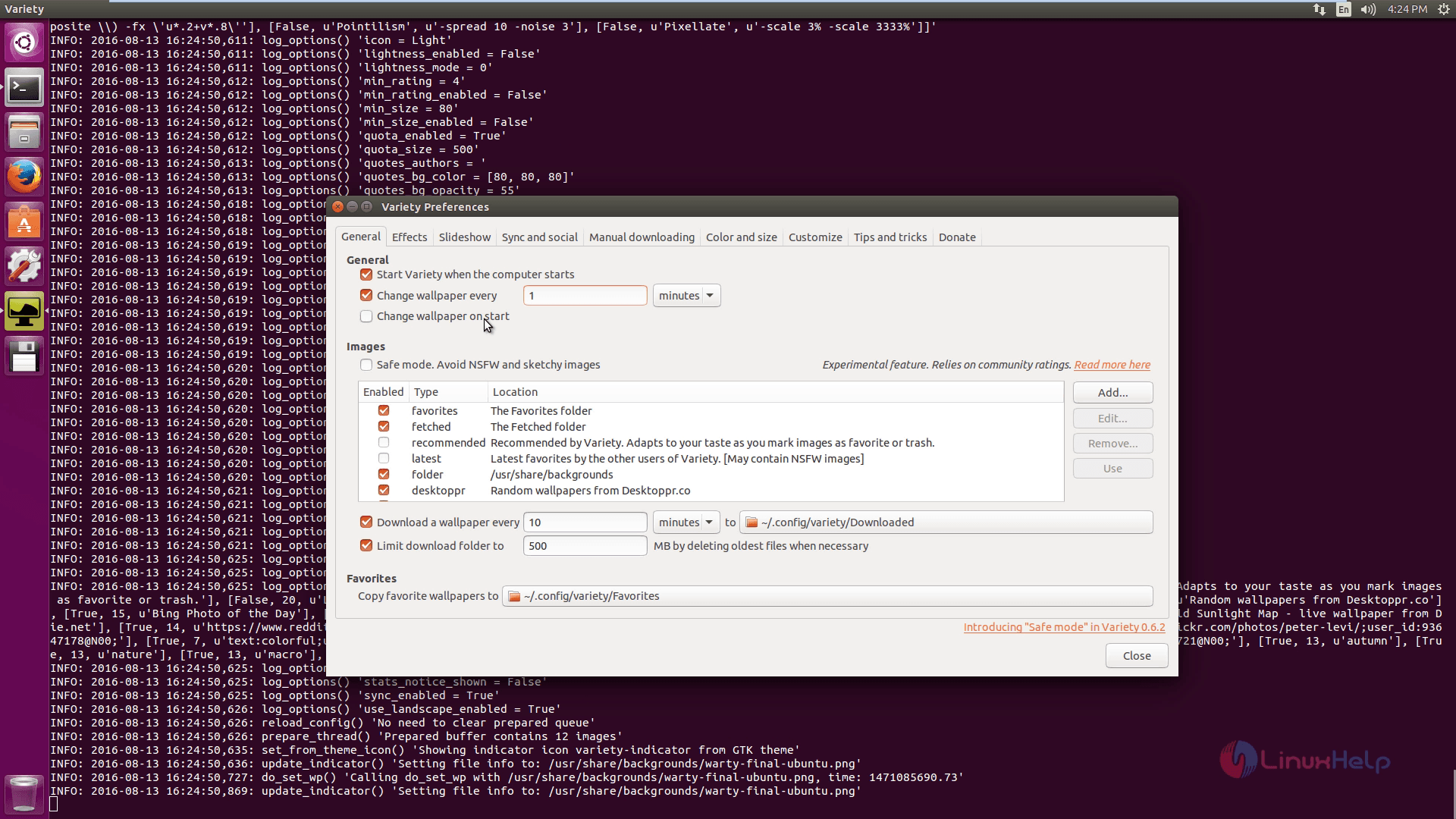
 Variety Preferences

In Effects tab, edit the filters, quotes and clock.
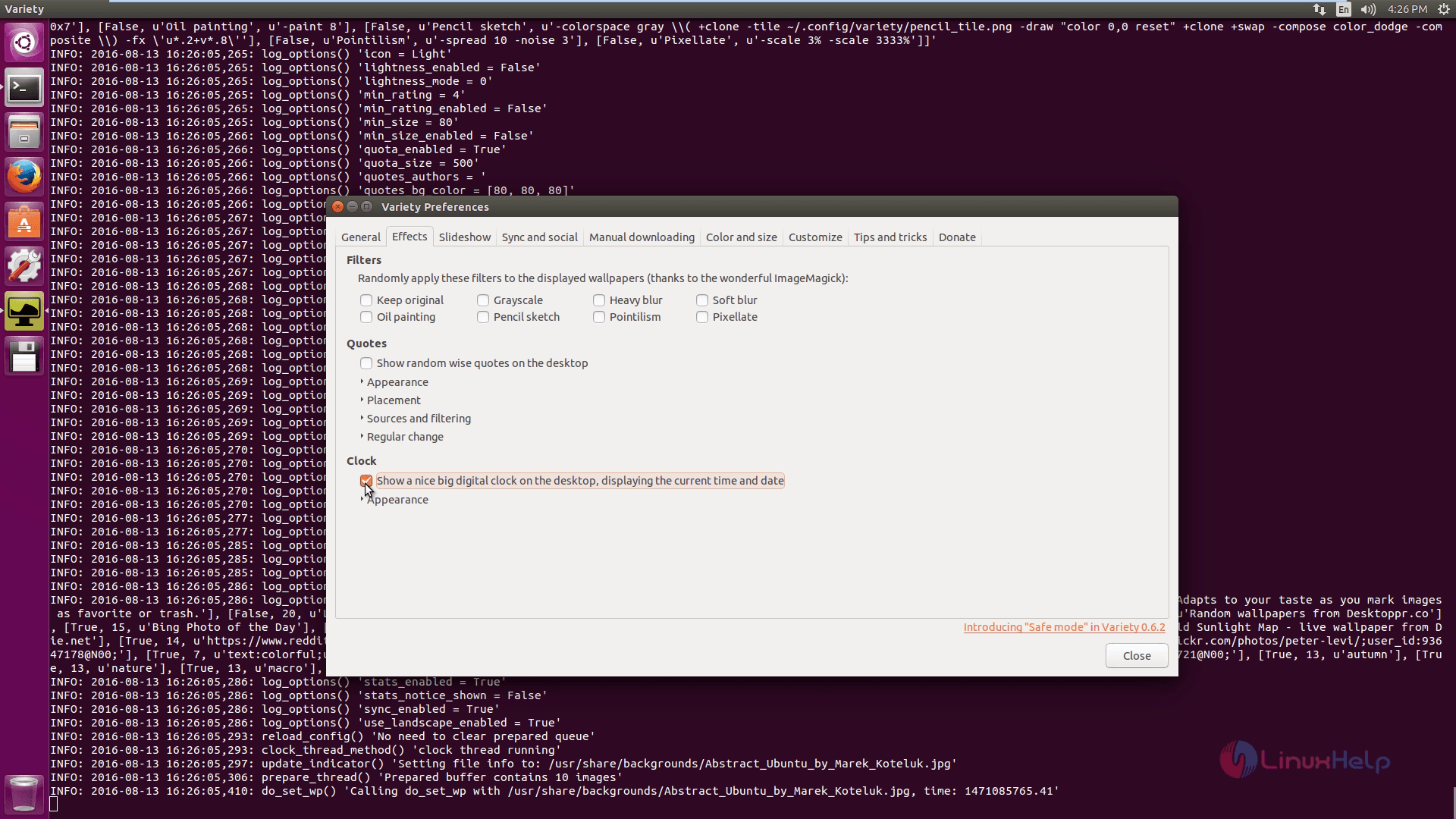
Effects tab

In Slideshow tab, customize the following details.
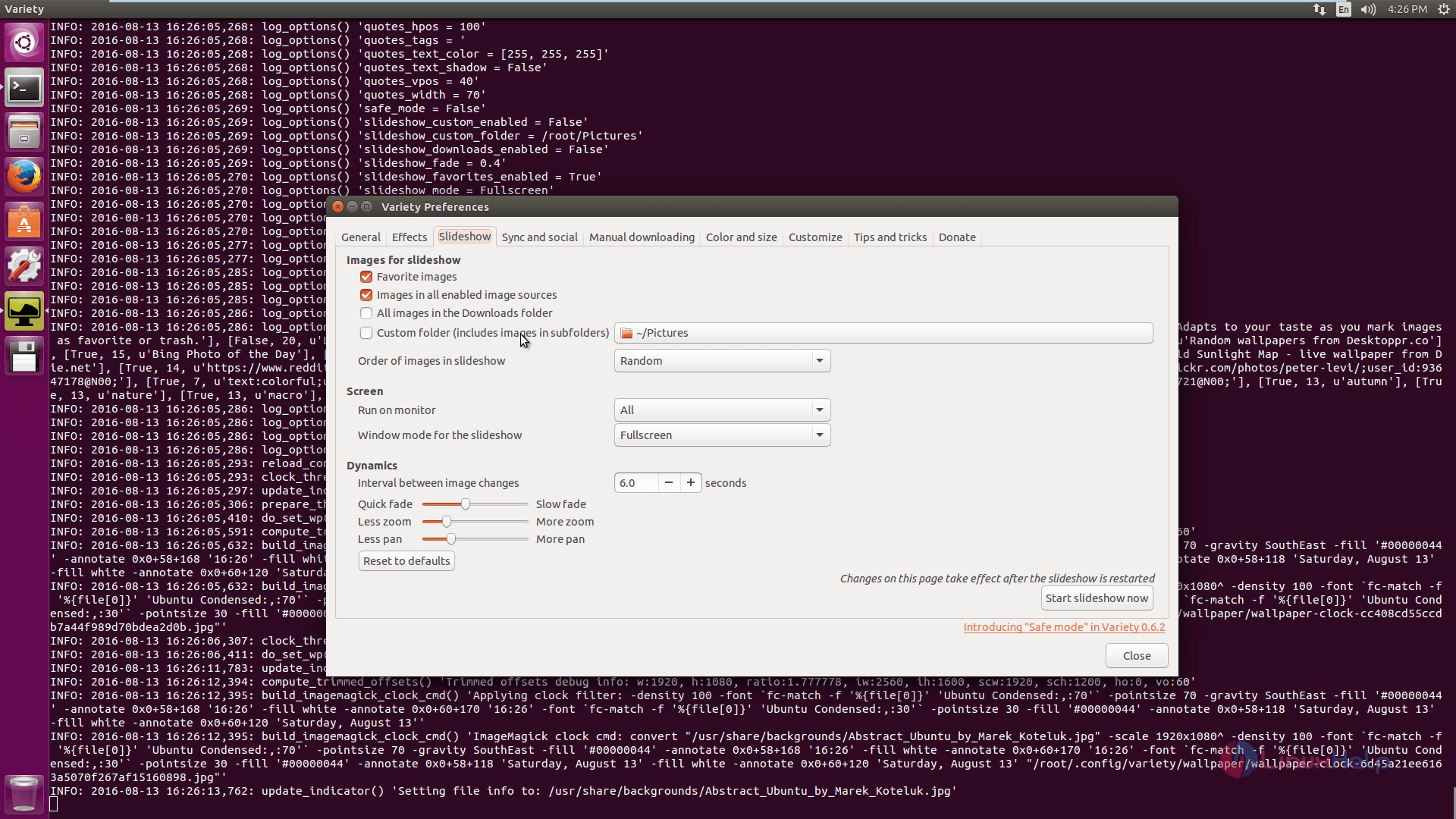
Slideshow tab

In Manual downloading tab, configure the downloading path.
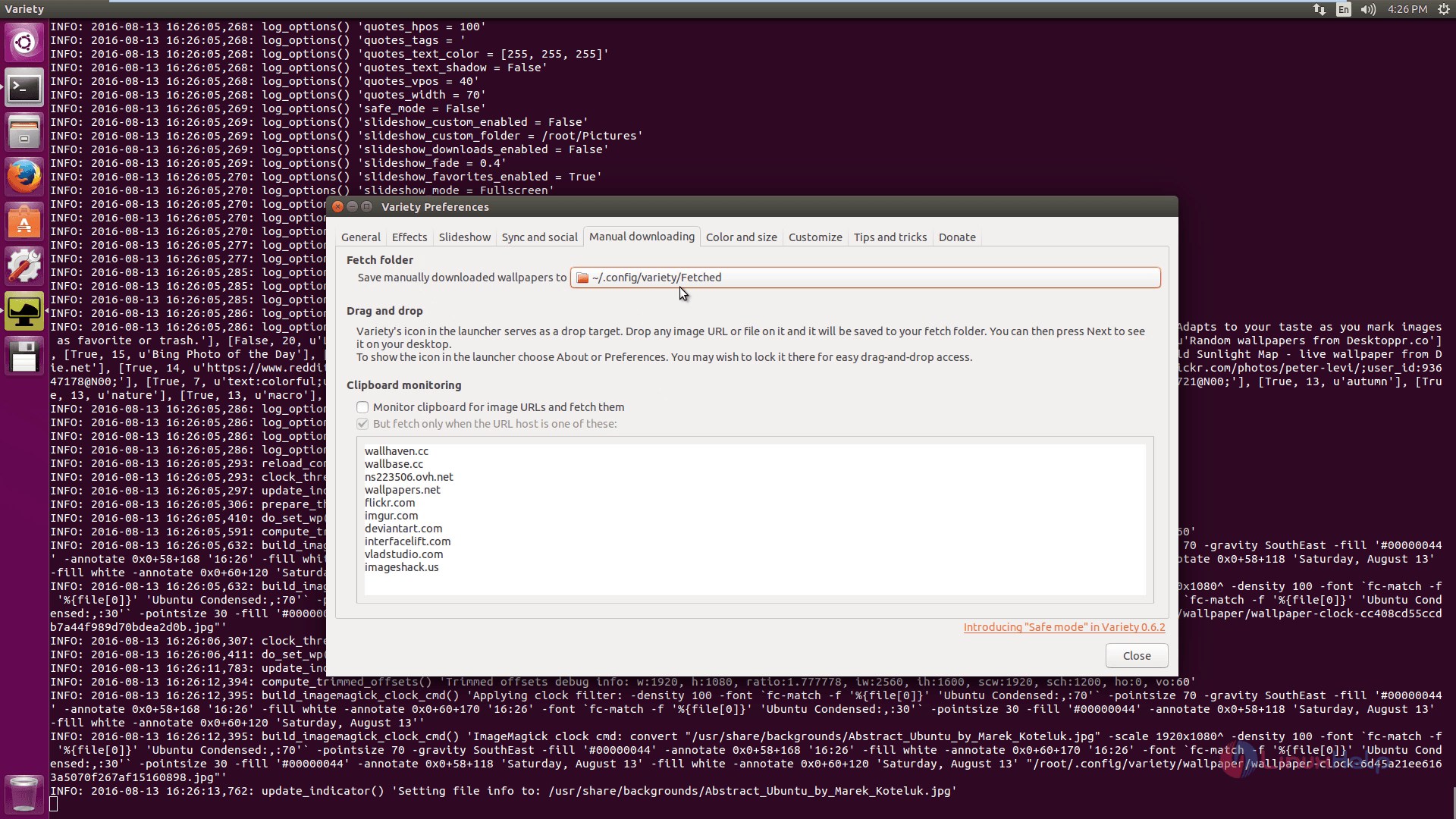
Manual downloading tab

In Customize tab, customize the icon and then click on close option.
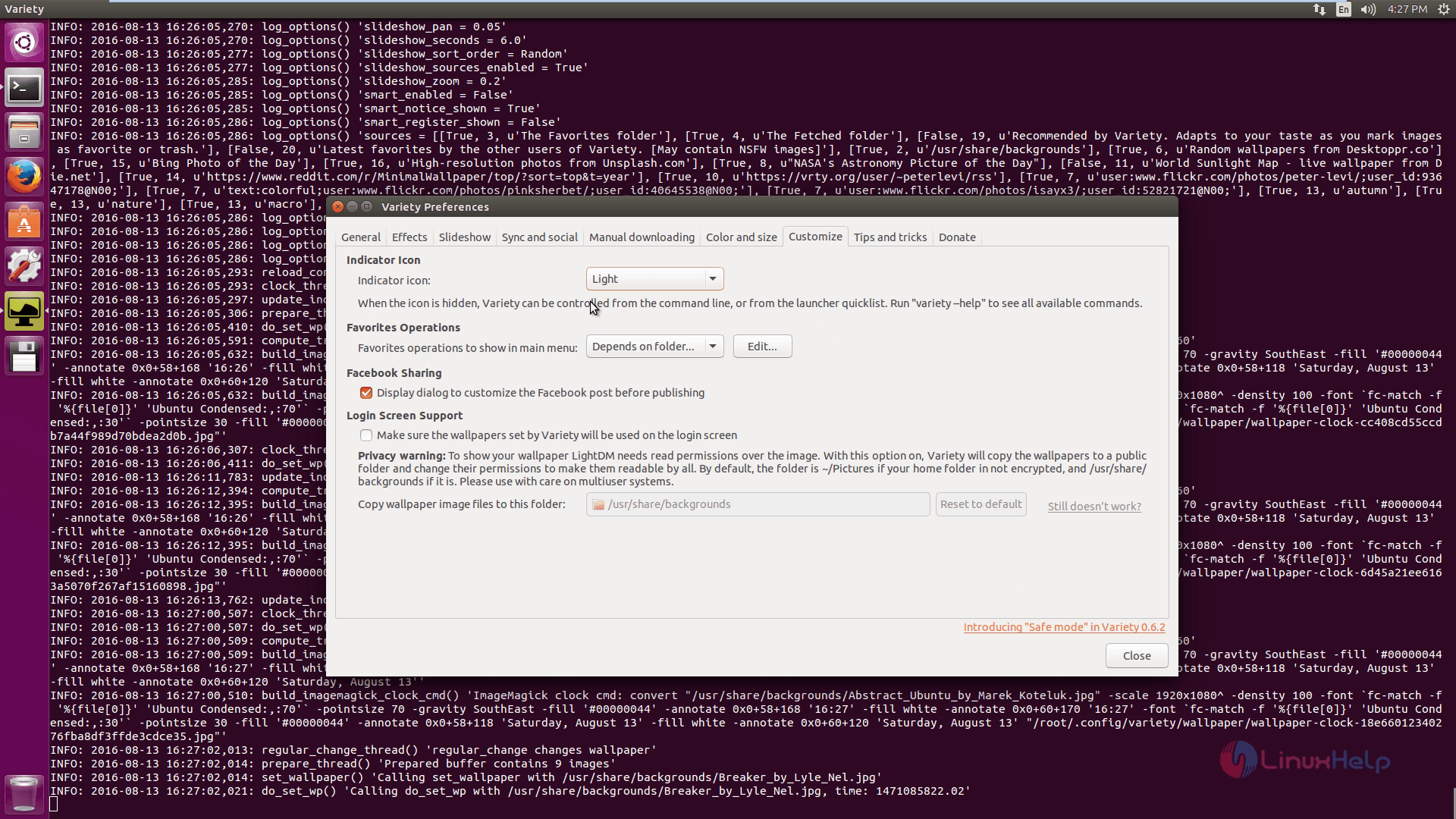
Customize tab

Now you can able to see the specified wallpaper on the desktop. If you want to change next wallpaper follow the below given steps.
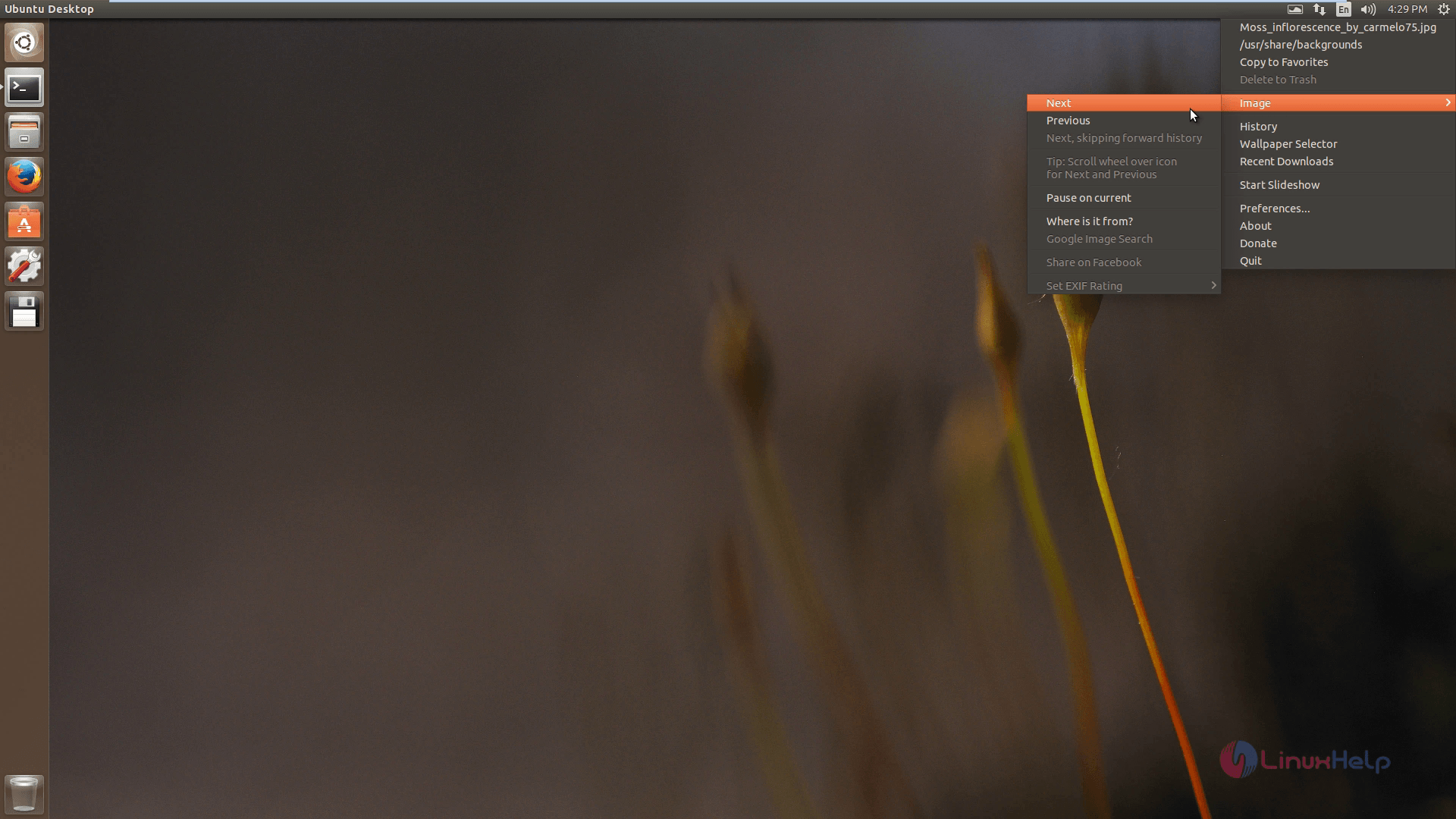
next wallpaper

Select Wallpaper selector for quick change.
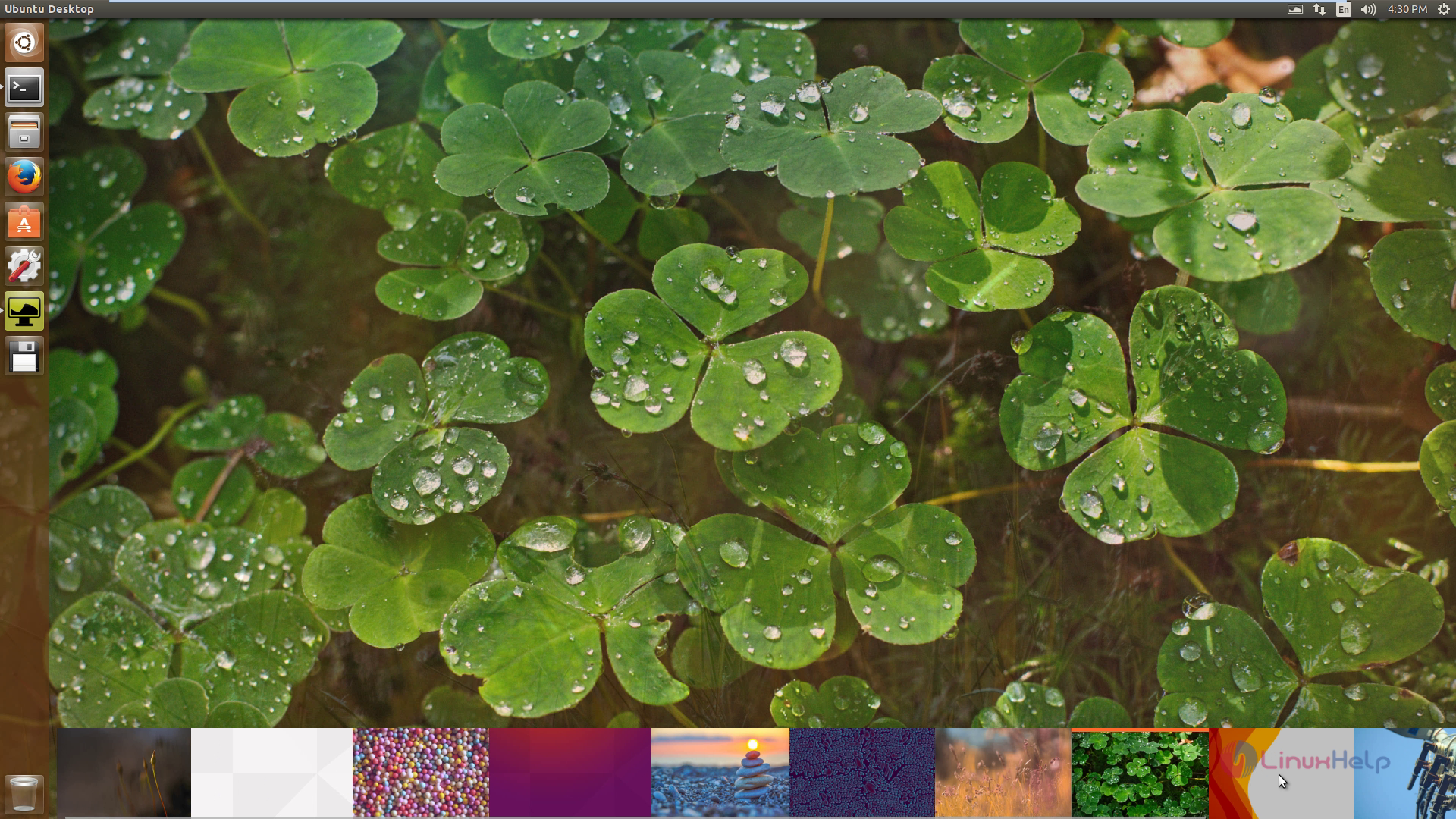
Wallpaper selector

Click on start slideshow option to start a slideshow.
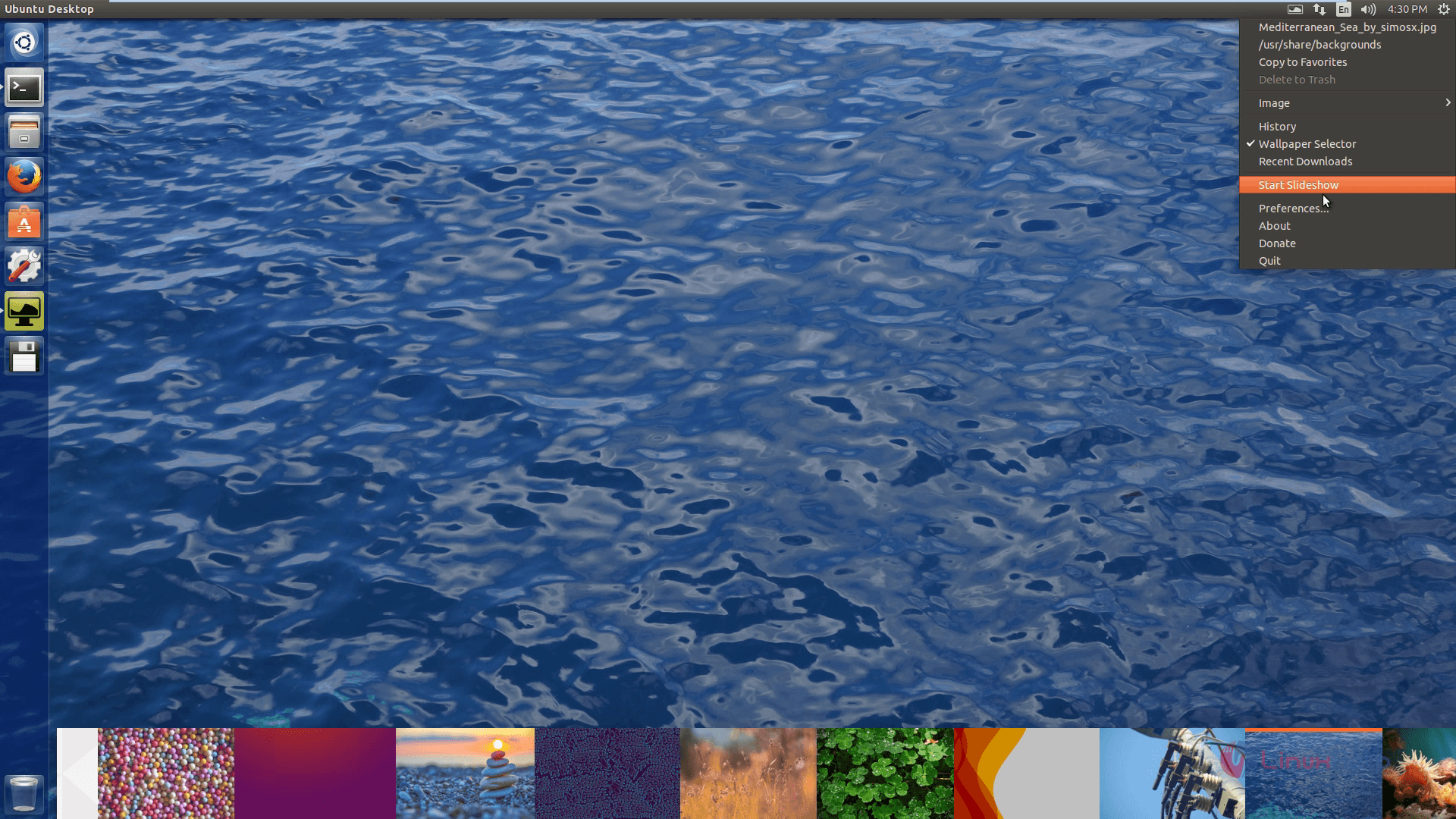
slideshow

Click on Preferences option to change the preference.
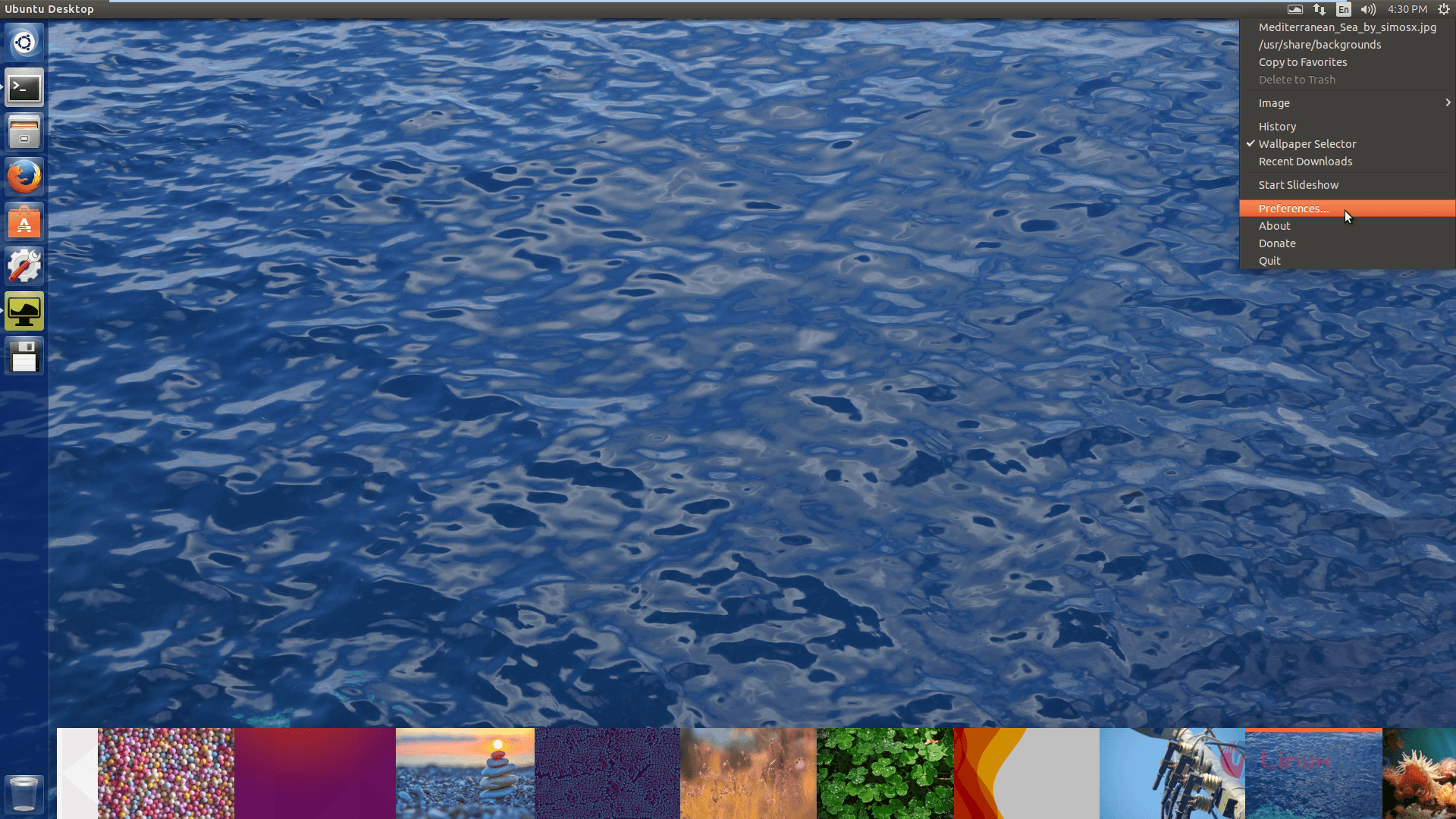
preference

Click on About variety option to know more about variety application.
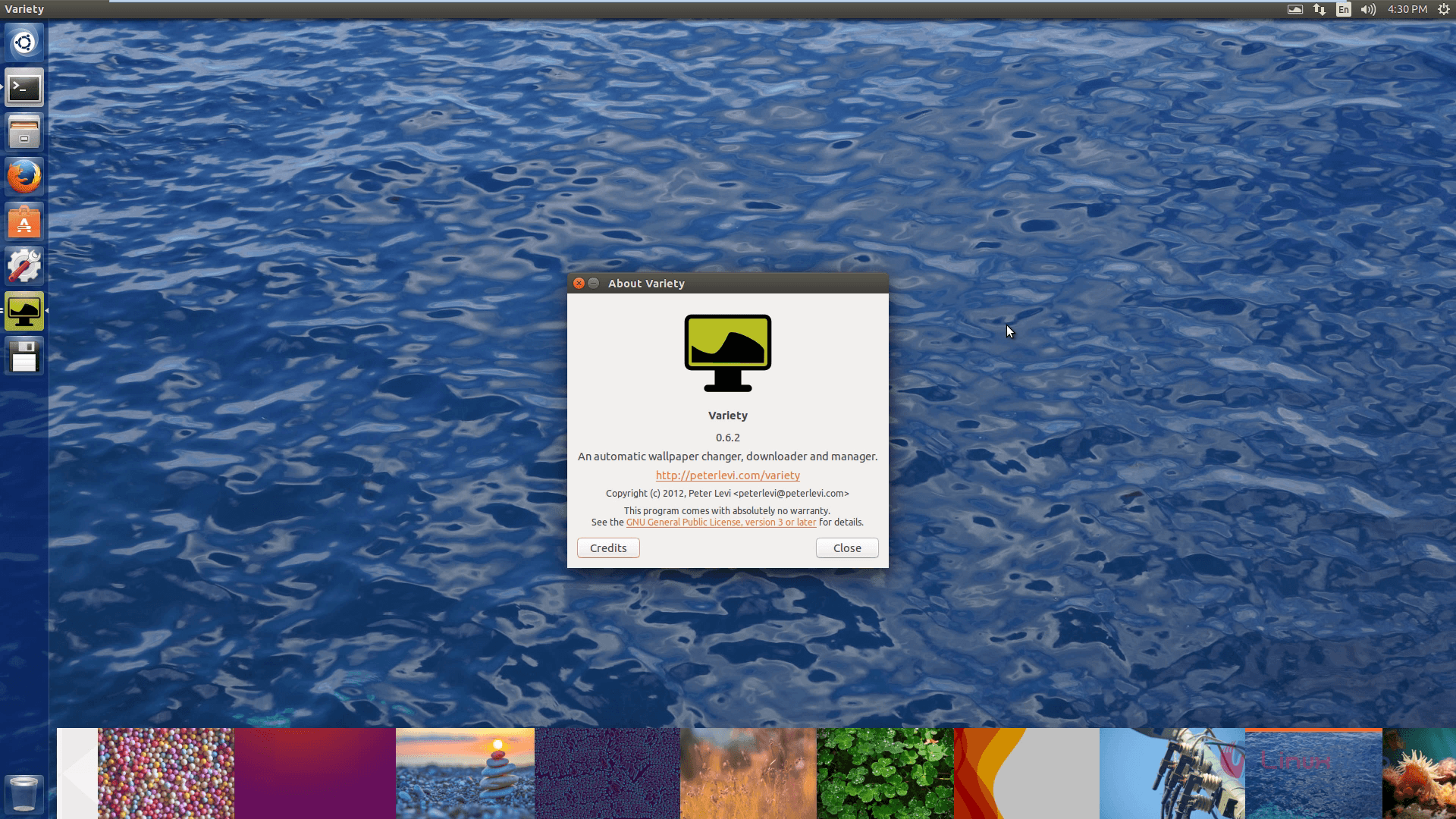
 about variety

Tags:
jacob
Author: 

Comments ( 0 )

No comments available

Add a comment
{{postCtrl.cmtErrMsg}}

Frequently asked questions ( 5 )

Q

How to install Variety tool on Fedora?

A

For the installation of Variety tool on Fedora, use the following link as given below "https://ask.fedoraproject.org/en/question/52979/how-to-install-variety-on-fedora-20/"

Q

If its possible to set a theme using Variety tool?

A

Yes,it is possible to set a theme using Variety tool.

Q

What is main terms of using the Variety tool?

A

Variety is an automatic wallpaper changer application that changes the desktop wallpaper on regular basis. It suits for popular desktop environments including Unity, Gnome Shell, KDE, XFCE,et

Q

How do I install new software on Fedora? Is there anything like APT?

A

The command line yum|dnf utility helps you manage the software on your system. The yum|dnf utility accesses Web sites, known as repositories, to download and install the latest versions of software packages. Fedora systems also include a graphical interface to yum|dnf, which appears on the Main Menu under Applications > Add/Remove Software. With Gnome as the default interface, a new graphical tool dnfdragora is available. The dnfdragora tool is available for the command line and is invokeda with sudo dnfdragora.

Q

How to accessing the Github repository for the Variety tool?

A

For accessing the Github repository for the Variety tool, use the following link as given below "https://github.com/peterlevi/variety-slideshow"

Back To Top!
Rank
User
Points

Top Contributers

userNamenaveelansari
135850

Top Contributers

userNameayanbhatti
92510

Top Contributers

userNamehamzaahmed
32150

Top Contributers

1
userNamelinuxhelp
31040

Top Contributers

userNamemuhammadali
24500
Can you help Ryan ?
how to use visual traceroute tool

Am using traceroute command to check for the route. i got this tool while surfing. So pls help me out installation and usage of Visual traceroute tool.

Networking
  • Routing
  • trunk
  • Netmask
  • Packet Capture
  • domain
  • HTTP Proxy
Server Setup
  • NFS
  • KVM
  • Memory
  • Sendmail
  • WebDAV
  • LXC
Shell Commands
  • Cloud commander
  • Command line archive tools
  • last command
  • Shell
  • terminal
  • Throttle
Desktop Application
  • Linux app
  • Pithos
  • Retrospect
  • Scribe
  • TortoiseHg
  • 4Images
Monitoring Tool
  • Monit
  • Apache Server Monitoring
  • EtherApe 
  • Arpwatch Tool
  • Auditd
  • Barman
Web Application
  • Nutch
  • Amazon VPC
  • FarmWarDeployer
  • Rukovoditel
  • Mirror site
  • Chef
Contact Us | Terms of Use| Privacy Policy| Disclaimer
© 2025 LinuxHelp.com All rights reserved. Linux™ is the registered trademark of Linus Torvalds. This site is not affiliated with linus torvalds in any way.