• Categories
    Category
    {{ postCtrl.tags }}
    • {{ category.tag_type }}

      • {{tag.tag_name}}
      • View more
  • Categories
    Category
    {{ postCtrl.tags }}
    • {{ category.tag_type }}

      • {{tag.tag_name}}
      • View more
  • News
  • Tutorials
  • Forums
  • Tags
  • Users
Tutorial News Comments FAQ Related Articles

How to Install VeraCrypt on Ubuntu 16.04

{{postValue.id}}

To Install VeraCrypt on Ubuntu 16.04

VeraCrypt is free, open-source disk encryption software that is forked from TrueCrypt, which became defunct since May 2014. VeraCrypt is available for Linux, Mac OS, Windows, DragonFly BSD and Android. There’ re many reasons to use a disk encryption software like VeraCrypt. For instance, if you use cloud storage, you may want to encrypt your files before uploading them to ensure only you can see your files.

In this tutorial, we are going to learn how to install VeraCrypt on Ubuntu 16.04 and Ubuntu 16.10.

Installing VeraCrypt:

First, make sure you update the system repository by making use of the following command.

root@localhost:~# apt-get update
Get:1 http://security.ubuntu.com/ubuntu xenial-security InRelease [102 kB]
.
.
Fetched 4,595 kB in 14s (314 kB/s)                                                            
Reading package lists... Done

And then, you need to add the repository in the following manner.

root@localhost:~# add-apt-repository ppa:unit193/encryption
 https://www.veracrypt.fr/
.
.
gpg:               imported: 1  (RSA: 1)
OK

You shall now install the Veracrypt application by making use of the following command.

root@localhost:~# wget https://launchpadlibrarian.net/289850375/veracrypt-1.19-setup.tar.bz2
--2018-02-06 09:12:09--  https://launchpadlibrarian.net/289850375/veracrypt-1.19-setup.tar.bz2
Resolving launchpadlibrarian.net (launchpadlibrarian.net)... 91.189.89.229, 91.189.89.228
Connecting to launchpadlibrarian.net (launchpadlibrarian.net)|91.189.89.229|:443... connected.
.
.
veracrypt-1.19-setup.tar.bz2.1  100%[=====================================================> ]  16.33M   630KB/s    in 59s     
2018-02-06 09:13:10 (284 KB/s) - ‘ veracrypt-1.19-setup.tar.bz2.1’  saved [17120742/17120742]

You can now view the downloaded file by making use of the following command.

root@localhost:~# ls
veracrypt-1.19-setup.tar.bz2

And then, extract the file.

root@localhost:~# tar -xjvf veracrypt-1.19-setup.tar.bz2
veracrypt-1.19-setup-console-x64
veracrypt-1.19-setup-console-x86
veracrypt-1.19-setup-gui-x64
veracrypt-1.19-setup-gui-x86

After that, you need to execute the file, it will install the application.

root@localhost:~# ./veracrypt-1.19-setup-gui-x64 
Verifying archive integrity...  100%   All good.
Uncompressing VeraCrypt 1.19 Installer  100%  

You shall now open Veracrypt.

root@localhost:~# veracrypt 
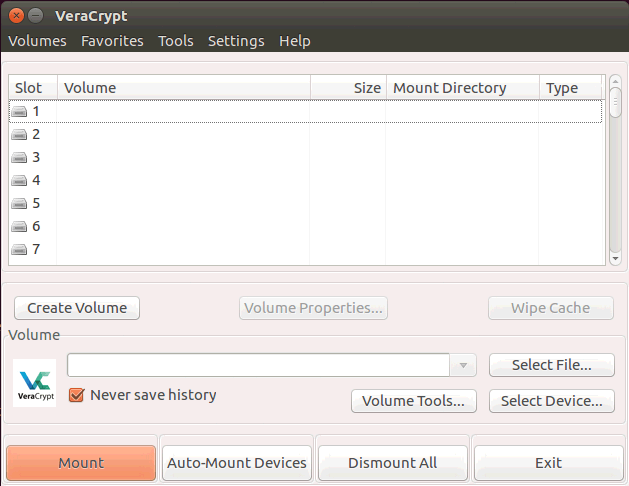

Veracrypt

With this, the tutorial on installation of VeraCrypt on Ubuntu 16.04 and Ubuntu 16.10 comes to an end.

Tags:
matthew
Author: 

Comments ( 0 )

No comments available

Add a comment
{{postCtrl.cmtErrMsg}}

Frequently asked questions ( 5 )

Q

How to get the Github repository of the VeraCrypt ?

A

For accessing the Github repository of the VeraCrypt , use the following link as given below "https://www.veracrypt.fr/code/VeraCrypt/".

Q

may I know the stable version for this tool?

A

version 1.22 is the stable release for this.

Q

How to get the official documentation of the VeraCrypt?

A

Get the official documentation of the VeraCrypt, use the following link as given below, "https://archive.codeplex.com/?p=veracrypt"

Q

Can I use my TrueCrypt volumes in VeraCrypt?

A

Yes. Starting from version 1.0f, VeraCrypt supports mounting TrueCrypt volumes.

Q

Can I convert my TrueCrypt volumes to VeraCrypt format?

A

Yes. Starting from version 1.0f, VeraCrypt offers the possibility to convert TrueCrypt containers and non-system partitions to VeraCrypt format. This can achieved using the "Change Volume Password" or "Set Header Key Derivation Algorithm" actions. Just check the "TrueCrypt Mode", enter you TrueCrypt password and perform the operation. After that, you volume will have the VeraCrypt format.
Before doing the conversion, it is advised to backup the volume header using TrueCrypt. You can delete this backup safely once the conversion is done and after checking that the converted volume is mounted properly by VeraCrypt.

Back To Top!
Rank
User
Points

Top Contributers

userNamenaveelansari
135850

Top Contributers

userNameayanbhatti
92510

Top Contributers

userNamehamzaahmed
32150

Top Contributers

1
userNamelinuxhelp
31040

Top Contributers

userNamemuhammadali
24500
Can you help Gibbson ?
How do i run both nginx and apache in same instance on centos

Hi...,

my server is based centos operating system and my webserver is already running on Apache.... i need to run both apache and nginx on same instance ... please help me to implement this concept...

Networking
  • Routing
  • trunk
  • Netmask
  • Packet Capture
  • domain
  • HTTP Proxy
Server Setup
  • NFS
  • KVM
  • Memory
  • Sendmail
  • WebDAV
  • LXC
Shell Commands
  • Cloud commander
  • Command line archive tools
  • last command
  • Shell
  • terminal
  • Throttle
Desktop Application
  • Linux app
  • Pithos
  • Retrospect
  • Scribe
  • TortoiseHg
  • 4Images
Monitoring Tool
  • Monit
  • Apache Server Monitoring
  • EtherApe 
  • Arpwatch Tool
  • Auditd
  • Barman
Web Application
  • Nutch
  • Amazon VPC
  • FarmWarDeployer
  • Rukovoditel
  • Mirror site
  • Chef
Contact Us | Terms of Use| Privacy Policy| Disclaimer
© 2025 LinuxHelp.com All rights reserved. Linux™ is the registered trademark of Linus Torvalds. This site is not affiliated with linus torvalds in any way.