How to install VMware workstation pro 14 on linuxmint 18.3
To install VMware workstation pro 14 on Linux Mint 18.3
VMware Workstation is the most popular Virtualization software used on operating systems like Linux and Microsoft Windows and Mac. It is used to create and run multiple Virtual machines simultaneously. This tutorial covers the installation process of VMware workstation 14 on Linux Mint 18.3
Installation
Download the latest version from the official site https://www.vmware.com/in/products/workstation-pro/workstation-pro-evaluation.html
Choose Vmware workstation for Linux and it is a universal bundle which can be installed in all the major Linux distros
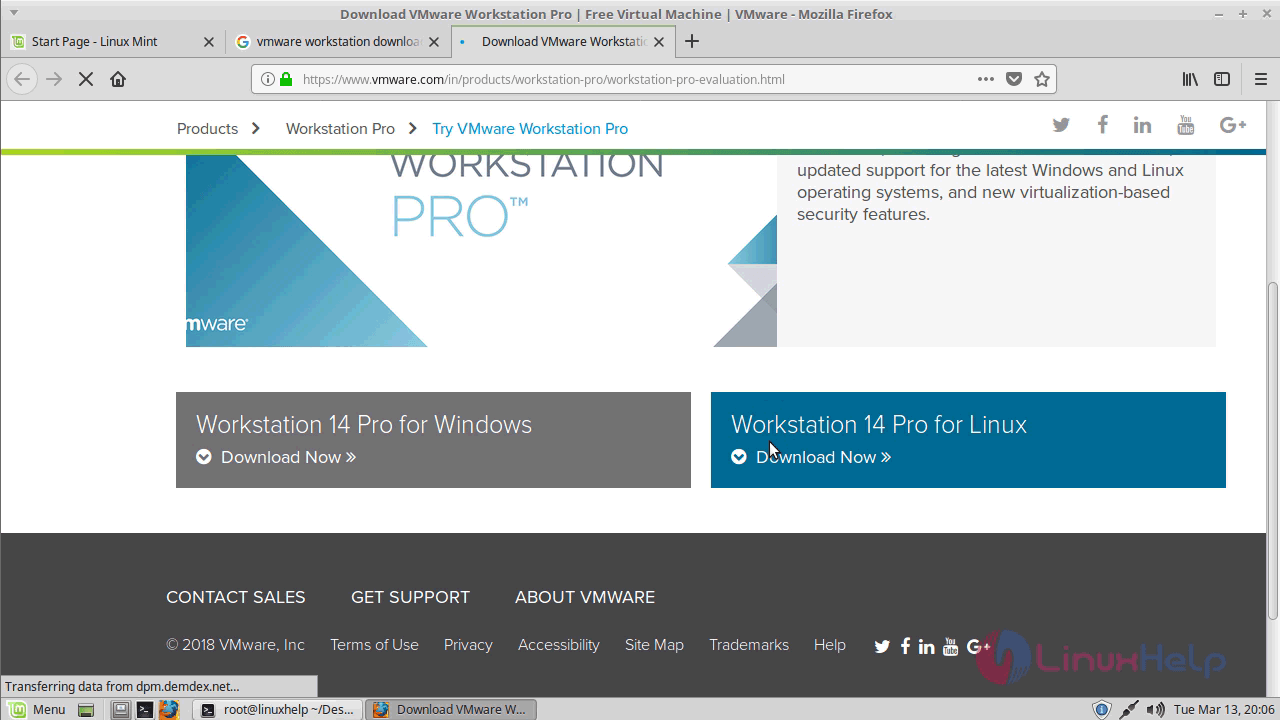
Once downloaded navigate to the downloaded directory
linuxhelp ~ # cd /home/user/Desktop/
linuxhelp Desktop # ls
VMware-Workstation-Full-14.1.1-7528167.x86_64.bundle
You can install the VMware workstation using the following command
linuxhelp Desktop # ./VMware-Workstation-Full-14.1.1-7528167.x86_64.bundle
Then installation wizard will appear on the screen
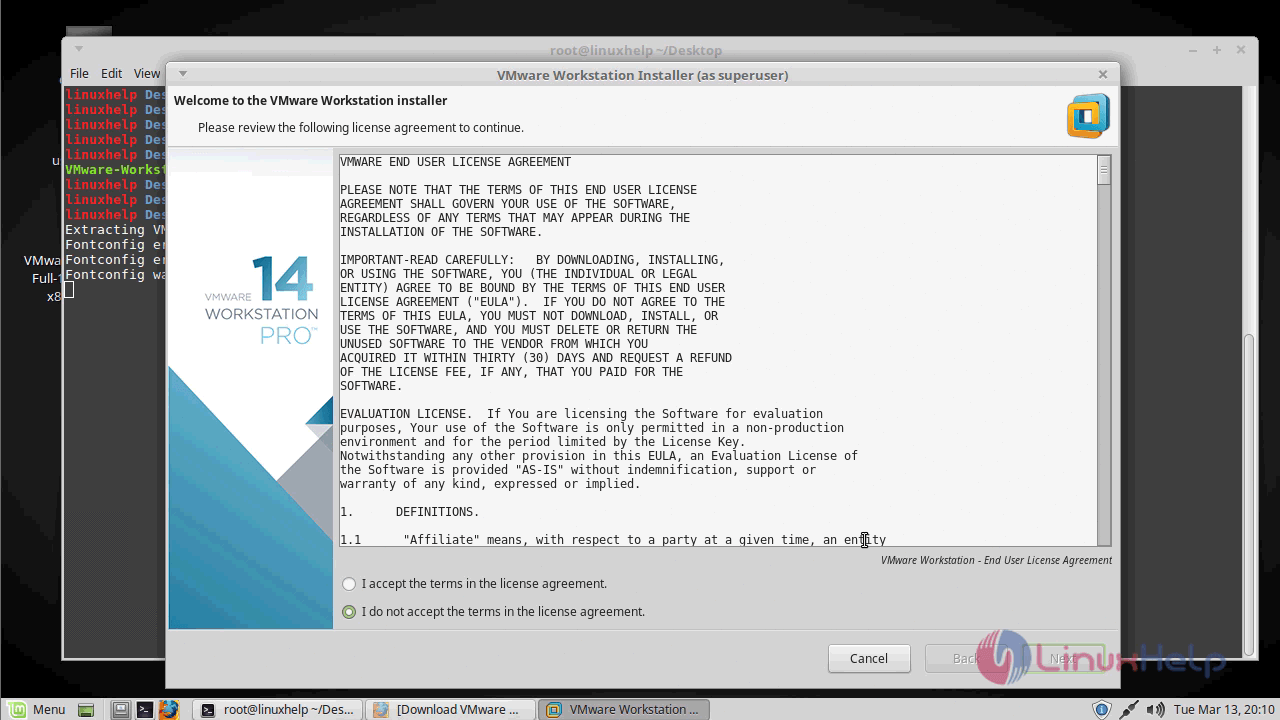
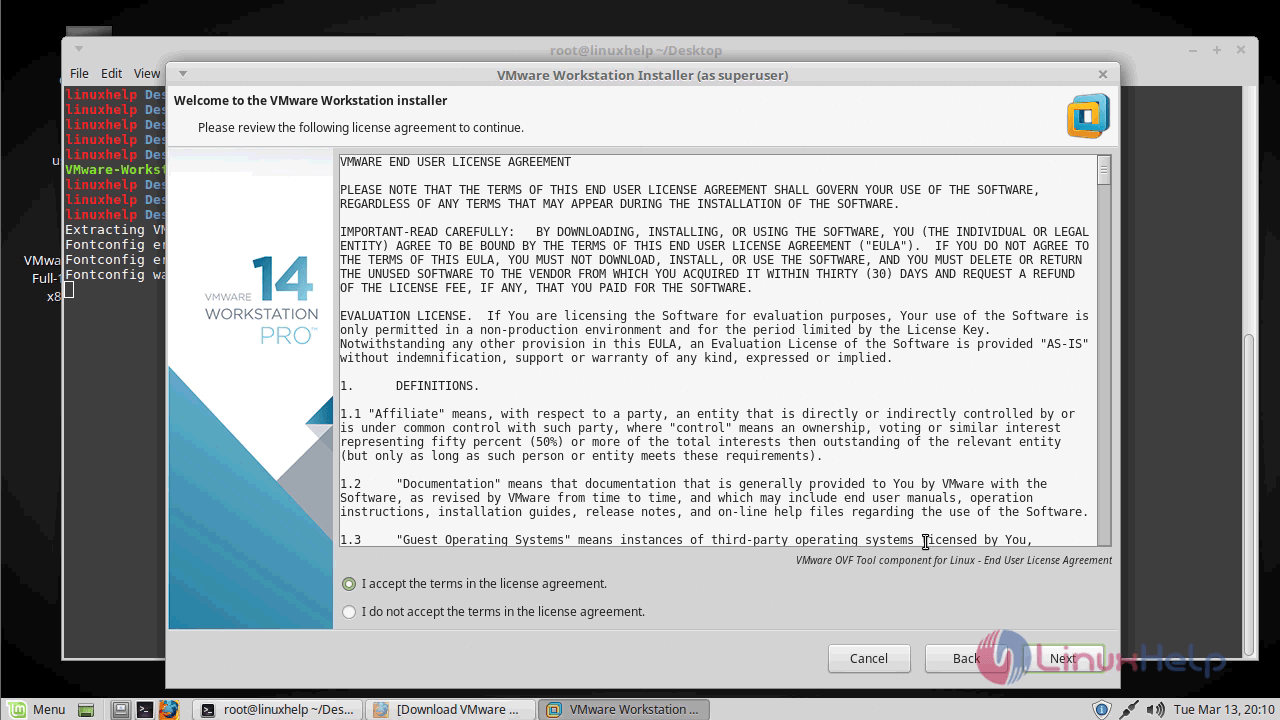
Choose to accept the terms of the license agreement
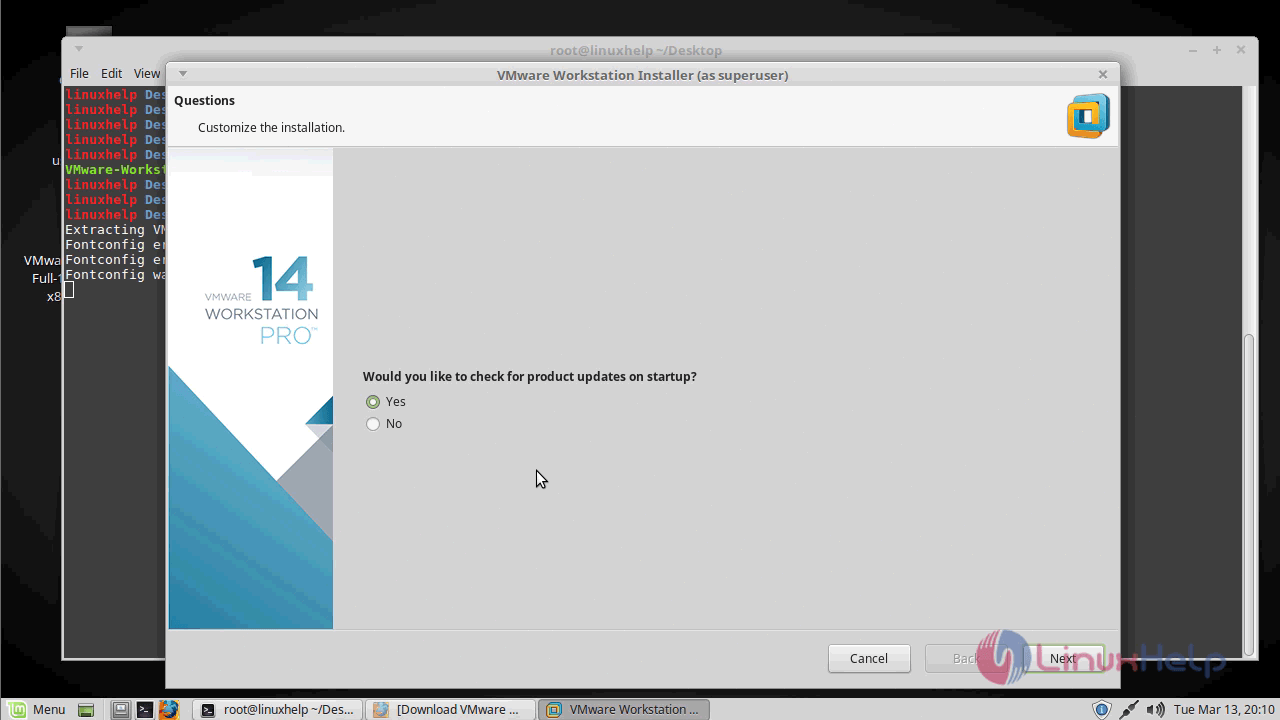
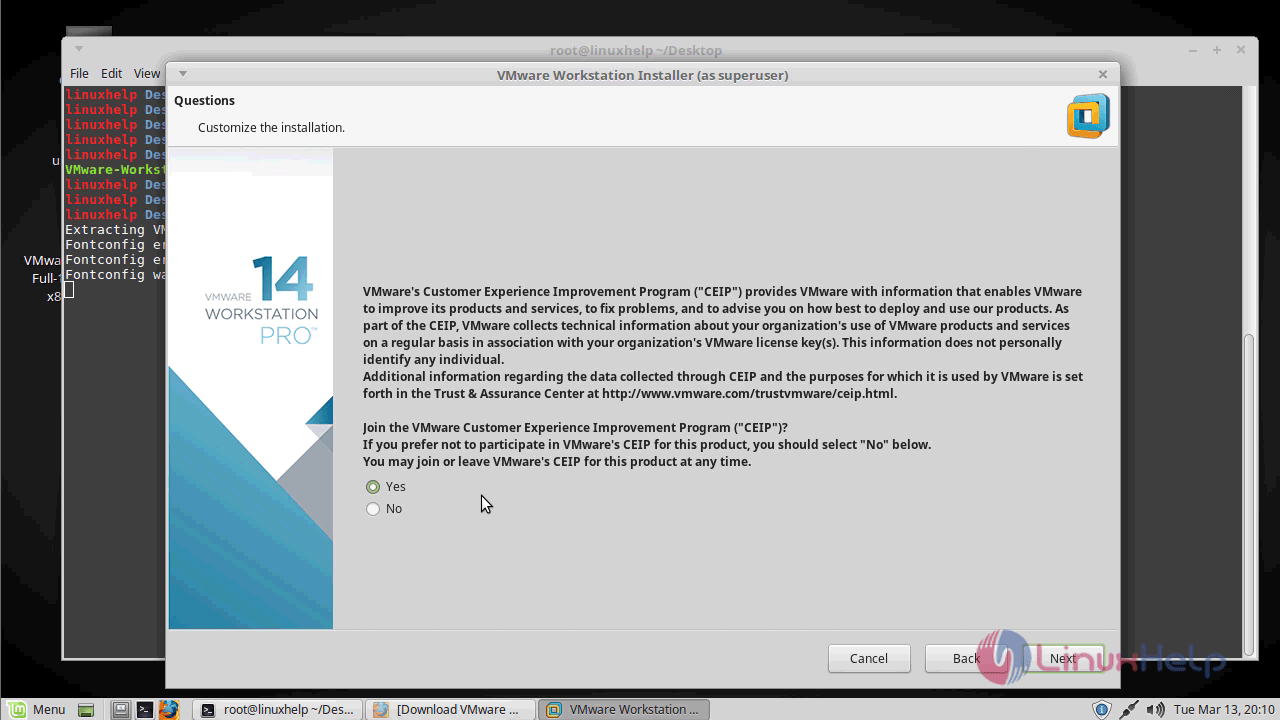
On next screen, choose the options for product update check on start up and for CEIP program
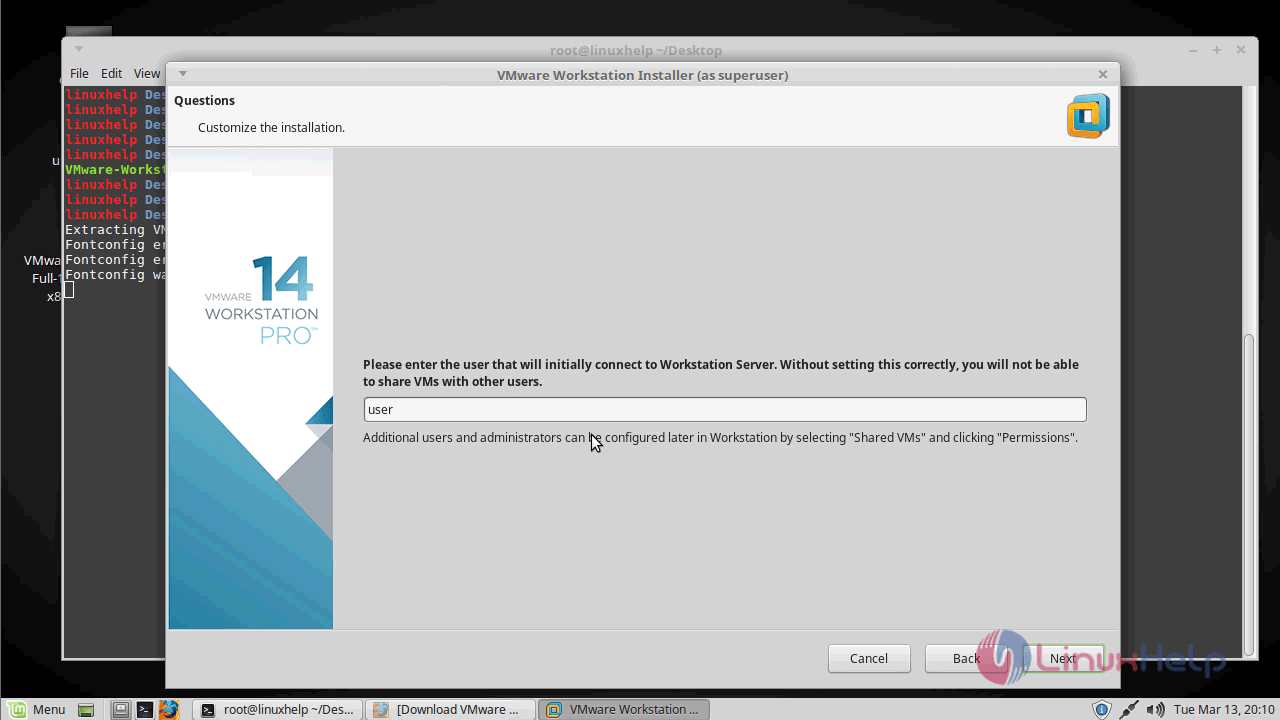
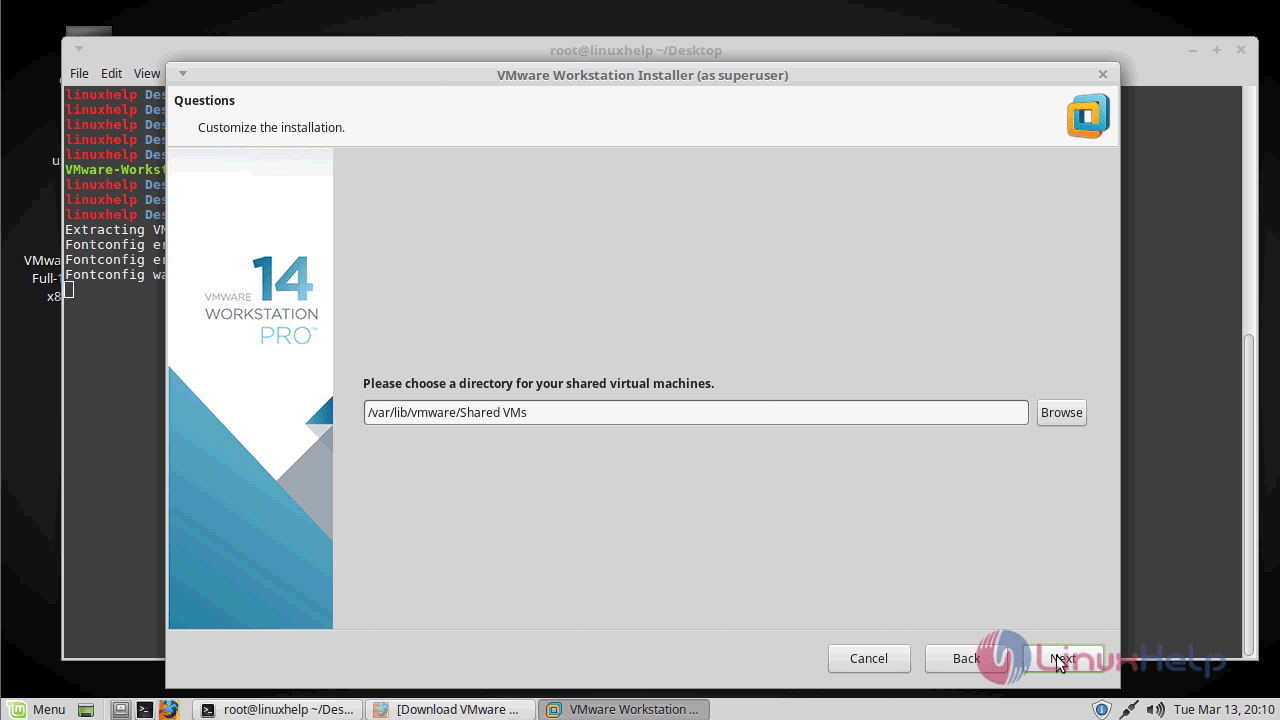
Choose a username and shared virtual machine installation directory
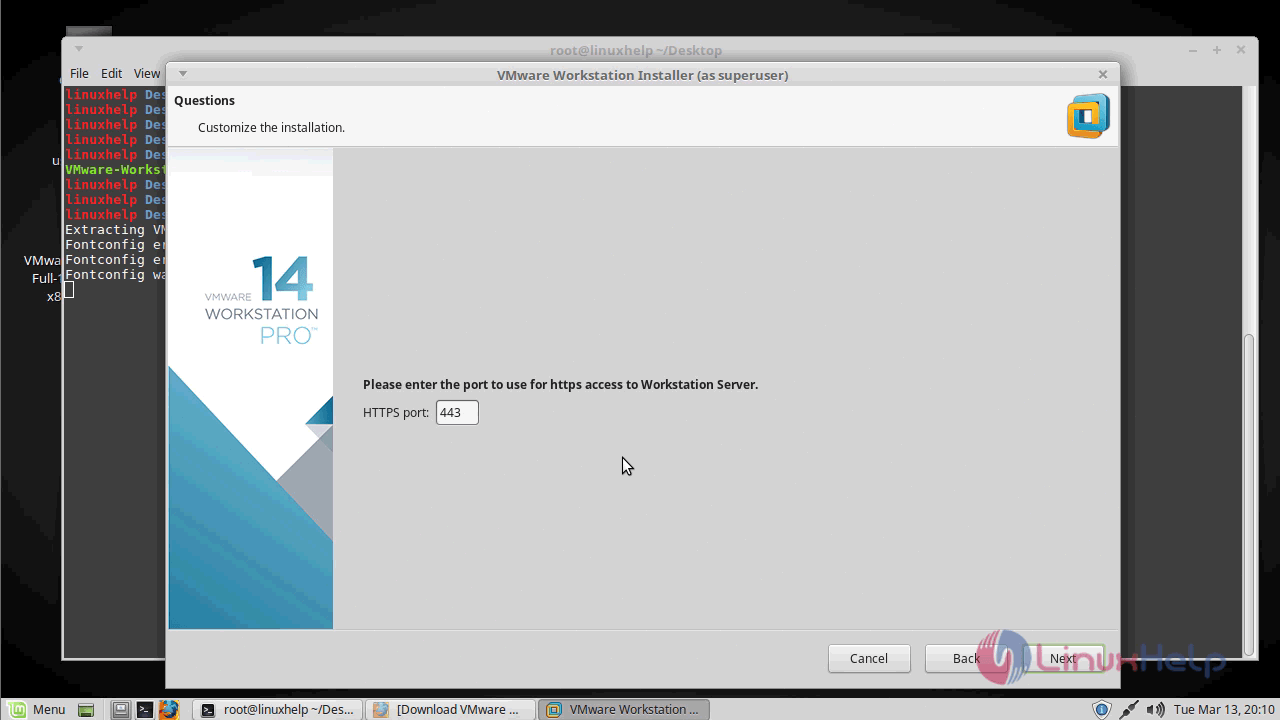
On next screen, you have to enter the port used for https access to a workstation
Enter license key if you already bought the product but it is optional you can do it later
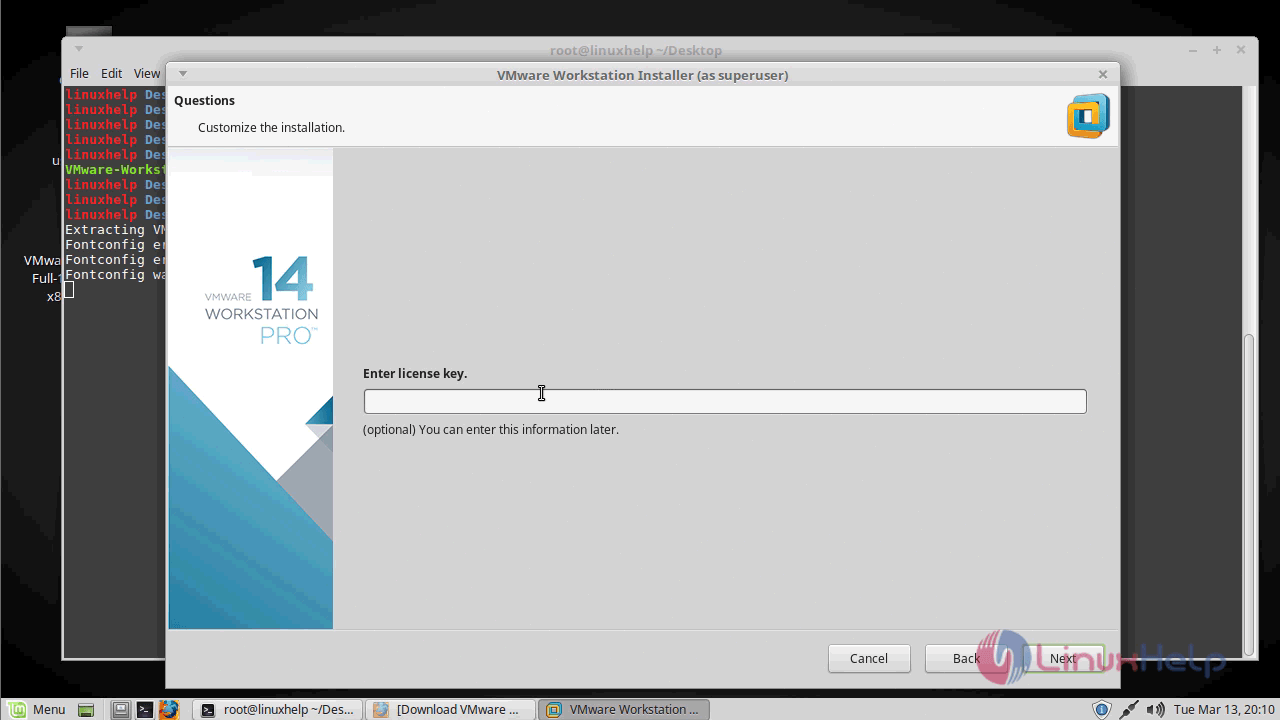
Finally, choose to install to start the installation process
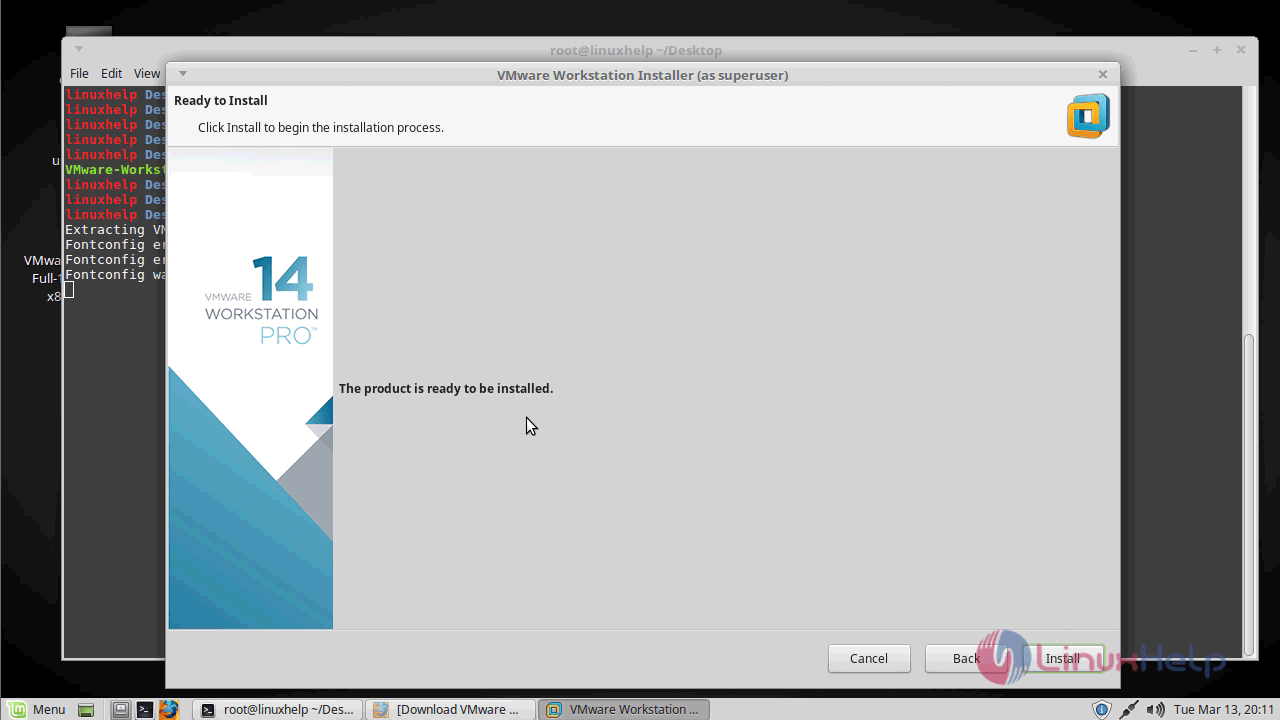
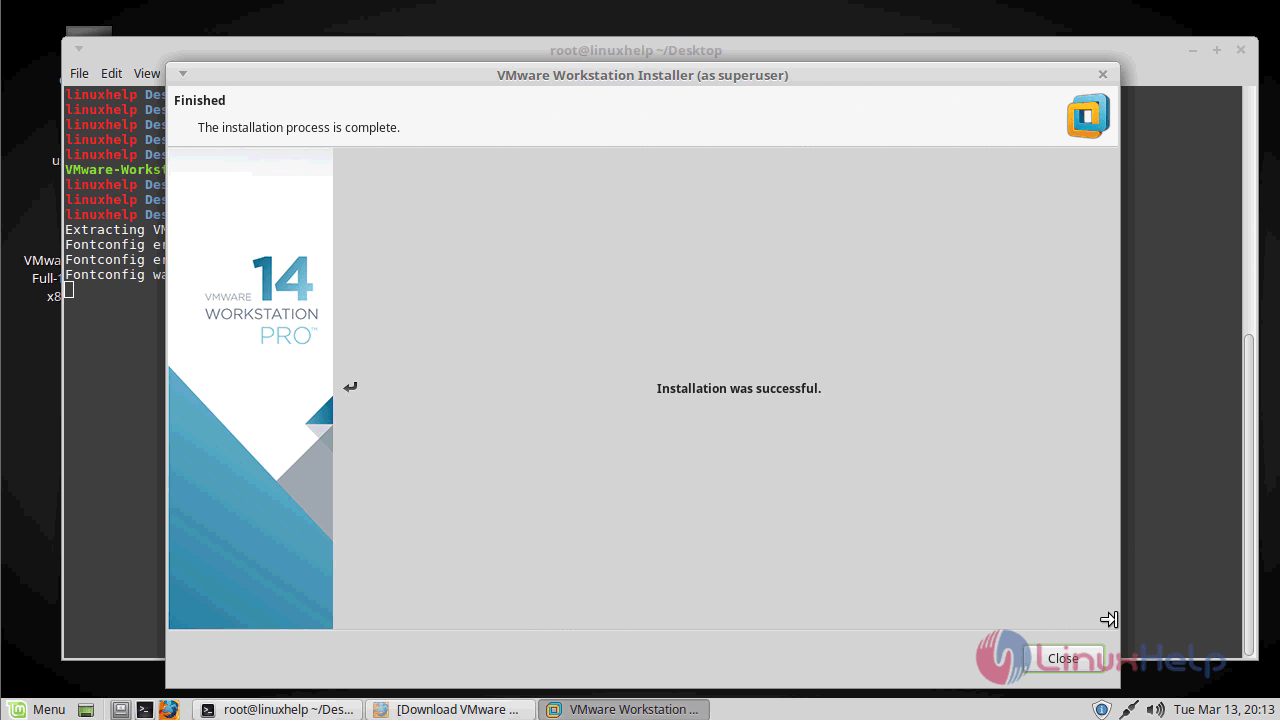
After the successful installation, you will see the following screen
To open application Go to menu and search for VMware on the search bar
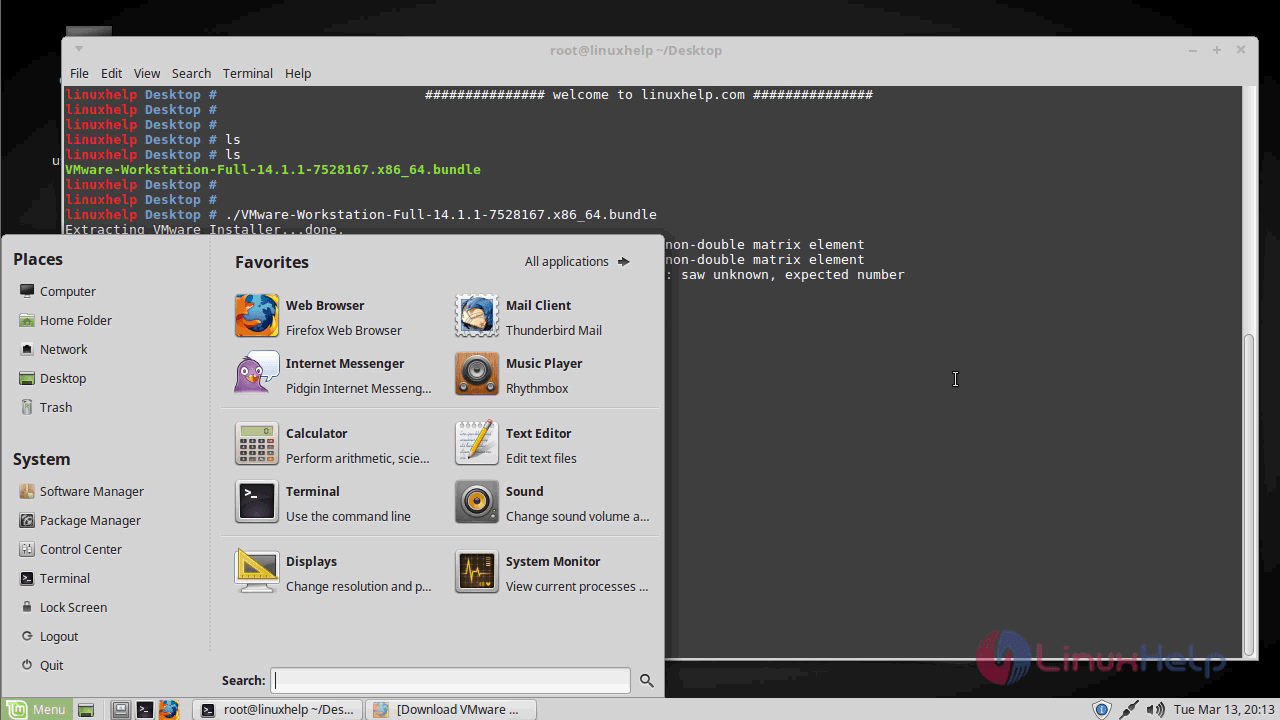
Once it appears, click on the application to open
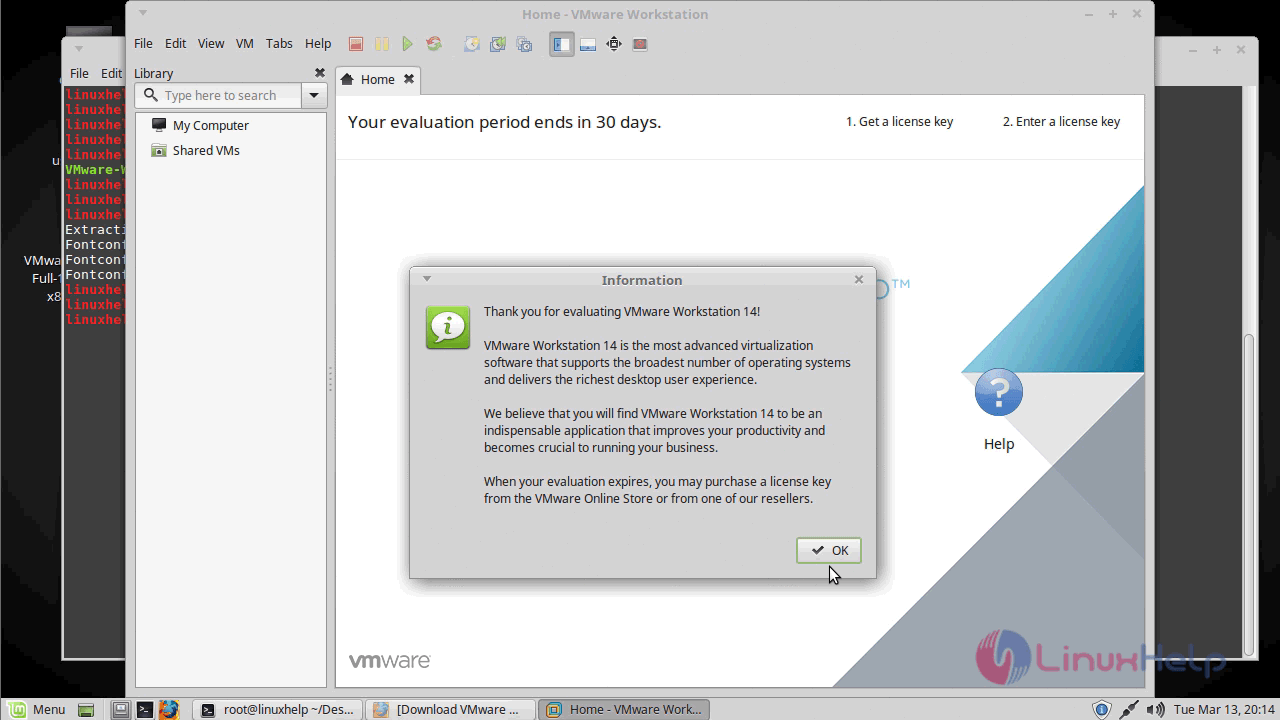
With this, the method to install VMware workstation pro 14 on Linux Mint 18.3 comes to an end
Comments ( 0 )
No comments available