• Categories
    Category
    {{ postCtrl.tags }}
    • {{ category.tag_type }}

      • {{tag.tag_name}}
      • View more
  • Categories
    Category
    {{ postCtrl.tags }}
    • {{ category.tag_type }}

      • {{tag.tag_name}}
      • View more
  • News
  • Tutorials
  • Forums
  • Tags
  • Users
Tutorial News Comments FAQ Related Articles

How to install vmware workstation V.14.1.1 pro on Ubuntu 18.04

{{postValue.id}}

To install VMware workstation V.14.1.1 pro on Ubuntu18.04
VMware workstation 14 pro is a free and cross-platform virtualization application. It supports both 32bit and 64bit Architecture guest operating system. You can create and run guest operating systems inside a window of the host computer. In this tutorial, we will cover the installation of VMware workstation V.14.1.1 pro on Ubuntu18.04

Installation

First, download the package using the following this link: https://www.vmware.com/products/workstation-pro/workstation-pro-evaluation.html
After downloading, go to the Download directory and provide execute permission

root@linuxhelp1:~# cd /home/user1/Downloads/
root@linuxhelp1:/home/user1/Downloads# ls
VMware-Workstation-Full-14.1.1-7528167.x86_64.bundle
root@linuxhelp1:/home/user1/Downloads# chmod -R +x VMware-Workstation-Full-14.1.1-7528167.x86_64.bundle

We have to run this downloaded file

root@linuxhelp1:/home/user1/Downloads# ls
VMware-Workstation-Full-14.1.1-7528167.x86_64.bundle
root@linuxhelp1:/home/user1/Downloads# ./VMware-Workstation-Full-14.1.1-7528167.x86_64.bundle
Extracting VMware Installer...done.
(vmware-installer.py:37975): Gtk-WARNING **: Unable to locate theme engine in module_path: " murrine" ,
.....

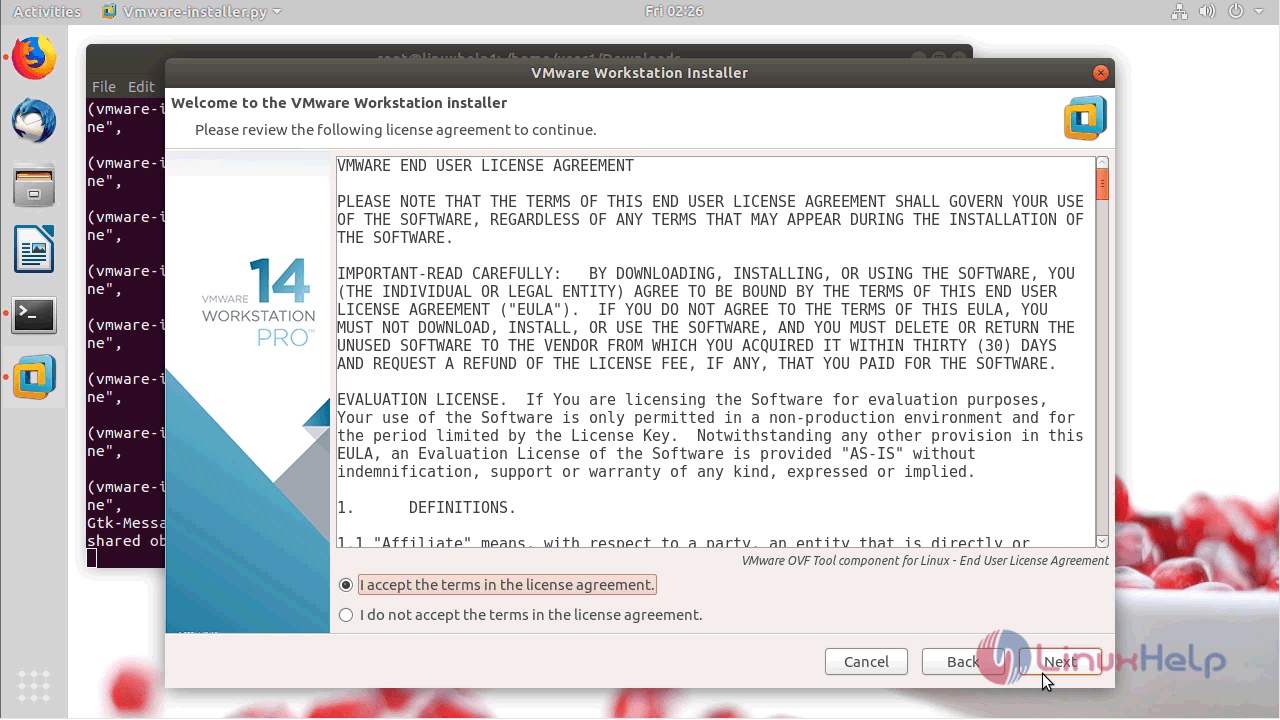
A VMware installer will appear, first, accept the license and terms
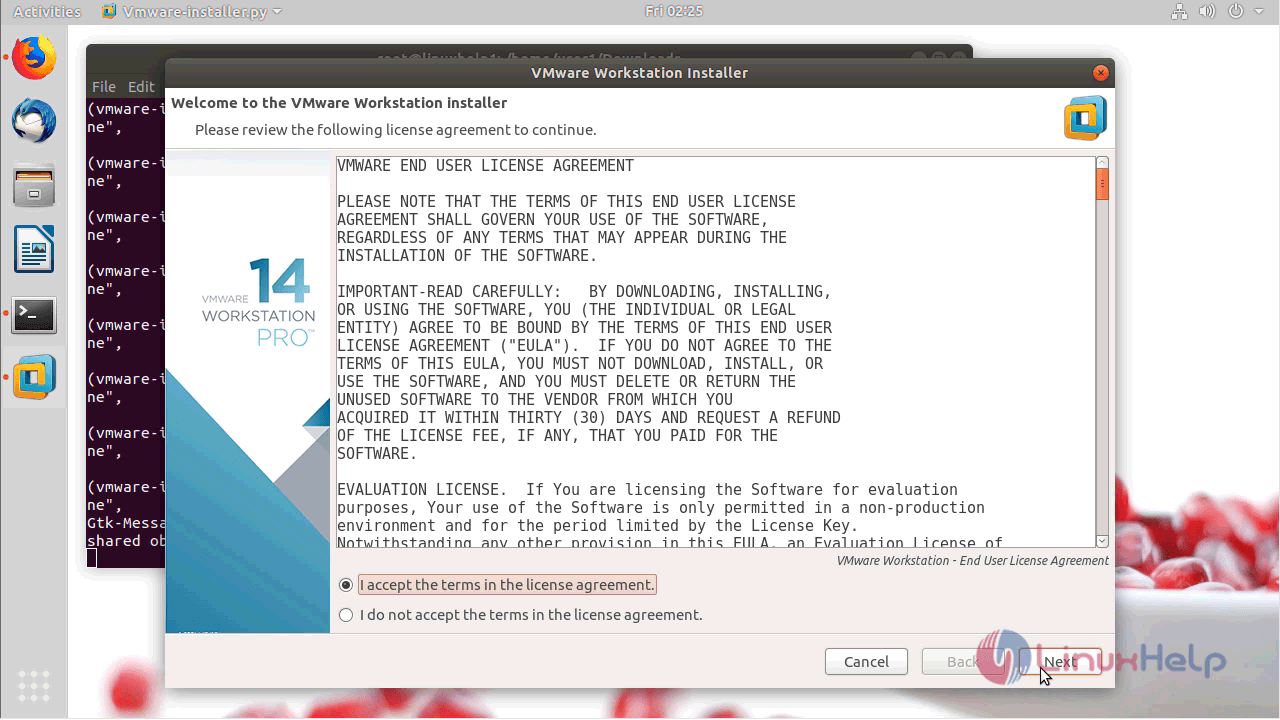
license

license accept

Choose the method for product updates on startup.
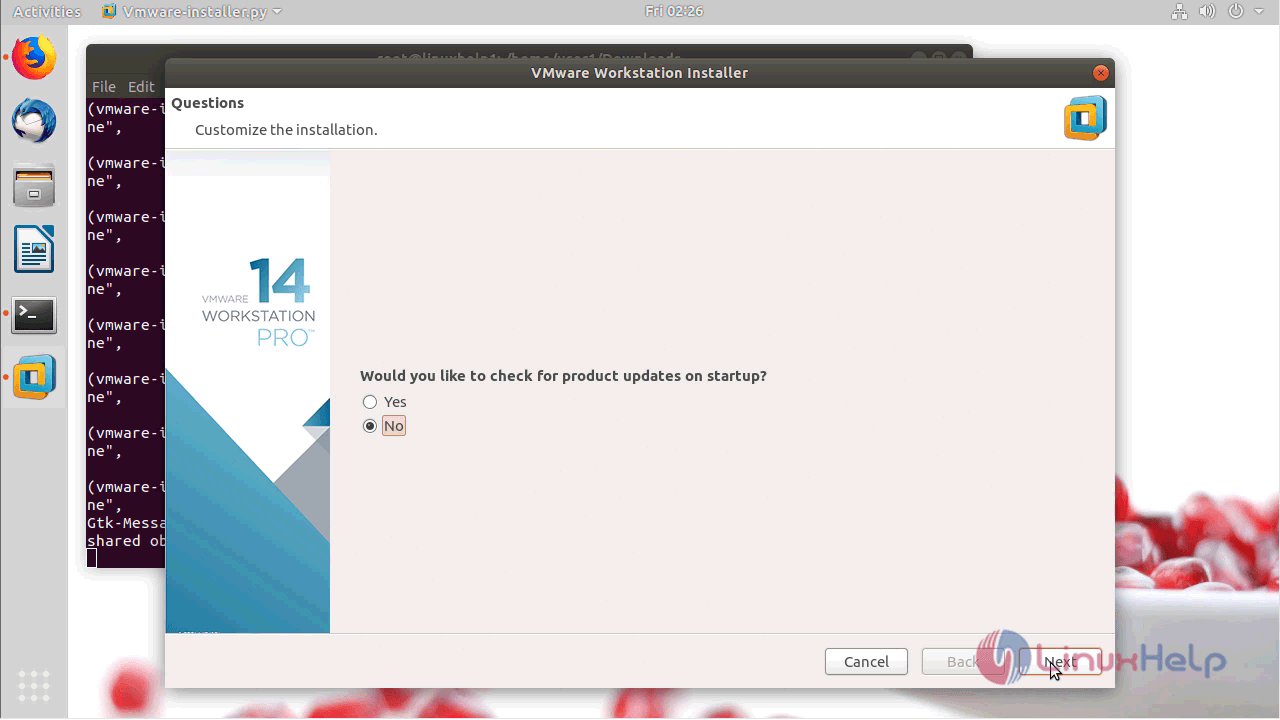
check_updtes

updates

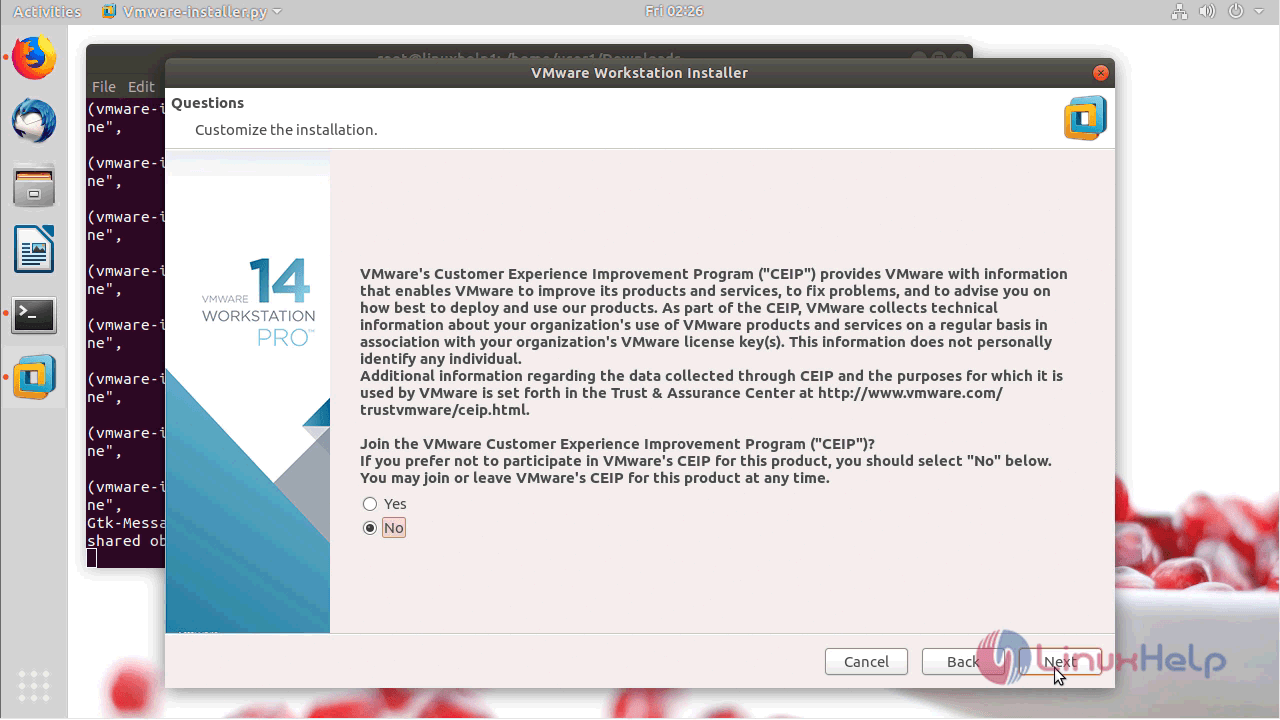
Customize the user settings in the following manner.
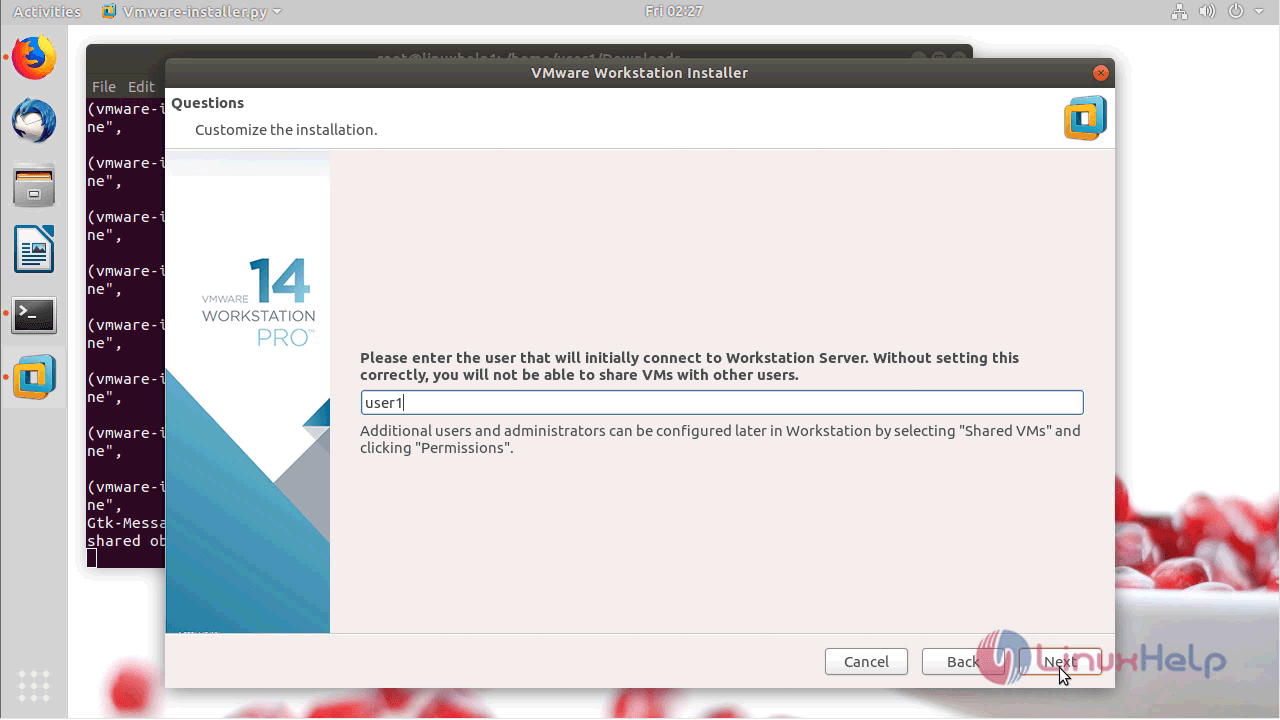
user_setting

And then, choose a directory for shared VM' s.
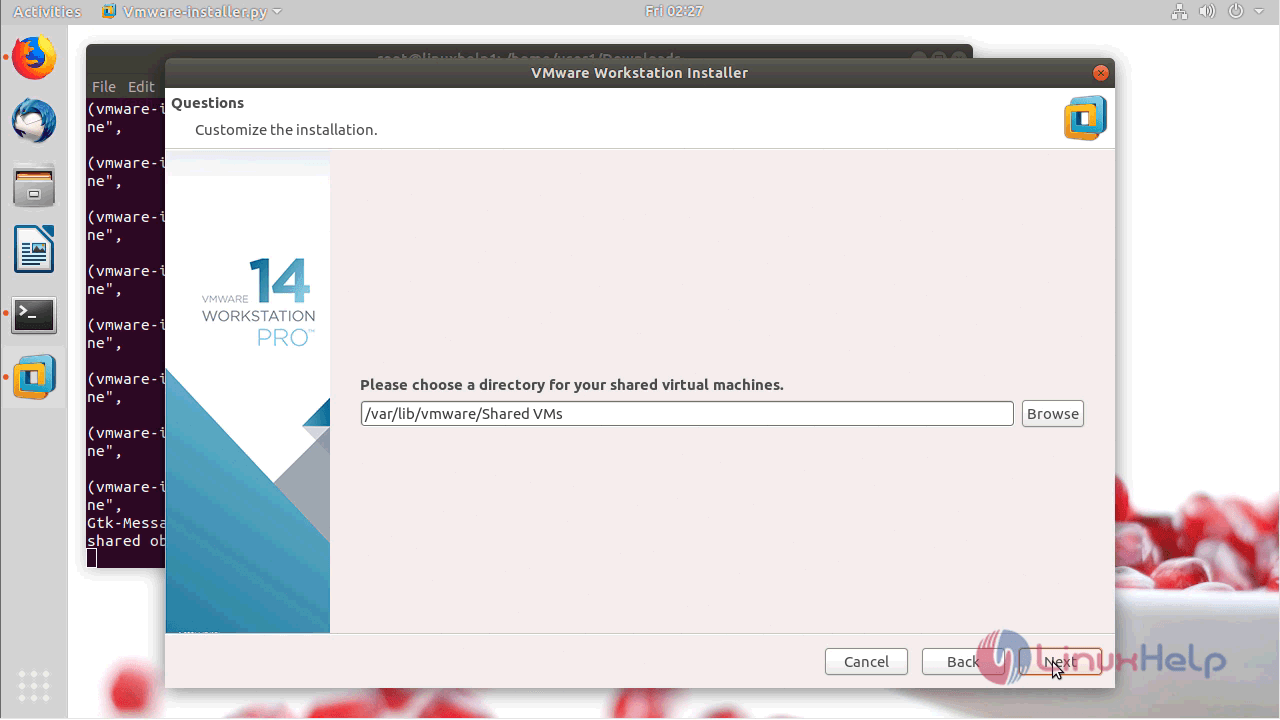
choose_location

Enter the port number for HTTP access to the workstation
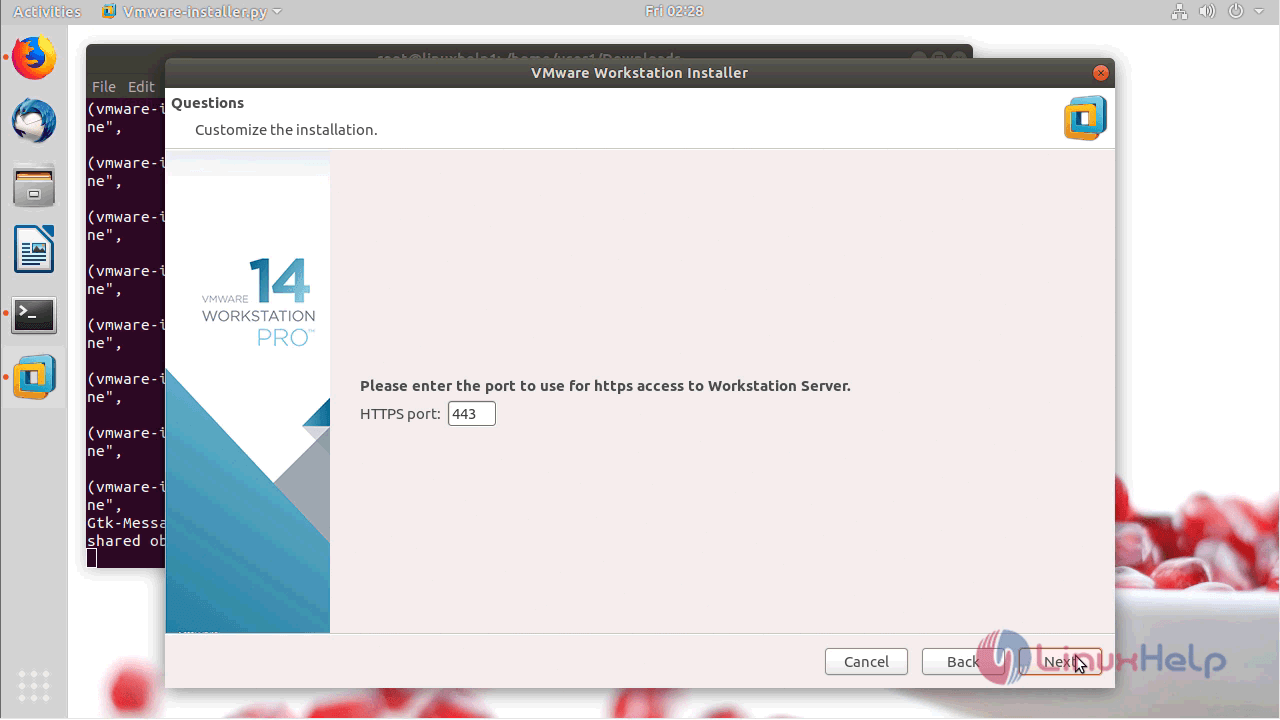
http_access

And then, enter the Licensee Key too.
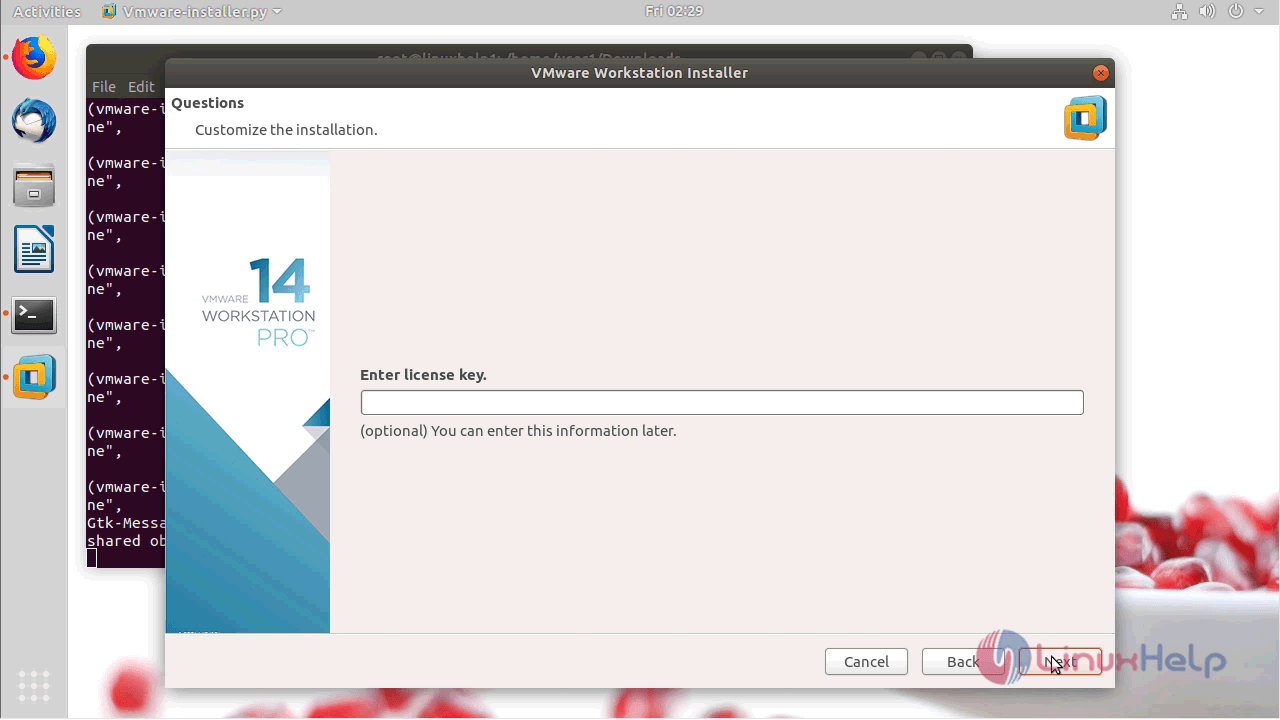
license_key

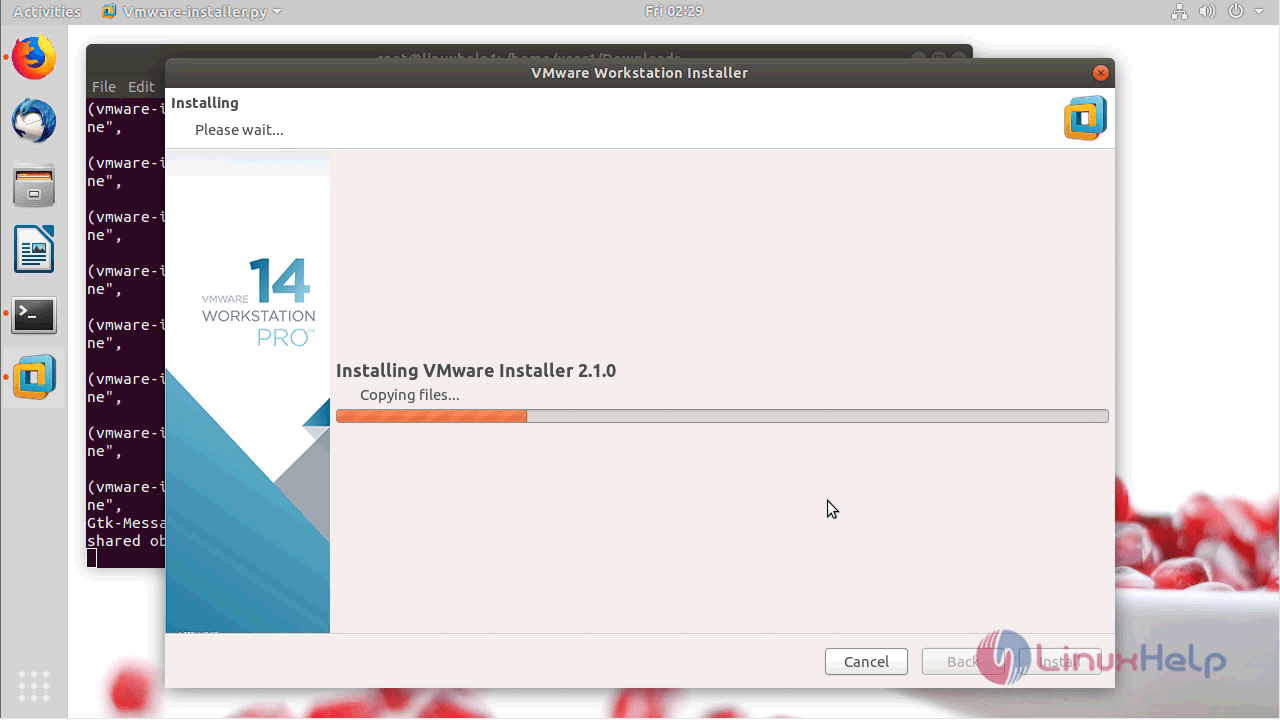
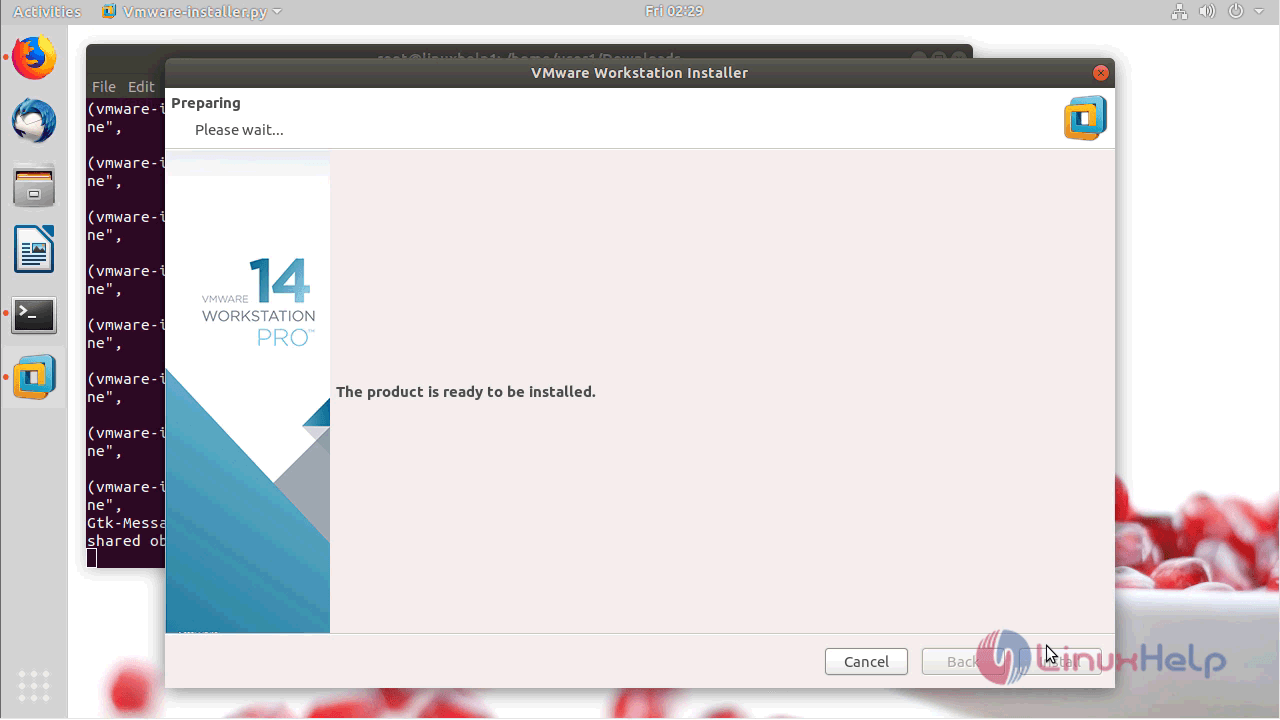
The installation will now begin.

installation

Click, finish when the installation is complete.
installation_complete

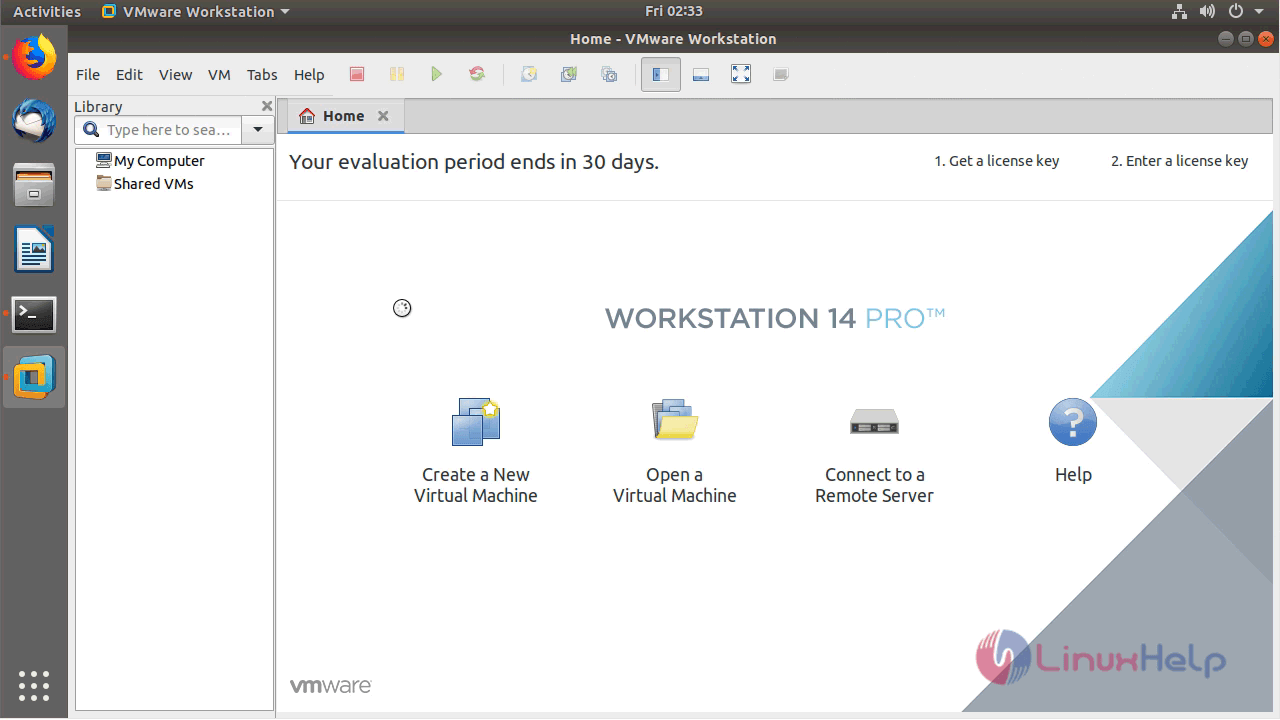
You can access the application from the activity menu.
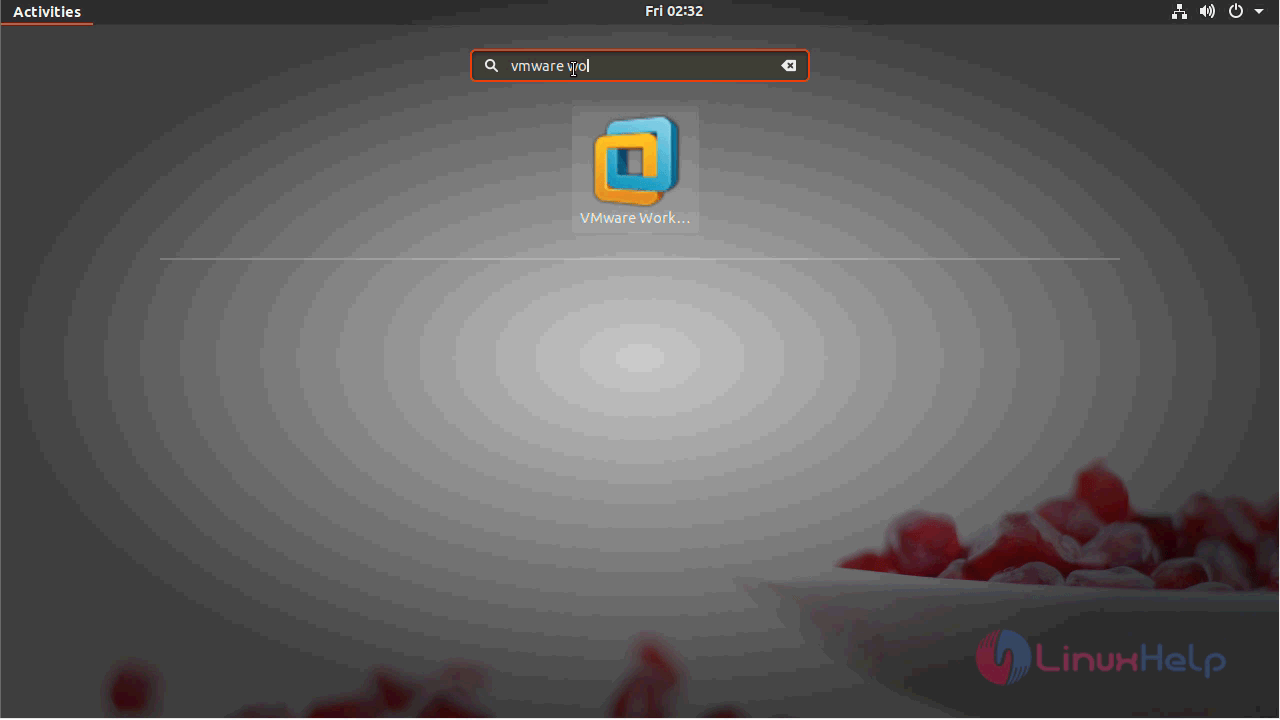
vmware_ubuntu

vmware_menu

With this, the method to install VMware workstation V.14.1.1 pro on Ubuntu18.04 comes to an end.

Tags:
jayden
Author: 

Comments ( 0 )

No comments available

Add a comment
{{postCtrl.cmtErrMsg}}

Frequently asked questions ( 5 )

Q

How can I evaluate VMware vSphere?

A

An evaluation version of VMware vSphere is available for a complimentary 60-day evaluation period. Download it at the VMware vSphere Evaluation page  for more information.

Q

How can I evaluate VMware vSphere?

A

An evaluation version of VMware vSphere is available for a complimentary 60-day evaluation period. Download it at the VMware vSphere Evaluation page  for more information.

Q

What servers are compatible with VMware vSphere 5?

A

VMware has developed an extensive list of compatible hardware. To review the list, see the Hardware Compatibility Guide .

Q

What versions of VMware vSphere Hypervisor (ESXi) are supported?

A

ESXi 4.0 and VMware vSphere Hypervisor 4.1 are supported by VMware Go.

Q

Can VMware Go be run locally without an Internet connection

A

VMware Go is a SaaS application that runs in the cloud and cannot be run locally without an Internet connection.

Back To Top!
Rank
User
Points

Top Contributers

userNamenaveelansari
135850

Top Contributers

userNameayanbhatti
92510

Top Contributers

userNamehamzaahmed
32150

Top Contributers

1
userNamelinuxhelp
31040

Top Contributers

userNamemuhammadali
24500
Can you help keel johnston ?
Unhide the folders on windows Explorer

Give any solutions to unhide folder using command prompt?

forum3

Networking
  • Routing
  • trunk
  • Netmask
  • Packet Capture
  • domain
  • HTTP Proxy
Server Setup
  • NFS
  • KVM
  • Memory
  • Sendmail
  • WebDAV
  • LXC
Shell Commands
  • Cloud commander
  • Command line archive tools
  • last command
  • Shell
  • terminal
  • Throttle
Desktop Application
  • Linux app
  • Pithos
  • Retrospect
  • Scribe
  • TortoiseHg
  • 4Images
Monitoring Tool
  • Monit
  • Apache Server Monitoring
  • EtherApe 
  • Arpwatch Tool
  • Auditd
  • Barman
Web Application
  • Nutch
  • Amazon VPC
  • FarmWarDeployer
  • Rukovoditel
  • Mirror site
  • Chef
Contact Us | Terms of Use| Privacy Policy| Disclaimer
© 2025 LinuxHelp.com All rights reserved. Linux™ is the registered trademark of Linus Torvalds. This site is not affiliated with linus torvalds in any way.