How to install Xnconvert on Ubuntu 17.04
To install Xnconvert on Ubuntu 17.04
XnConvert is a free and easy-to-use image convertion tool which is developed by the XnSoft team who also happens to be the creators of the XnViewMP app. It has support for the most popular image formats, which includes JPG, PNG, TIFF, GIF, BMP, RAW, PSD, JPEG and OpenEXR. With Xnconvert, you can easily modify your photographs, and also add nice effects, filters or modify the opacity of the photos. It is so simple to install Xnconvert on Ubuntu 17.04, and this tutorial covers the ground on the same process.
Installing Xnconvert
Before you begin with installation of Xnconvert, it is very essential to add the .deb packages. And for that, you need to run the following command to install gdebi through which you can add the .deb packages.
root@linuxhelp:~# apt-get install gdebi
Reading package lists... Done
Building dependency tree
Reading state information... Done
The following additional packages will be installed:
  gconf-service gconf-service-backend gconf2 gconf2-common gdebi-core gksu
  gnome-icon-theme libgconf-2-4 libgksu2-0
Suggested packages:
  gconf-defaults-service
The following NEW packages will be installed:
  gconf-service gconf-service-backend gconf2 gconf2-common gdebi gdebi-core
  gksu gnome-icon-theme libgconf-2-4 libgksu2-0
.
.
.
Setting up libgksu2-0 (2.0.13~pre1-9ubuntu1) ...
update-alternatives: using /usr/share/libgksu/debian/gconf-defaults.libgksu-sudo to provide /usr/share/gconf/defaults/10_libgksu (libgksu-gconf-defaults) in auto mode
Processing triggers for gconf2 (3.2.6-3ubuntu7) ...
Setting up gksu (2.0.2-9ubuntu1) ...
Setting up gdebi (0.9.5.7+nmu1) ...
Processing triggers for libc-bin (2.24-9ubuntu2) ...
Once it is done, you shall download the .deb package using wget as follows.
root@linuxhelp:~# wget http://download.xnview.com/XnConvert-linux-x64.deb
--2017-11-14 11:17:55--  http://download.xnview.com/XnConvert-linux-x64.deb
Resolving download.xnview.com (download.xnview.com)... 178.33.105.203
Connecting to download.xnview.com (download.xnview.com)|178.33.105.203|:80... connected.
HTTP request sent, awaiting response... 301 Moved Permanently
Location: https://download.xnview.com/XnConvert-linux-x64.deb [following]
--2017-11-14 11:17:57--  https://download.xnview.com/XnConvert-linux-x64.deb
Connecting to download.xnview.com (download.xnview.com)|178.33.105.203|:443... connected.
HTTP request sent, awaiting response... 200 OK
Length: 28698824 (27M) [application/x-debian-package]
Saving to: ‘ XnConvert-linux-x64.deb’

XnConvert-linux-x64 100%[===================> ]  27.37M   755KB/s    in 3m 1s

2017-11-14 11:21:00 (154 KB/s) - ‘ XnConvert-linux-x64.deb’  saved [28698824/28698824]
Later, you shall proceed with the installation process using the gdebi in the following manner.
root@linuxhelp:~#  gdebi XnConvert-linux-x64.deb
Reading package lists... Done
Building dependency tree
Reading state information... Done
Reading state information... Done

XnConvert convert, resize, add effects on image files.
Do you want to install the software package? [y/N]:y
.
.
.
Unpacking xnconvert (1.75) ...
Setting up xnconvert (1.75) ...
Processing triggers for bamfdaemon (0.5.3+17.04.20170406-0ubuntu1) ...
Rebuilding /usr/share/applications/bamf-2.index...
Processing triggers for gnome-menus (3.13.3-6ubuntu5) ...
Processing triggers for desktop-file-utils (0.23-1ubuntu2) ...
Processing triggers for mime-support (3.60ubuntu1) ...
Your Xnconvert has been successfully installed and you shall launch the application in the following manner. You can use your Ubuntu search field to find and launch XnConvert application.
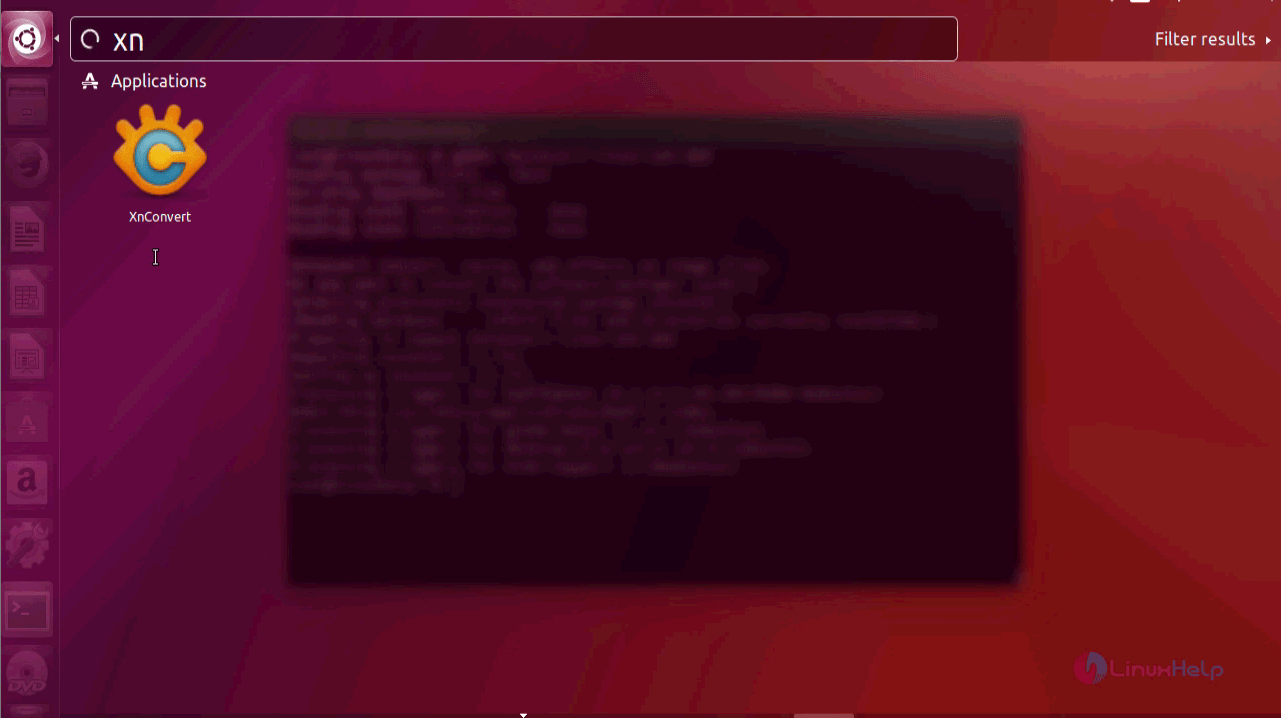
Once the XnConvert application is open, it looks like the one in the following image.

With this, the installation of XnConvert player on Ubuntu 17.04 comes to an end.
Comments ( 0 )
No comments available