How to intall SilverStripe CMS 4.2.1on Ubuntu 18.04
To intall SilverStripe CMS 4.2.1 on Ubuntu 18.04
SilverStripe is a free and open source Content Management System (CMS) and Framework for creating and maintaining websites and web applications. It provides an out of the box web-based administration panel that enables users to make modifications to parts of the website, which includes a WYSIWYG website editor. With this, the method to install SilverStripe on Ubuntu 18.04 comes to an end.
Prerequisites
Install LAMP(Apache, MariaDB, php7)
In MariaDB (create database and user and give privileges to that user )
Php installation with required following modules
add-apt-repository ppa:ondrej/php
apt-get update
apt-get install php7.0 php7.0-mysql php7.0-curl php7.0-json php7.0-cgi libapache2-mod-php7.0 php7.0-mcrypt php7.0-xmlrpc
php7.0-gd php7.0-mbstring php7.0  php7.0-common  php7.0-xmlrpc php7.0-soap  php7.0-xml php7.0-intl  php7.0-cli  php7.0-ldap
php7.0-zip php7.0-readline php7.0-imap php7.0-tidy php7.0-recode php7.0-sq php7.0-intl
Installation
Download a SilverStripe package using the following URL
https://www.silverstripe.org/download/
In my case, I have already download the package, Go to the download directory
root@linuxhelp1:~# cd /home/user1/Downloads/
Extract the downloaded package
root@linuxhelp1:/home/user1/Downloads# unzip SilverStripe-cms-v4.2.1.zip -d SilverStripe
Archive:  SilverStripe-cms-v4.2.1.zip
  inflating: SilverStripe/CONTRIBUTING.md
  inflating: SilverStripe/behat.yml
  inflating: SilverStripe/.gitattributes
  inflating: SilverStripe/.env.example
  inflating: SilverStripe/.cow.json
  inflating: SilverStripe/README.md
.
.
extracting: SilverStripe/.git/HEAD
  inflating: SilverStripe/.git/config
  inflating: SilverStripe/.git/index
  inflating: SilverStripe/.git/description
   creating: SilverStripe/.git/branches/
  inflating: SilverStripe/build.xml
  inflating: SilverStripe/.travis.yml
  inflating: SilverStripe/phpunit.xml.dist
Move the extracted file into the HTML directory
root@linuxhelp1:/home/user1/Downloads# mv SilverStripe /var/www/
Navigate to the apache document root directory
root@linuxhelp1:/home/user1/Downloads# cd /var/www/
Change ownership and permission of the as SilverStripe follows
root@linuxhelp1:/var/www# chown -R www-data.www-data SilverStripe
root@linuxhelp1:/var/www# chmod -R 775 SilverStripe
Create a new virtual host configuration for accessing the SilverStripe
root@linuxhelp1:/var/www# vim /etc/apache2/sites-available/silverstripe.conf
 ServerName www.linuxhelp1.com
DocumentRoot /var/www/SilverStripe/

 AllowOverride All
allow from all
Enable site access
root@linuxhelp1:/var/www# a2ensite silverstripe.conf
Enabling site silverstripe.
To activate the new configuration, you need to run:
  systemctl reload apache2
Disable default access
root@linuxhelp1:/var/www# a2dissite 000-default.conf
Site 000-default disabled.
To activate the new configuration, you need to run:
  systemctl reload apache2
Enable rewrite module
root@linuxhelp1:/var/www# a2enmod rewrite
Enabling module rewrite.
To activate the new configuration, you need to run:
  systemctl restart apache2
Restart the apache service to make the changes effect
root@linuxhelp1:/var/www# systemctl restart apache2
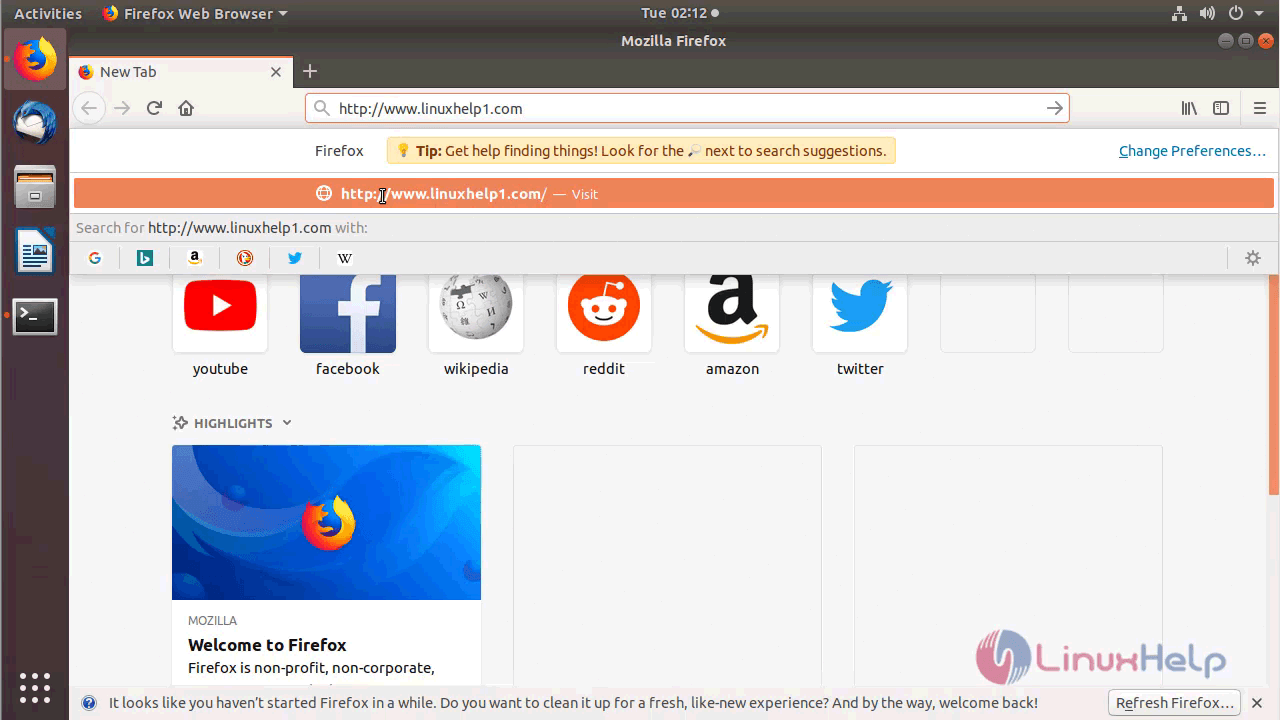
Now you can proceed the further installation and configuration from the browser by navigating to the following URL: http://
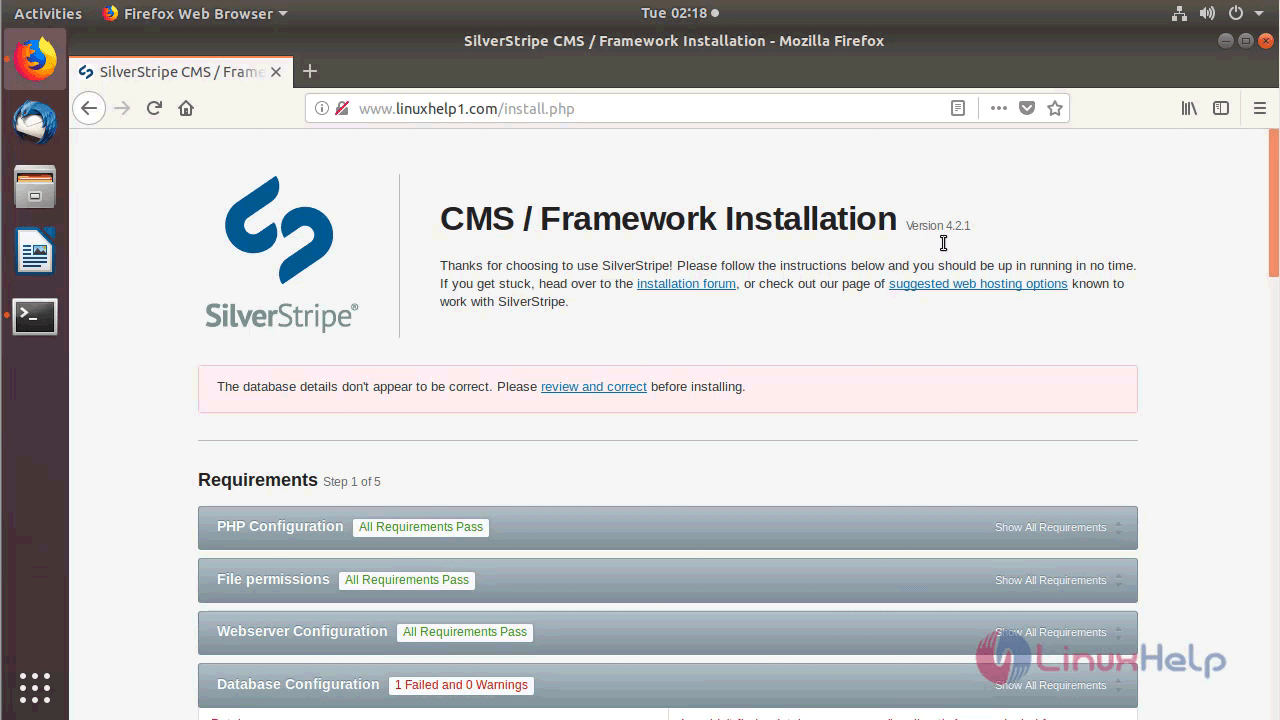
You will see the version SilevrStripe
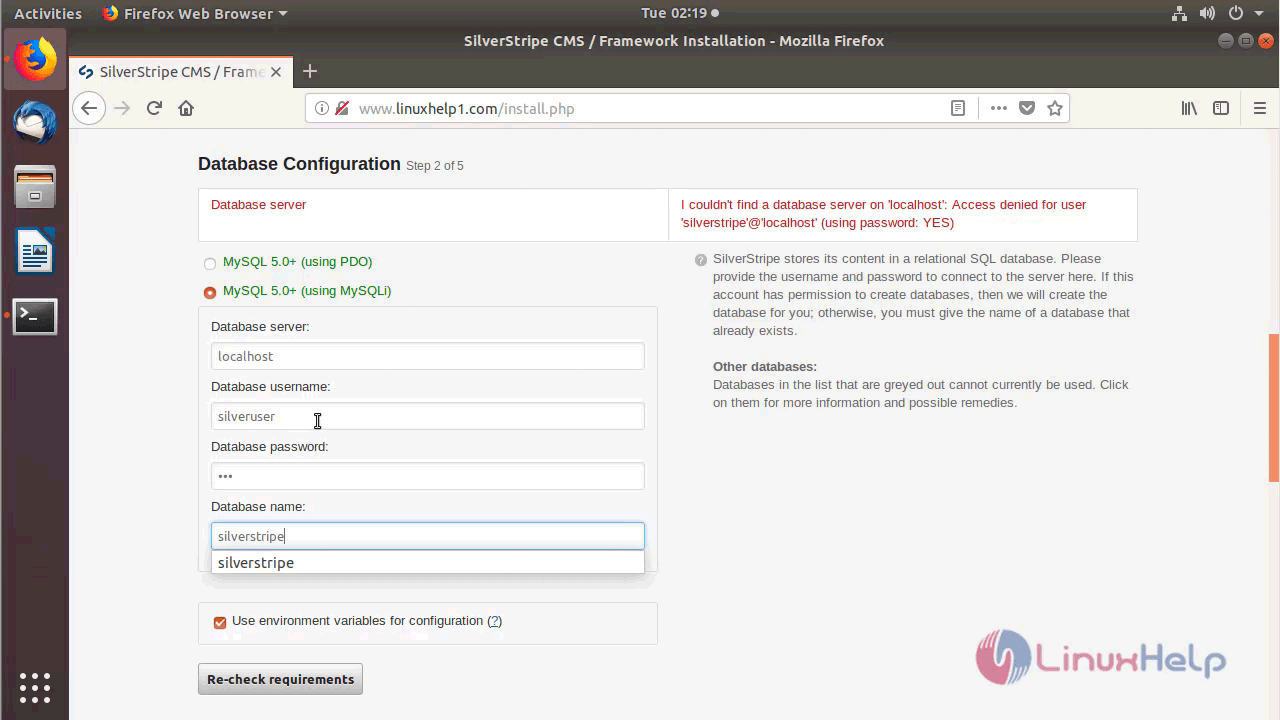
Configure Database setup, Admin user setup and Site information as follows
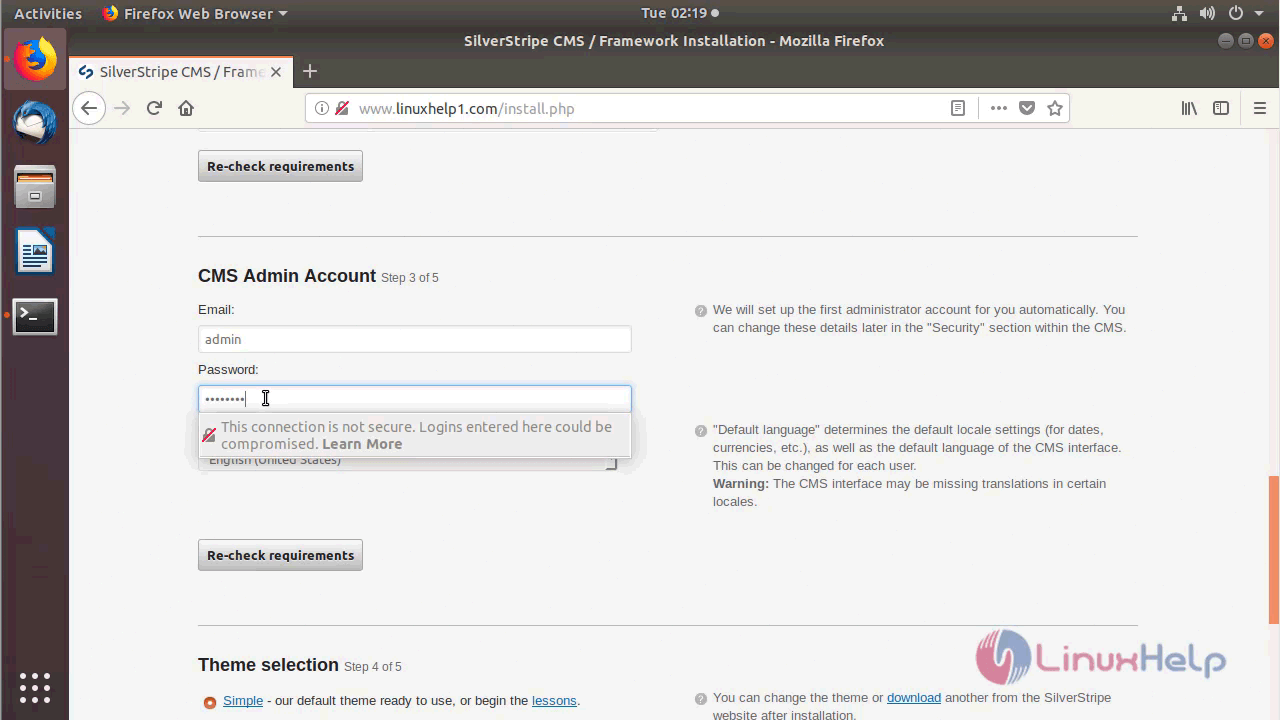
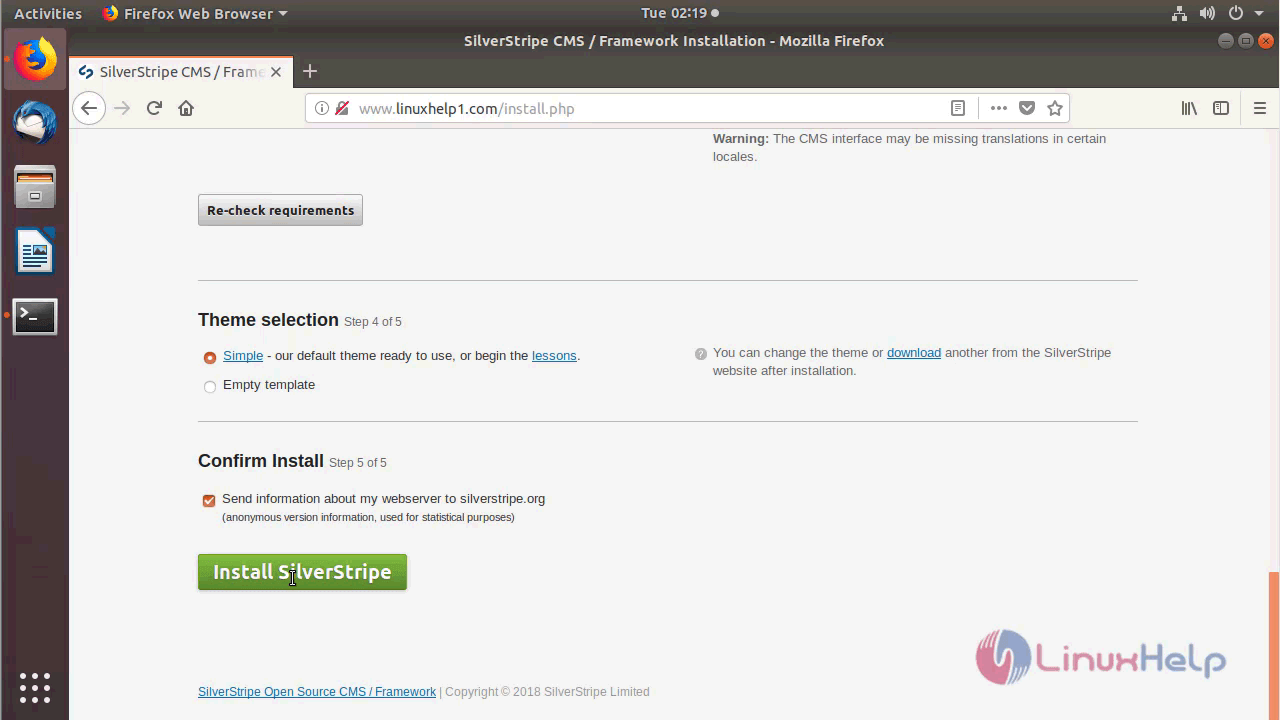
After the configuration, you will see the following page as shown below
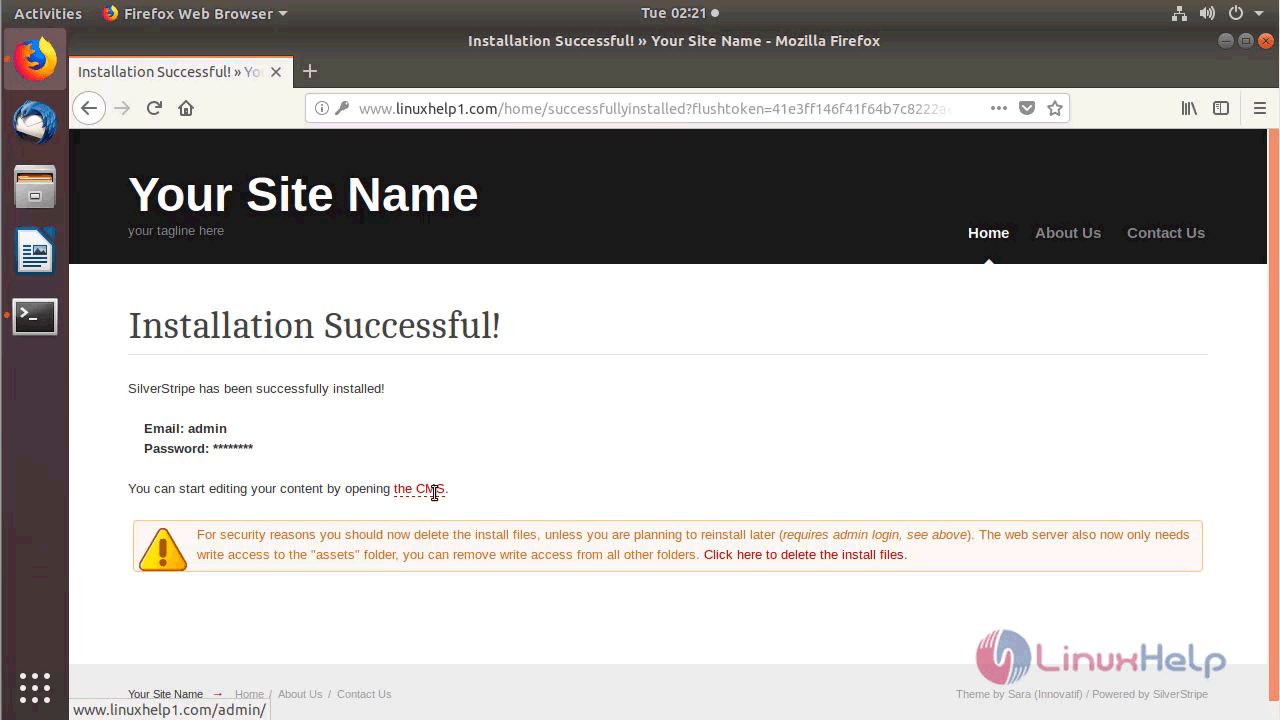
You can log in using the admin user credentials
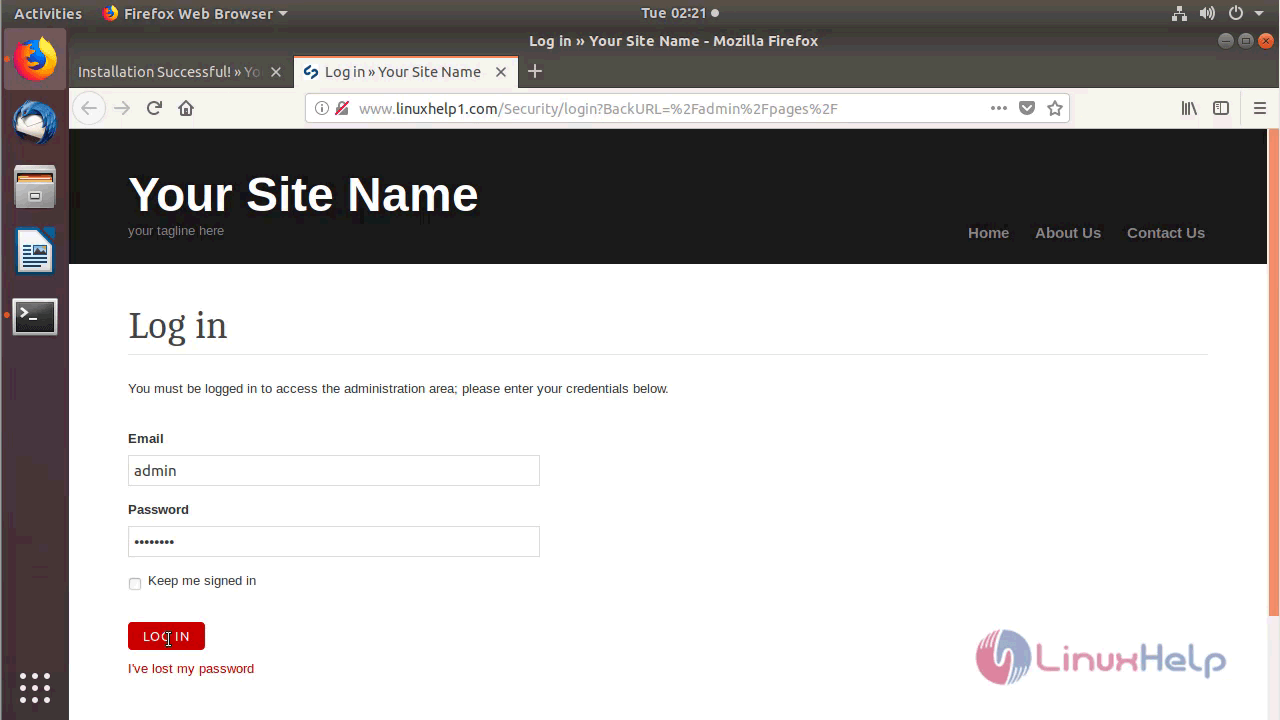
After the Successful login, you will see the Admin dashboard of SilverStripe as shown below
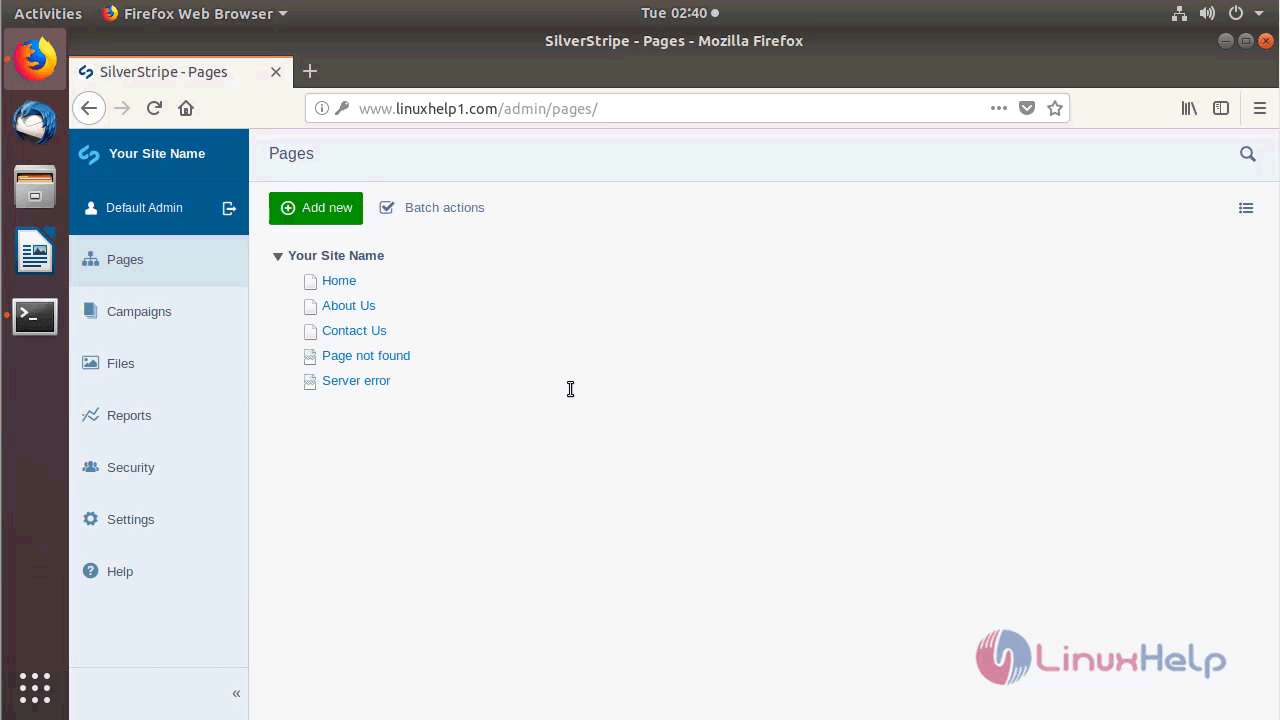
You will see the Homepage of SilverStripe as shown below
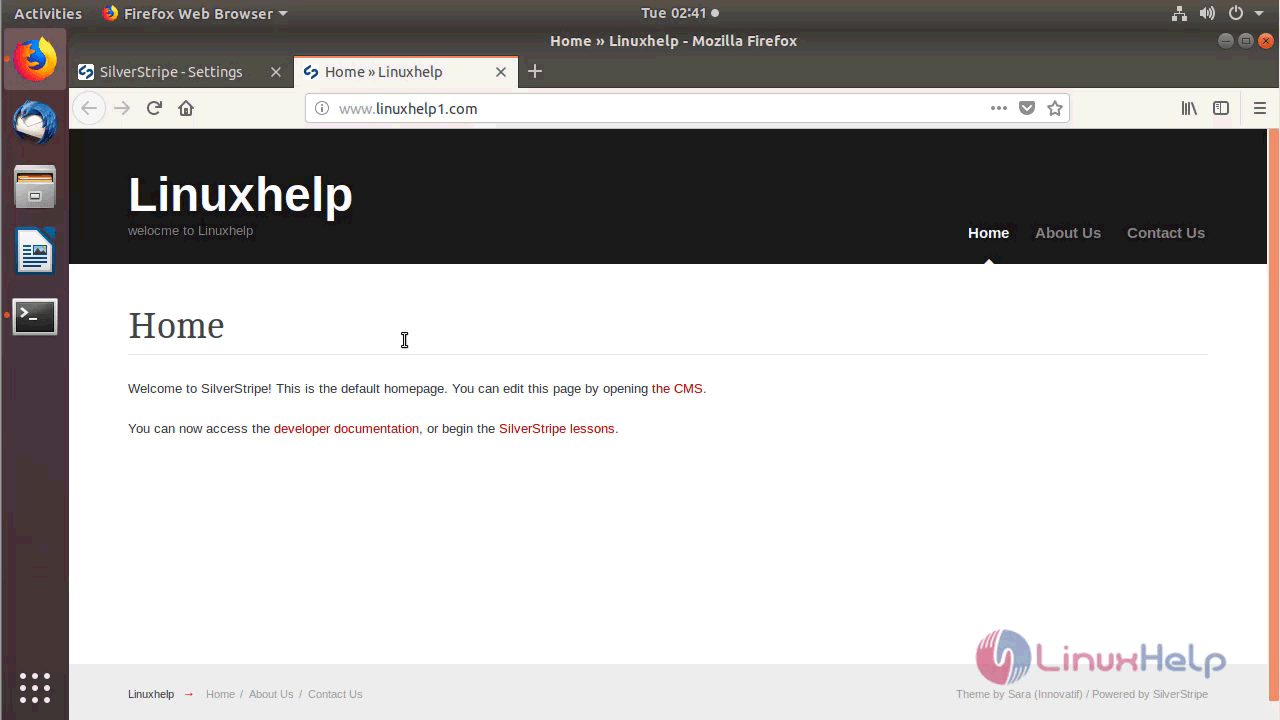
With this, the method to install SilverStripe CMS 4.2.1 on Ubuntu 18.04 comes to an end.
Comments ( 0 )
No comments available