• Categories
    Category
    {{ postCtrl.tags }}
    • {{ category.tag_type }}

      • {{tag.tag_name}}
      • View more
  • Categories
    Category
    {{ postCtrl.tags }}
    • {{ category.tag_type }}

      • {{tag.tag_name}}
      • View more
  • News
  • Tutorials
  • Forums
  • Tags
  • Users
Tutorial News Comments FAQ Related Articles

how to schedule a cron job to run a script on Ubuntu 16.04

{{postValue.id}}

To schedule a cron job to run a script on Ubuntu 16.04

Crontab allows Linux and Unix users to run commands or scripts at a given date and time. You can schedule scripts to be executed periodically. Crontab files can be used for system maintenance, backup, and other repetitive tasks. In this tutorial, we will show you how to schedule a job to create a file using crontab.

Schedule process

We assume you have crontab installed on your machine. To list the cron job installed on your machine run the following command

root@linuxhelp:~# crontab -l
no crontab for root

Assign a cron job run the following command.

root@linuxhelp:~# crontab -e
no crontab for root - using an empty one

Select an editor.  To change later, run ' select-editor' .
  1. /bin/ed
  2. /bin/nano        < ---- easiest
  3. /usr/bin/vim.athena
  4. /usr/bin/vim.athena-py2
  5. /usr/bin/vim.basic
  6. /usr/bin/vim.gnome
  7. /usr/bin/vim.gnome-py2
  8. /usr/bin/vim.gtk
  9. /usr/bin/vim.gtk-py2
  10. /usr/bin/vim.gtk3
  11. /usr/bin/vim.gtk3-py2
  12. /usr/bin/vim.nox
  13. /usr/bin/vim.nox-py2
  14. /usr/bin/vim.tiny

Choose 1-14 [2]:

On Ubuntu based system it will ask for the editor for the first time to choose one or by default it uses the nano editor. Add the following lines, this will execute a “ abc.sh” script at 20.23PM

23 20 * * * /bin/sh /home/user/Desktop/abc.sh 

Save and quit the file. Then create an abc.sh file on the desktop location.

root@linuxhelp:~# cd /home/user/Desktop/
root@linuxhelp:~/Desktop# vim abc.sh
touch /home/user/Desktop/file.txt

The above lines will create a file named file.txt at 20.20, do not forget to the make the file executable.

root@linuxhelp:~/Desktop# chmod u+x abc.sh                                  

The below image shows the clock at 8.22 PM waiting for the file to get created.
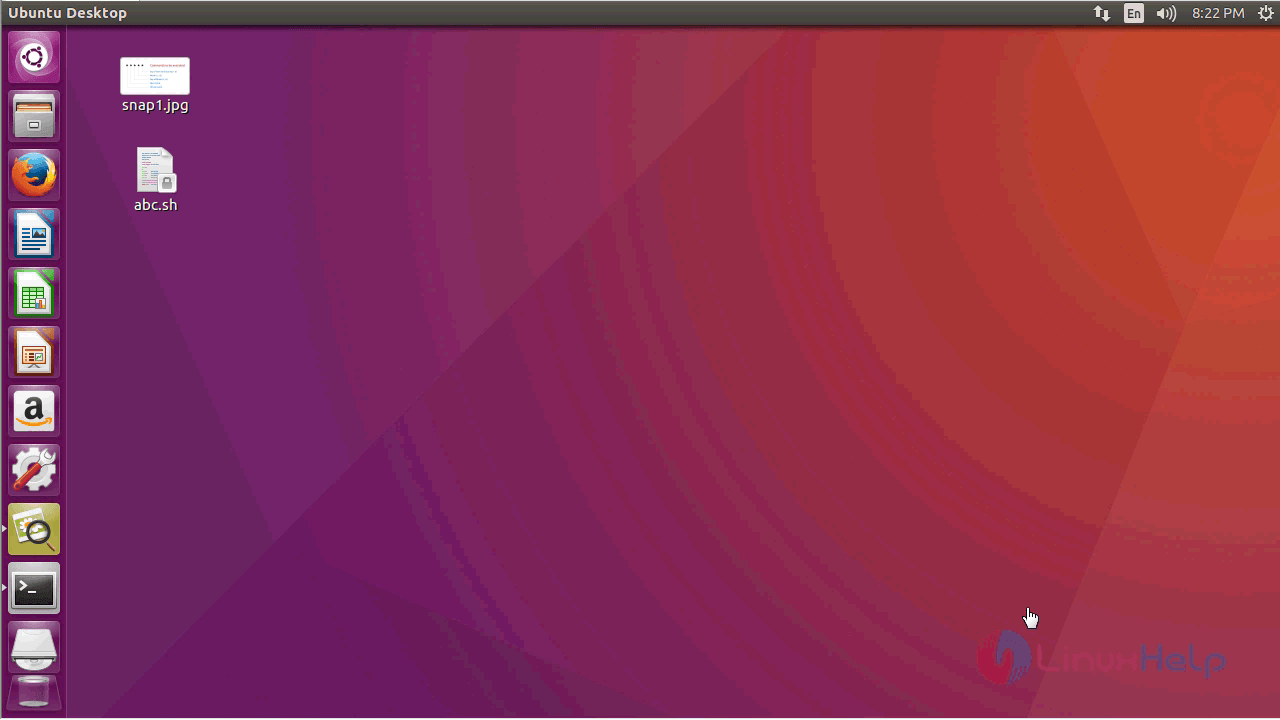
file_creation

At 8.23 a file named file.txt has been created on the Desktop as we scheduled.
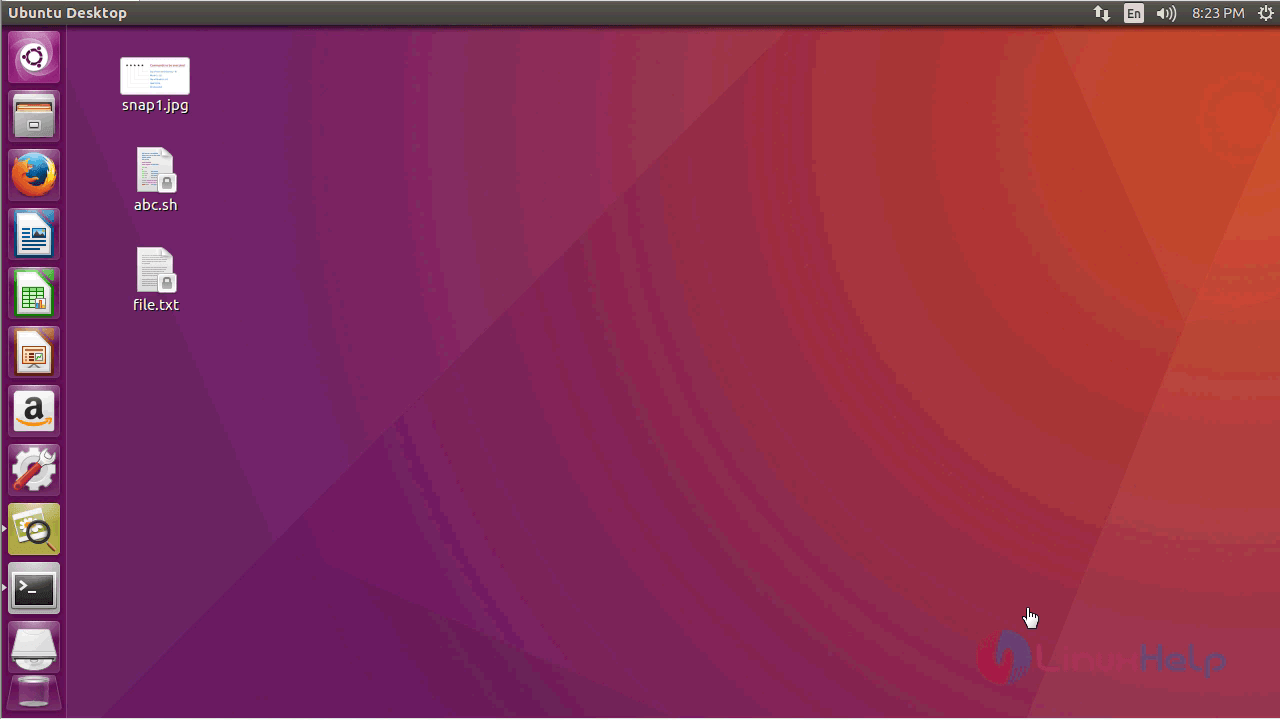
created_file
So This is How you run a script on scheduled time using crontab. with this, the method to schedule a cron job to run a script on Ubuntu 16.04 comes to an end.

Tags:
benjamin
Author: 

Comments ( 0 )

No comments available

Add a comment
{{postCtrl.cmtErrMsg}}

Frequently asked questions ( 5 )

Q

How to create schedule job in crontab?

A

For creating the schedule job using the crontab, use the following syntax for that,
"*/3 * * * * "

Q

What is the minimum execution interval for cronjobs?

A

Every cronjob can be executed up to 60 times an hour, i.e. every minute.

Q

How to run the schedule using the crontab while rebooting the system?

A

For executing the scheduled job using the crontab while rebooting the system, use the following syntax as follow,
"@reboot /root/reboot.sh"

Q

How to schedule the job using the crontab privileged under by the specific user?

A

Here I have given the example executing the scheduled job using the crontab privileged under by the specific user "*/5 * * * * su username -c /opt/file.sh"

Q

How to redirect the output of the cron job into the specified file in Linux?

A

Use the following syntax to redirect the output of the cron job into the specified file in Linux. For syntax: "*/5 * * * * su admpinster -c /opt/cron.sh > /file/path"

Back To Top!
Rank
User
Points

Top Contributers

userNamenaveelansari
135850

Top Contributers

userNameayanbhatti
92510

Top Contributers

userNamehamzaahmed
32150

Top Contributers

1
userNamelinuxhelp
31040

Top Contributers

userNamemuhammadali
24500
Can you help Owen ?
How to add SSH key to my Gitlab account

I need to add the SSH key in my gitlab account. How to do so ????

Networking
  • Routing
  • trunk
  • Netmask
  • Packet Capture
  • domain
  • HTTP Proxy
Server Setup
  • NFS
  • KVM
  • Memory
  • Sendmail
  • WebDAV
  • LXC
Shell Commands
  • Cloud commander
  • Command line archive tools
  • last command
  • Shell
  • terminal
  • Throttle
Desktop Application
  • Linux app
  • Pithos
  • Retrospect
  • Scribe
  • TortoiseHg
  • 4Images
Monitoring Tool
  • Monit
  • Apache Server Monitoring
  • EtherApe 
  • Arpwatch Tool
  • Auditd
  • Barman
Web Application
  • Nutch
  • Amazon VPC
  • FarmWarDeployer
  • Rukovoditel
  • Mirror site
  • Chef
Contact Us | Terms of Use| Privacy Policy| Disclaimer
© 2025 LinuxHelp.com All rights reserved. Linux™ is the registered trademark of Linus Torvalds. This site is not affiliated with linus torvalds in any way.