Self-Heal and Re-Balance Operations in Gluster File System
Steps to Perform Self-Heal and Re-Balance Operations in Gluster File System
Gluster File System has a self-heal daemon, which is an inbuilt feature to take care of some failure situations. Performance of Self-Heal and Re-Balance Operations in Gluster File System is explained in this article.
To Performing Self-heal in Gluster File System
First issue the following command to create a replicated volume.
[root@server ~]# gluster volume create volume1 replica 2 192.168.5.189:/home/dir1 192.168.5.189:/home/dir2 force
Volume create: volume1: success: please start the volume to access data
Next start the volume1.
[root@server ~]# gluster volume start volume1
Volume start: volume1: success
Then mount the created volume1 in " server2" .
[root@server2 ~]# mount -t glusterfs 192.168.5.189:/volume1 /mnt/
From the mount point, create file using the following command.
[root@server2 ~]# cd /mnt
[root@server2 mnt]# ls
[root@server2 mnt]# touch file1
[root@server2 mnt]# ls
file1
Now check the two replica bricks in “ server” .
[root@server ~]# ls /home/dir1
file1
[root@server ~]# ls /home/dir2
file1
Verify the status of the volume1
[root@server ~]# gluster volume status volume1
Status of volume: volume1
Gluster process TCP Port RDMA Port Online Pid
---------------------------------------------------------------------------------------------------------------------
Brick 192.168.5.189:/home/dir1 49154 0 Y 33218
Brick 192.168.5.189:/home/dir2 49153 0 Y 33239
NFS Server on localhost 2049 0 Y 33263
Self-heal Daemon on localhost N/A N/A Y 33270
NFS Server on 192.168.5.190 2049 0 Y 32690
Self-heal Daemon on 192.168.5.190 N/A N/A Y 32705
Check self-heal daemon on the server.
By killing the corresponding gluster daemon, send one of the bricks to offline with the help of the PID.
[root@server~]# kill 33239
[root@server~]# gluster volume status volume1
Status of volume: volume1
Gluster process TCP Port RDMA Port Online Pid
---------------------------------------------------------------------------------------------------------------------
Brick 192.168.5.189:/home/dir1 49154 0 Y 33218
Brick 192.168.5.189:/home/dir2 N/A N/A N N/A
NFS Server on localhost 2049 0 Y 33263
Self-heal Daemon on localhost N/A N/A Y 33270
NFS Server on 192.168.5.190 2049 0 Y 32690
Self-heal Daemon on 192.168.5.190 N/A N/A Y 32705
At this point, the second brick will be in offline mode.
Check the brick contents, before deleting the ' file1' from the mount point.
[root@server2 ~]# cd mnt/
[root@server2 mnt]# ls
file1
[root@server2 mnt]# rm &ndash rf file1
[root@server2 mnt]# ls
After the above process, file1 is still appeared in the second brick.
Here, we need to bring back the brick online.
[root@server ~]# gluster volume start volume1 force
Volume start: volume1: success
[root@server ~]# gluster volume status volume1 force
Status of volume: volume1
Gluster process TCP Port RDMA Port Online Pid
---------------------------------------------------------------------------------------------------------------------
Brick 192.168.5.189:/home/dir1 49154 0 Y 33218
Brick 192.168.5.189:/home/dir2 49155 0 N 33489
NFS Server on localhost 2049 0 Y 33263
Self-heal Daemon on localhost N/A N/A Y 33270
NFS Server on 192.168.5.190 2049 0 Y 32690
Self-heal Daemon on 192.168.5.190 N/A N/A Y 32705
At this point brick will be in online.
Verify the bricks content by issuing the following command.
[root@server ~]# ls /home/dir1
[root@server ~]# ls /home/dir2
By the self-heal daemon, file has been removed.
If larger files takes more time for self-heal operation, verify the heal status using the following command.
[root@server ~]# gluster volume heal volume1 info
Brick 192.168.5.189:/home/dir1
Status: connected
Number of entries: 0
Brick 192.168.5.189:/home/dir2
Status: connected
Number of entries: 0
To Perform Re-balance in Gluster File System
To achieve this process, first create a distributed volume.
[root@server ~]# gluster volume create balance 192.168.5.189:/home/dir2 force
Volume create: balance: success: please start the volume to access data
Start the volume group " balance" by using the following command.
[root@server ~]# gluster volume start balance
Volume start: balance: success
And then mount it in the “ server2” .
[root@server2 ~]# mount -t glusterfs 192.168.5.189:/balance /part
Use the below command to create files.
[root@server2 ~]# cd /part
[root@server2 part]# touch file{1..10}
[root@server2 part]# ls
file1 file10 file2 file3 file4 file5 file6 file7 file8 file9
Now move to server and check whether the created files are available in server.
[root@server ~]# ls /home/dir3
file1 file10 file2 file3 file4 file5 file6 file7 file8 file9
Now add another brick to distributed volume .
[root@server ~]# gluster volume add-brick balance 192.168.5.189:/home/dir4 force
Volume add-brick: success
Re-balance it by using the below command.
[root@server ~]# gluster volume rebalance balance start
Volume rebalance: balance: success: Rebalance on balance has been started successfully, use rebalance status command to check status of the rebalance process
Finally verify the contents using the following command.
[root@server ~]# ls /home/dir3
file1 file10 file2 file4 file5 file6 file7 file8 file9
[root@server ~]# ls /home/dir4
file10 file3 file4 file7 file9
Above process gets completed.
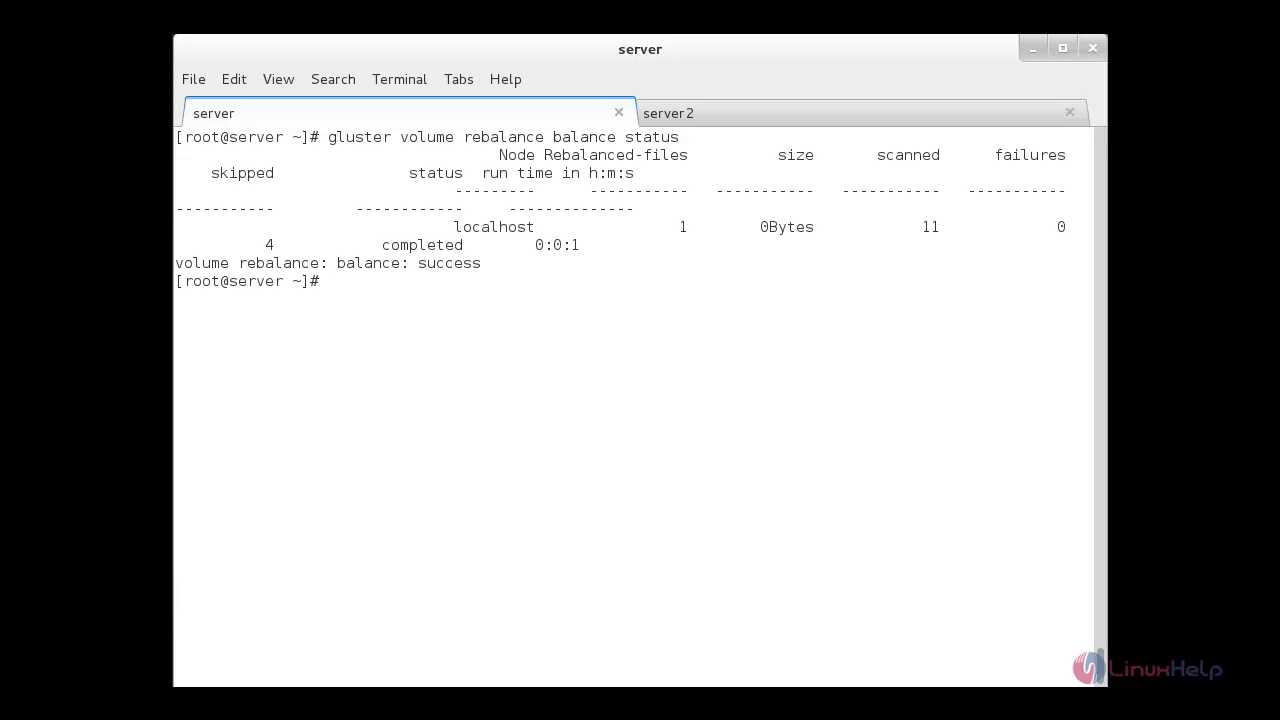
Check the re-balance status.
[root@server ~]# gluster volume rebalance balance status
Comments ( 0 )
No comments available