Server Configuration In WHM/Cpanel
How To Use Server Configuration In WHM/Cpanel
The Server Configuration section in WHM/Cpanel allows you to configure your server. The various interface in server configuration is explained in this article.
Login to WHM home page, then navigate to Server configuration.

Basic cPanel & WHM Setup
It is used for configuring basic options for cPanel and WHM. You can view the contact information, basic configuration, nameservers and so on.
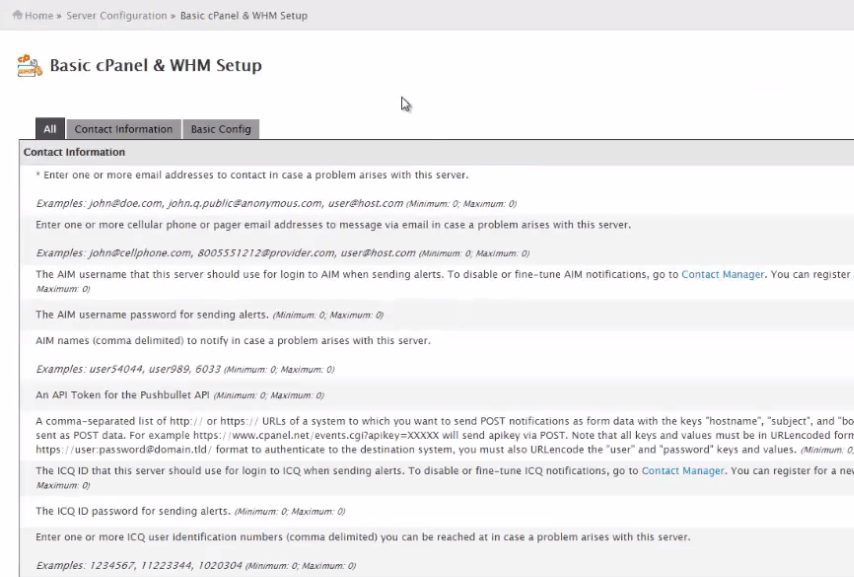
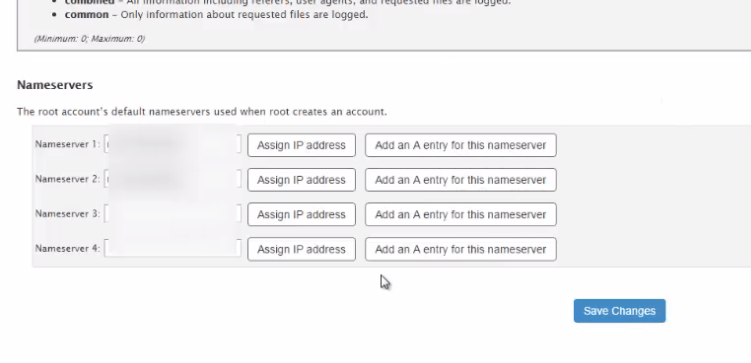
In nameservers, you can assign the IP address to the nameservers. Click save changes to apply your changes.
Change Root password
This interface is used to Change root password for the server. You can also choose Password generator to create encrypted password to enhance root password security.
 5
5
Configure cPanel Cron jobs
Cron jobs are the scheduled tasks that occurs in predefined intervals on the server. The following are the various commands used in cron jobs.
upcd- It updates cPanel & WHM. It is necessary to run this command atleast once in a day.
backup- This command takes backup of the server at certain interval. It is recommended to take backup during off-peak hours. By default it runs at 2:00 Am.
cpbackup- This command also takes backup of the server at certain interval. It is recommended to take backup during off-peak hours. By default it runs at 1:00 Am.
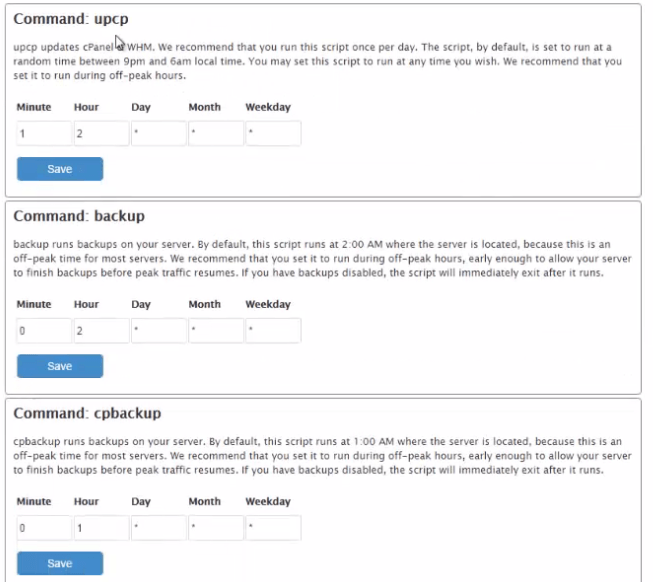
After scheduling the time for cron jobs. Click save to run the scripts automatically.
Initial Quota setup
This interface is used to scan the disk quota. Click Proceed to start scanning.


Server time
To change server timing, select the required time zone and click Change time zone. Then click ' Sync Time with Time server' to synchronize the edited time zone.

Statistic server configuration
This interface is used to check the statistics and configuration summary of a particular user. Select the user you want to view in " process statistics for user" section and click Go.

Now it displays the entire activities of the user. You can also edit the configuration setup for the user if required and click save to apply changes.

Tweek settings
This interface is used to configure settings for cPanel & WHM and the associated services.
Features of Tweek settings
Addons- Contains the list of addons used by the user in cPanel
compression- Contains the gzip compression, pigz process and kilobyte chunks per compression. The value assigned to each process should be proportional to the servers CPU processor.
Display- It contains information about themes, file usage information etc.,
Domains- It contains the various subdomains in server.
Logging- It contains log files which belongs to the dnsadmin.
Mail- Deals mainly with the mail configuration.
Notifications- Contains information about disk usage. We can configure the notification for WHM/cPanel.
PHP- It contains PHP scripts and you can mention the PHP execution time, Post size, Upload size and PHP loader. You can configure the settings and click Save to apply changes.
Redirection- We create an account in cPanel along with the SSL certificate. When an unautherised user access any account then it redirects to another account. This configuration is explained in this interface.
SQL- Deals with the complete database credentials and details.
Security- It contains the CGI security, password strength and SSL certificate.
Software- It deals with the CGI scripts, Dormant services, RPM check and RPM Digest check.
Stats program- It contains the DNS resolution, Analog stats, Awstats stats and webalizer stats.
Stats and Logs- It contains the statistics and logs. In logs files destination, authentication and permission.
status- It checks the CPU threshold status.
Development- For trouble shooting the hook issue Standardized debug mode is used. It is disabled by default.
Support- Using this interface, you can send error reports to cPanel, information about server configuration, information about server usage, or update analysis.
System- It deals with the authentication and basic config.

Update Preferences
You can specify your preferences for updating cPanel/ WHM using this interface. Here, we have chosen " automatic" to update the cPanel automatically.

Comments ( 0 )
No comments available